- Why WordPress Security Matters
- 3 Most Common WordPress Security Threats
- Choosing a Secure Hosting Provider
- Keeping WordPress Core, Themes, and Plugins Updated
- Implementing Strong Authentication Measures
- Enhancing Login Page Security
- Utilizing Security Plugins
- Regular Site Backups
- 4 Advanced WordPress Security Measures
- Monitoring and Auditing
- Conclusion: WordPress Security is an Ongoing Process
If you run a WordPress website, understanding WordPress security is essential to safeguarding your online presence. Hackers are constantly evolving their techniques to exploit weak points, and without proper protection, your site could fall victim to attacks like SQL injections, cross-site scripting, or brute force attacks.
In this guide, we’ll walk you through WordPress security best practices. From securing your login page to using advanced security plugins, you’ll learn step-by-step solutions that will help you create a robust defense for your website.
WordPress maintenance plans
WordPress Maintenance Plans ensure site security, performance, and uptime. Choose custom plans with backups, monitoring, and unlimited content edits.
Why WordPress Security Matters
Imagine waking up to find your website defaced, customer data stolen, or worse, your entire site taken offline. This isn’t just a nightmare; it’s a reality for many WordPress users who overlook security. Websites face daily threats from hackers, who exploit vulnerabilities like outdated software, weak passwords, and plugin vulnerabilities. These security risks can lead to devastating consequences, including loss of data, revenue, and customer trust.
To put it into perspective, over 70% of WordPress websites are vulnerable to attacks due to poor security measures. But don’t panic—there’s plenty you can do to secure your website.
3 Most Common WordPress Security Threats

The first step to securing your WordPress site is knowing the kinds of WordPress security risks that you’re up against. While WordPress itself is a secure platform, the sheer number of plugins, themes, and third-party integrations can expose your site to vulnerabilities.
Three of the most common threats are brute force attacks, SQL injections, and cross-site scripting (XSS). Each targets a different weakness in your site’s infrastructure, and understanding how they work is key to preventing them.
1. Brute Force Attacks
A brute force attack is the simplest but also one of the most persistent forms of attack. Hackers use automated scripts to repeatedly try to guess your login credentials.
Solution: To prevent this, limit the number of login attempts by installing the Limit Login Attempts Reloaded plugin.
2. SQL Injections
An SQL injection occurs when hackers exploit vulnerable forms or input fields to insert malicious SQL queries into your database. This can lead to stolen data, deleted content, or even full control over your site.
Solution: Prevent SQL injections by using prepared statements in your custom SQL queries:
Code:
php
global $wpdb; $wpdb->query( $wpdb->prepare( "INSERT INTO table_name (column1, column2) VALUES (%s, %d)", $value1, $value2 ));
By sanitizing inputs, you eliminate the risk of malicious code being executed in your database.
3. Cross-Site Scripting (XSS)
In cross-site scripting (XSS) attacks, hackers inject malicious scripts into your website’s forms or comment sections, which can then steal user data or perform other malicious actions.
Solution: Use WordPress’s built-in sanitization functions like wp_kses() to filter out unwanted HTML or JavaScript:
Code:
php
echo wp_kses( $_POST['user_input'], array() );
By properly sanitizing user input, you protect your site from XSS vulnerabilities.
Now that we’ve identified the threats, the first step in defending against them is ensuring your site is built on a strong foundation, starting with your hosting provider.
Choosing a Secure Hosting Provider
Your hosting provider plays a critical role in WordPress security. Think of it as your site’s first line of defense. Without the proper security features from your host, even the top WordPress security plugins won’t be able to fully protect you from attacks.
When selecting a WordPress hosting provider, look for hosts that offer:
- DDoS protection
- Daily malware scans
- Automatic backups
- Firewall protection
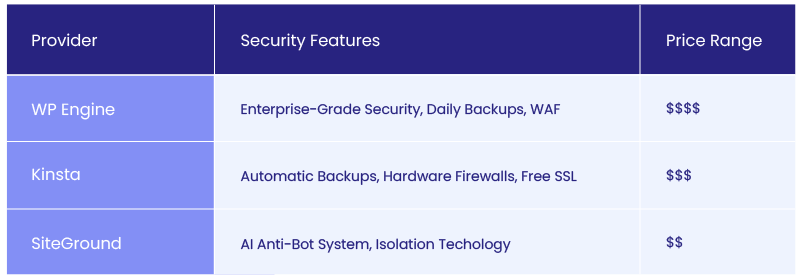
Providers like WP Engine, Kinsta, and SiteGround are well-known for their WordPress hosting security features. They offer robust security, and their managed services take care of updates and monitoring so you don’t have to worry about server-level vulnerabilities.
Here is a quick look at how these providers compare with each other:
Keeping WordPress Core, Themes, and Plugins Updated
The next layer of ensuring WordPress security is keeping everything updated. Updating your WordPress core, themes, and plugins should be a top priority in your WordPress security checklist. Each new update patches vulnerabilities found in previous versions, so ignoring updates leaves your site exposed.
Step-by-Step Guide to Enabling Auto-Updates
1. Core Updates: Ensure that WordPress core updates automatically by adding this to your wp-config.php file:
Code:
php
define('WP_AUTO_UPDATE_CORE', true);
2. Plugins and Themes: Starting with WordPress 5.5, you can enable auto-updates directly from the dashboard. Go to:
- Plugins > Installed Plugins, and toggle Enable Auto-updates for each plugin.
- Appearance > Themes, click on a theme and enable Auto-updates.
3. Managing Multiple Websites: Use tools like ManageWP or InfiniteWP to automate updates across websites if you manage several WordPress installations.
Recommendation:
Download our free white paper on how to set up ManageWP.
Implementing Strong Authentication Measures

Updates alone aren’t enough if your authentication methods are weak. Let’s now move to the next item in our WordPress security checklist and discuss how to strengthen your login system for enhanced safety.
Your WordPress admin panel is a common target for attackers, especially in brute force attacks. Weak passwords, shared credentials, and a lack of multi-factor authentication make your site an easy target.
Two-Factor Authentication (2FA)
One of the common WordPress security best practices is to implement two-factor authentication (2FA). With 2FA, even if hackers steal your password, they won’t be able to log in without the second factor of authentication (usually a one-time code sent to your phone).
How to Set Up 2FA:
- Install the Google Authenticator plugin.
- Go to the plugin and set up 2FA for your account.
- Follow the on-screen instructions to scan the QR code with the Google Authenticator app and enable 2FA for all admin users.
Password Policies
Force all users to use strong, unique passwords by enforcing it via custom code in your functions.php file:
Code:
php
function enforce_strong_passwords() { return 12; // Minimum password length } add_filter('minimum_password_strength', 'enforce_strong_passwords');
By locking down your login process, you’ve significantly reduced the risk of unauthorized access. But don’t stop there—let’s take it a step further by securing your login page itself.
Enhancing Login Page Security

The WordPress login page is one of the most frequently attacked areas of your site. Automated bots target the default URLs /wp-admin and /wp-login.php, attempting brute force attacks or credential stuffing to gain access.
Custom Login URL
Changing the default login URL to something unique is an effective way to stop bots from targeting your login page. Use the WPS Hide Login plugin to change your login URL to something harder to guess (e.g., /mycustomlogin instead of /wp-login.php).
Limit Login Attempts
As we have already discussed, limiting failed login attempts can stop brute force attacks in their tracks. Install the above-suggested Limit Login Attempts Reloaded plugin, configure it to block IPs after a set number of failed attempts, and prevent hackers from trying unlimited guesses.
With these changes, your login page becomes a much harder target. Now that your login area is secure, let’s fortify your site with powerful WordPress security plugins.
Utilizing Security Plugins

Insert image Best WordPress security plugins
Even with all the manual WordPress security best practices you’ve implemented so far, it’s essential to have security plugins actively monitoring your site for threats. These plugins provide firewalls, malware scanning, and real-time monitoring to protect against attacks.
3 Recommended WordPress Security Plugins:
- Wordfence: A comprehensive security plugin that includes a firewall, malware scanner, and 2FA.
- Sucuri: Provides malware scanning, firewall protection, and DDoS mitigation.
- Solid Security: Offers features like brute force protection, 2FA, and security logging.
After setting up a WordPress security plugin, you’ll have an additional layer of real-time protection. But while security plugins can prevent attacks, they can’t always stop data loss. This is where regular backups come in.
Recommendation:
Interested in learning what other security tools you can use? Check out our handpicked list of the best WordPress security plugins to better secure your website.
Regular Site Backups

No matter how strong your security measures are, you should always be prepared for the worst-case scenario. Regular backups ensure that if your site is hacked or compromised, you can quickly restore it to a working state without losing data.
How to Set Up Backups:
- Install the UpdraftPlus plugin.
- Go to Settings > UpdraftPlus Backups and configure backup frequency (daily or weekly depending on site activity).
- Choose a remote storage option like Google Drive or Amazon S3 to store backups off-site.
Our recommendation would be to schedule backups before every major update and set automatic backups to ensure you always have the latest version of your site saved.
WordPress backup
Never worry about losing data on your clients’ sites. Our maintenance plans include daily WordPress backups.
4 Advanced WordPress Security Measures

You’ve already fortified your WordPress site with fundamental security techniques, but advanced security measures will add a crucial extra layer of defense. These techniques are often overlooked, yet they can significantly reduce your site’s vulnerability by addressing deeper security flaws that attackers commonly exploit.
Think of these WordPress security measures as the final lock on your fortified vault, ensuring that even if someone gains a foothold, they’re met with substantial resistance.
1. Disable File Editing
One of the most critical steps in WordPress hardening is disabling file editing from the WordPress dashboard. By default, administrators can edit theme and plugin files directly through the dashboard, but this also means that if an attacker gains access to your admin area, they can easily inject malicious code into your site’s core files.
Why it’s essential: If a hacker manages to access your site’s backend, the ability to edit core files is a golden ticket for injecting malware or backdoors. Disabling this option reduces the chance of your site being manipulated from within.
How to disable file editing: To block this vulnerability, add the following line to your wp-config.php file:
Code:
php
define('DISALLOW_FILE_EDIT', true);
This will prevent any file edits from being made through the WordPress dashboard, forcing all code-level changes to happen via FTP or other secured channels. By removing this risky capability, you make it much harder for hackers to deface or take over your site—even if they gain admin access.
2. Change the Default Database Prefix
WordPress assigns the prefix wp_ to its database tables by default. While this makes setup easier, it also makes your database an easy target for SQL injection attacks. Hackers know this default prefix and use it to craft targeted attacks that attempt to manipulate your database tables.
Why it’s crucial: By changing the default database prefix, you obscure your database structure from automated attacks that assume the default wp_ prefix, reducing the chance of a successful SQL injection.
How to change the database prefix:
1. Backup your database: Before making changes, it’s critical to back up your entire database in case anything goes wrong.
2. Edit the wp-config.php file: Open your wp-config.php file and find the following line:
Code:
php
$table_prefix = 'wp_';
Change it to something unique, like:
Code:
php
$table_prefix = 'wpsecure_';
3. Rename existing database tables: Use a plugin like WP-DBManager or run SQL queries to rename all database tables to reflect the new prefix. For example:
Code:
sql
RENAME table `wp_posts` TO `wpsecure_posts`;
4. Update references: Ensure that all references to the old table prefix in your database (such as in plugin configurations) are updated to the new prefix.
This change creates an additional barrier for attackers trying to perform SQL injection attacks since they now have to guess your new table prefix, which makes automated attacks much less effective.
3. Protect the wp-config.php File
Your wp-config.php file is the heart of your WordPress installation—it contains your database credentials, secret keys, and other critical configuration details. Securing this file is essential to protecting the backbone of your site.
How to secure it: One simple yet effective measure is to move the wp-config.php file one directory above your WordPress root directory. WordPress will still find and use this file, but moving it makes it inaccessible from the web, adding a hidden layer of protection.
Additionally, you can deny direct access to the wp-config.php file by adding the following lines to your .htaccess file:
Code:
apache
<files wp-config.php>
     order allow,deny
     deny from all
</files>
This directive ensures that even if hackers try to access your wp-config.php file, they will be blocked, keeping your sensitive information safe.
4. Implement Security Headers
Security headers help protect your site from a range of attacks, including cross-site scripting (XSS), clickjacking, and other common exploits. These headers instruct the browser how to handle your site’s content, adding an additional layer of protection.
How to set up security headers: You can implement security headers by adding the following lines to your .htaccess file:
Code:
apache
# Prevent Clickjacking
Header always append X-Frame-Options SAMEORIGIN
# Protect against XSS
Header set X-XSS-Protection "1; mode=block"
# Block MIME-type sniffing
Header set X-Content-Type-Options nosniff
These headers add a protective layer that helps prevent attackers from exploiting various client-side vulnerabilities, further strengthening your WordPress security.
Monitoring and Auditing

After implementing WordPress security best practices, continuous monitoring and auditing are essential to catch any suspicious activity before it turns into a full-blown breach. Regularly scan your site for vulnerabilities and monitor user behavior.
Tools for Website Monitoring:
- WP Security Audit Log: Tracks user activity and logs changes in real-time.
- Jetpack Security: Provides activity logging, malware scanning, and brute force protection.
By setting up real-time monitoring, you’ll have immediate alerts for suspicious activity, helping you react quickly to potential threats.
Recommendation:
Go through our website maintenance checklist and keep your sites fresh.
Conclusion: WordPress Security is an Ongoing Process
You’ve now implemented a multi-layered WordPress security checklist for your site—from understanding common threats like SQL injections, cross-site scripting (XSS), and brute force attacks, to using advanced security measures such as changing the database prefix, disabling file editing, and setting up security plugins. However, WordPress security is not a one-time task—it’s an ongoing process. Consistent monitoring, regular updates, and proactive security management are key to keeping your site safe against evolving threats.
At White Label Agency, we understand the importance of keeping WordPress sites secure and fully optimized. Our WordPress maintenance services are designed specifically for digital agencies that need to ensure their clients’ websites remain protected and up to date. With features like daily security scans, 24/7 uptime monitoring, and automatic backups, we handle essential security tasks. Contact our sales team to learn more about our offerings.