A slow WordPress site is frustrating—not just for visitors but also for site owners. Whether you’re running an online store, a blog, or a business website, speed is crucial for user experience, search engine rankings, and conversions.
If you’ve ever asked yourself, “Why is my WordPress site so slow?”, you’re not alone. Many website owners struggle with sluggish load times, but the good news is that it’s fixable. In this guide, we’ll walk you through the reasons why your WordPress site is slow and, more importantly, how to fix it.
Diagnosing Performance Issues

Before you start tweaking settings or installing optimization plugins, it’s essential to diagnose the root cause of your slow WordPress site. Think of it like fixing a car—you wouldn’t replace the engine before checking if it’s just a flat tire.
When users ask, “Why is my WordPress site so slow?” the answer often lies in the diagnostic data. Running proper tests can reveal exactly what’s causing your WordPress site slow performance.
Measuring Site Speed
The first step is to check how slow your WordPress site actually is. While a website may feel sluggish to you, real performance issues should be backed by data. Here are some free tools to test site speed:
- Google PageSpeed Insights – Analyzes your site’s speed and provides suggestions for improvement.
- GTmetrix – Offers in-depth reports on page load times, performance scores, and bottlenecks.
- Pingdom Tools – Simulates page speed from different global locations to test load times for international users.
Key Metrics to Watch
When analyzing speed test results, pay attention to:
- Load Time – The time it takes for a page to fully load. Ideally, this should be under 3 seconds.
- Time to First Byte (TTFB) – The time it takes for the server to respond. A high TTFB usually signals hosting issues.
- Largest Contentful Paint (LCP) – Measures how long it takes for the most significant content (like an image or heading) to load.
Example
Imagine you walk into a restaurant, and it takes 5 minutes just to get a menu. That’s like having a slow TTFB—it makes visitors impatient before they even see your site’s content.
Identifying the Culprits
Once you’ve gathered speed test data, it’s time to pinpoint what’s slowing down your site. Many factors can contribute to a WordPress site slow loading times, each requiring different optimization approaches.
Use Diagnostic Plugins
- Query Monitor – Helps track slow database queries and inefficient code.
- Debug Bar – Provides insight into memory usage and server performance.
Analyze Server Logs
- If your hosting provider offers access to server logs, check for bottlenecks, slow queries, or resource-heavy scripts.
By diagnosing performance issues before making changes, you avoid unnecessary optimizations that don’t actually address the problem.
WordPress maintenance plans
WordPress Maintenance Plans ensure site security, performance, and uptime. Choose custom plans with backups, monitoring, and unlimited content edits.
5 Common Causes of a Slow WordPress Site

Now that you’ve run your performance tests, let’s look at the most common reasons behind the issues that often make many users wonder “Why is WordPress so slow?!”.
1. Hosting and Server Environment
One of the biggest reasons why a WordPress site is slow is poor hosting. If your site is hosted on an overcrowded or underpowered server, even the best optimizations won’t help.
How Hosting Affects Speed
- Shared Hosting – Cheapest but often slow because resources are shared with many other websites.
- VPS (Virtual Private Server) – Faster than shared hosting, with dedicated resources for your site.
- Dedicated Hosting – Most expensive but provides maximum control and speed.
- Managed WordPress Hosting – Optimized specifically for WordPress, often with built-in caching and security enhancements.
Solution
If your TTFB is high, consider upgrading to VPS or managed WordPress hosting. If you decide on managed hosting, feel free to check out our list of the best WordPress hosting providers for this year.
2. Themes and Plugins
Not all themes and plugins are created equal. A bloated theme or too many unnecessary plugins can cripple performance.
How Themes Affect Site Speed
Some themes come with heavy animations, unnecessary scripts, and excessive features that slow down your WordPress site.
Solution
Choose lightweight themes like Astra or Neve instead of feature-heavy ones. This can significantly reduce WordPress site slow loading issues.
How Plugins Impact Website Performance
- Some plugins run background processes that consume server resources.
- Too many plugins increase database queries and HTTP requests.
- Poorly coded plugins may conflict with each other, causing lag.
Solution
Use only essential plugins and replace inefficient ones with lighter alternatives (e.g., switch from a bulky slider plugin to a CSS-based solution).
3. Image and Media Optimization
Large, uncompressed images are one of the biggest culprits behind a WordPress site slow performance. If your website loads high-resolution images without optimization, it will significantly slow down page speed.
Common Issues
- Uploading huge images when smaller sizes will do.
- Using the wrong format (JPEG is better for photos, PNG for transparency, and WebP for modern browsers).
- No lazy loading, meaning all images load at once, even those not in view.
When users ask why is WordPress so slow, unoptimized media is frequently the answer. Implementing proper image optimization can dramatically improve load times.
4. Caching and Content Delivery Networks (CDNs)
If your WordPress site loads slowly for visitors in different countries, a CDN can dramatically improve performance.
Why Caching & CDNs Matter
- Browser caching stores static files, reducing load time for repeat visitors.
- Server-side caching speeds up page generation by storing a preloaded version of your site.
- CDNs (like Cloudflare or StackPath) serve content from the nearest data center, reducing global load times.
5. Database Optimization
A bloated database filled with unnecessary data can slow down WordPress performance.
Solution
- Delete old post revisions and transients using plugins.
- Regularly clean up spam comments and unused data.
Best Practices for WordPress Speed Optimization

Now that we’ve diagnosed performance issues and identified common causes of why your WordPress site is slow, it’s time to focus on proven strategies to speed it up.
The following best practices will help eliminate unnecessary delays, improve server response times, and create a faster, smoother experience for visitors.
1. Regular Maintenance and Updates
Just like a car needs regular servicing, your WordPress site requires routine maintenance to keep it running efficiently. Ignoring updates, accumulating outdated files, and failing to optimize your database can gradually slow down your site. Regular maintenance is key to preventing WordPress site slow performance over time.
Keep WordPress, Themes, and Plugins Updated
WordPress core, themes, and plugins receive frequent performance updates to improve speed, security, and functionality. Running outdated versions can introduce compatibility issues and slow down your site.
Here is what you can do:
- Regularly update WordPress core, themes, and plugins.
- Remove unused plugins and themes to reduce database bloat.
- Test updates in a staging environment before applying them to a live site.
Example
Imagine using an old smartphone with outdated apps—it becomes sluggish over time. The same happens with WordPress if you don’t keep everything up to date.
Perform Routine Performance Audits
Many site owners optimize once and forget about it. But performance bottlenecks can return over time due to content growth, new plugins, or traffic increases.
We recommend you to:
- Use Google PageSpeed Insights regularly.
- Check for large files, slow-loading scripts, and unnecessary database entries.
- Schedule a monthly WordPress health check.
2. Optimizing Your Hosting Environment
Your hosting environment plays a critical role in website speed. If your WordPress site is slow despite optimizations, poor hosting might be the culprit.
Choose the Right Hosting Plan
As discussed earlier, shared hosting is the cheapest but often the slowest. If your site has outgrown its hosting plan, it’s time to upgrade.
Below is a straightforward guide on what you can do depending on your website size:
- For small sites: Consider managed WordPress hosting like Kinsta, WP Engine, or SiteGround.
- For growing sites: Upgrade to a VPS or cloud-based hosting (e.g., DigitalOcean, Cloudways).
- For high-traffic sites: Use dedicated hosting for maximum speed and control.
Example
Think of shared hosting as public transportation—cheap but slow. VPS hosting is like owning a car, while dedicated hosting is a sports car built for performance.
Enable Server-Level Caching
Good hosting providers offer built-in caching to reduce load times. If you’re not using it, you’re missing out on a major performance boost.
We recommend:
- Enabling server-side caching (most managed hosts provide this automatically).
- Using OPcache or Redis for object caching, which stores frequently requested database queries.
- Upgrading to PHP 8.0+ for faster execution times.
3. Implementing Optimization Plugins and Tools
WordPress offers powerful plugins to optimize your site without manual coding. The right combination of tools can dramatically improve page load times.
Use a Caching Plugin
Caching creates a static version of your pages, allowing them to load much faster instead of dynamically pulling data from the database each time.
The best caching plugins include:
- WP Rocket (Premium) – Easiest to use, with advanced features like lazy loading and database cleanup.
- W3 Total Cache (Free) – Great for advanced users who want granular control.
- LiteSpeed Cache (Free) – Best if your host supports LiteSpeed servers.
Example
Imagine your WordPress site is a restaurant. Without caching, every time a customer orders food, the chef starts from scratch. With caching, pre-made meals are ready instantly.
Minify and Combine CSS/JS Files
Unoptimized code can slow down your WordPress site by increasing HTTP requests. Minification removes unnecessary spaces and characters from code, making it smaller and faster to load.
Some of the popular optimization plugins are:
- Autoptimize – Minifies and combines CSS/JS files automatically.
- Asset CleanUp – Lets you disable unused scripts on specific pages.
Optimize Fonts and Icons
Fonts and icon libraries (like FontAwesome) often load multiple unnecessary files, slowing down your site.
We recommend that you:
- Use system fonts instead of web fonts for faster loading.
- Limit external fonts to one or two font families.
- Host fonts locally instead of pulling them from Google Fonts.
4. Frontend and Mobile Optimization
With over 60% of web traffic coming from mobile devices, your WordPress site must be mobile-friendly to remain competitive.
Ensure Mobile Optimization
A slow mobile site frustrates visitors and harms your Google rankings.
Here is how you can prepare your website for mobile use:
- Use a responsive theme optimized for mobile.
- Enable lazy loading so images load only when needed.
- Reduce excessive pop-ups and unnecessary animations.
Enable Accelerated Mobile Pages (AMP)
AMP strips down unnecessary elements, creating a faster-loading version of your pages for mobile users.
We recommend that you:
- Install the AMP plugin for WordPress.
- Test AMP versions using Google’s AMP testing tool.
Reduce HTTP Requests
Every image, script, and stylesheet on your site requires an HTTP request to load. The more requests, the slower the page speed.
To reduce the request, you can:
- Use a CDN to serve static assets faster.
- Remove unnecessary widgets and external tracking scripts.
3 Advanced Techniques for Enhanced Performance

If you’ve followed the best practices outlined earlier, your WordPress site should already be significantly faster. However, for those who want to push performance even further, advanced techniques can help fine-tune every aspect of your site’s speed.
This chapter will explore server-level optimizations, modern web technologies, and custom development strategies to maximize performance.
1. Advanced Caching Strategies
Caching is one of the most effective ways to speed up a WordPress site, but basic page caching alone isn’t always enough. Implementing object caching and database caching can further reduce load times.
Object Caching: Reducing Database Queries
Object caching stores frequently accessed database queries, reducing the need to repeatedly request the same data. This is particularly useful for sites with dynamic content, such as eCommerce stores or membership sites.
Here is how to enable object caching:
- Redis – A powerful in-memory data store that speeds up database-driven sites.
- Memcached – Similar to Redis, offering efficient object caching for high-traffic sites.
Most managed WordPress hosting providers include Redis or Memcached as an option. If your hosting supports it, enabling object caching can significantly improve backend response times.
Database Caching: Optimizing SQL Queries
Database queries can slow down a WordPress site, especially when handling large amounts of content, user comments, or product listings.
Below are the 3 ways to improve database caching:
- Use WP-Optimize or WP Rocket to schedule automatic database cleanups.
- Optimize MySQL settings to reduce query load.
- If running WooCommerce or a large content-heavy site, consider a dedicated database server to offload queries.
2. Leveraging Modern Web Technologies
New web technologies can drastically improve page speed by reducing latency and improving resource delivery.
HTTP/2 and HTTP/3
HTTP/2 and HTTP/3 allow multiple assets (CSS, JavaScript, images) to load simultaneously over a single connection, making sites load faster compared to the older HTTP/1.1 protocol.
How to enable HTTP/2 or HTTP/3:
- Most modern hosting providers support HTTP/2 or HTTP/3 by default.
- If your host doesn’t, consider using Cloudflare, which enables HTTP/3 support automatically.
Enable Gzip or Brotli Compression
Compression reduces the size of files transferred between the server and the browser.
How to enable compression:
- If using Apache, add the following to your .htaccess file to enable Gzip:
bash
<IfModule mod_deflate.c>
AddOutputFilterByType DEFLATE text/html text/css text/javascript application/javascript
</IfModule>
- For Nginx servers, enable Brotli compression with:
bash
brotli on;
brotli_types text/html text/css application/javascript;
Most caching plugins like WP Rocket also allow enabling Gzip or Brotli compression without manual configuration.
Use Latest PHP Version
Running an outdated PHP version can slow down site performance. Each new version of PHP brings faster execution times and better security.
Here is how to upgrade PHP:
- Check your current PHP version in WordPress under Tools > Site Health.
- Log into your hosting control panel and upgrade to PHP 8.0 or higher.
If your theme or plugins don’t support the latest PHP version, it may be time to replace them with better-optimized alternatives.
Minimize Render-Blocking Resources
Render-blocking resources, such as CSS and JavaScript files that prevent a page from loading quickly, should be minimized. This directly addresses why WordPress site slow initial loading occurs.
How to fix render-blocking issues:
- Use Autoptimize to defer JavaScript execution.
- Load non-essential JavaScript asynchronously with the async or defer attributes.
- Move critical CSS inline and load the rest asynchronously.
Reducing render-blocking resources ensures that users see content faster rather than waiting for scripts to fully load.
3. Custom Code and Development Solutions
For those comfortable with custom development, optimizing WordPress at the theme and plugin level can provide additional speed improvements.
Use a Custom-Built Theme Instead of Pre-Made Ones
Many pre-built WordPress themes are bloated with unnecessary scripts, animations, and page builders. A lightweight custom-built theme ensures only the necessary code runs, reducing load time.
Key advantages of custom themes:
- Eliminates excessive CSS and JavaScript.
- Uses only essential WordPress hooks and queries.
- Provides greater control over performance.
If hiring a developer isn’t an option, use lightweight frameworks like GeneratePress or Kadence.
Remove Unused WordPress Features
By default, WordPress includes features that many sites don’t need, such as:
- Emojis
- Embeds
- XML-RPC (used for remote publishing)
How to disable unnecessary features:
Add the following code to your functions.php file:
bash
remove_action( 'wp_head', 'print_emoji_detection_script', 7 );
remove_action( 'wp_print_styles', 'print_emoji_styles' );
add_filter( 'emoji_svg_url', '__return_false' );
For those preferring a plugin-based approach, Disable Emojis and Disable Embeds can handle these optimizations.
Real-World Success Stories
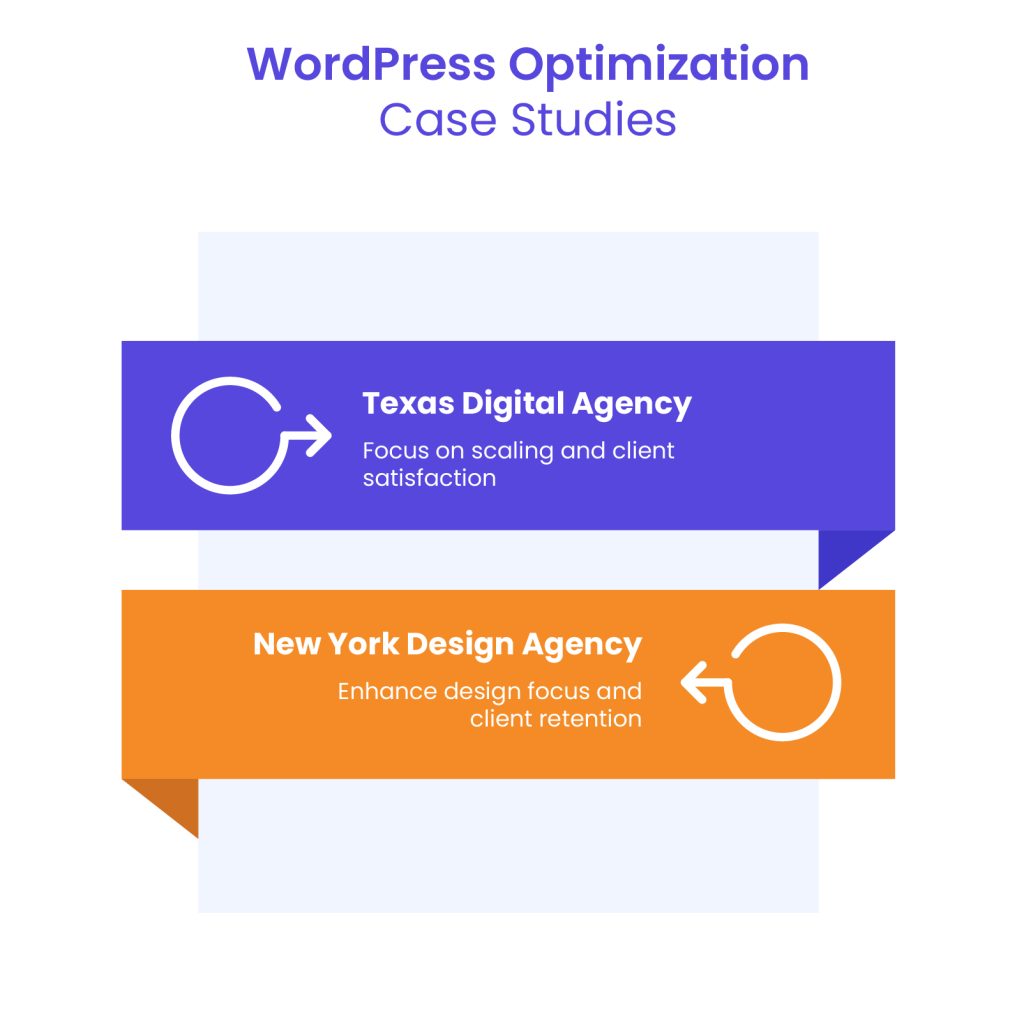
Due to client confidentiality agreements, we cannot disclose specific names. However, we can share detailed insights into how our WordPress maintenance services have helped digital agencies enhance website performance, reliability, and client satisfaction.
Here are two real-world cases of agencies that partnered with us to outsource WordPress maintenance and saw significant improvements in site speed, security, and operational efficiency.
Case Study #1: A Growing Digital Agency in Texas Scales Without IT Bottlenecks
A mid-sized digital marketing agency based in Austin, Texas, specializing in eCommerce and local business websites, was struggling with managing multiple WordPress sites for their clients.
With a portfolio of over 50 client websites, their in-house team was spending too much time on website maintenance, handling issues like:
- Frequent plugin conflicts leading to broken layouts.
- Slow website performance, causing poor user experience.
- Security vulnerabilities that put client data at risk.
The agency was constantly asking, “Why is WordPress so slow for our client sites?” despite using premium themes and hosting.
As a result, their development team was overwhelmed, and the agency was struggling to scale because routine maintenance took up valuable time that could have been spent on client projects.
How WLA Helped
The agency decided to outsource WordPress maintenance to our team, allowing them to focus on new client projects instead of troubleshooting website issues.
Our maintenance plan included:
- Regular plugin and theme updates to prevent compatibility issues.
- Proactive security monitoring to detect and patch vulnerabilities before they became a problem.
- Performance optimization, including database cleanup, image compression, and caching enhancements.
Results After 6 Months
- 40% reduction in site downtime, leading to improved client satisfaction.
- Average website load time improved from 4.8 seconds to 2.1 seconds, boosting SEO rankings.
- Freeing up 30% of internal developer hours, allowing the agency to take on 5 new high-value clients.
- Eliminated emergency fixes, as websites were proactively maintained.
The agency’s CEO noted that outsourcing WordPress maintenance was one of their best operational decisions, as it allowed them to deliver better service to clients without the stress of constant site troubleshooting. Their clients no longer asked “why is my WordPress site so slow?” after our optimizations.
Website Uptime Monitoring
Offer an enhanced visitor experience to your clients. Our maintenance plans include website uptime monitoring and automatic intervention in case of issues.
Case Study #2: A Design Agency in New York Eliminates Performance Issues Across 75+ Client Websites
A boutique web design and branding agency in New York City was known for creating visually stunning websites. Their expertise was in UX/UI design, branding, and front-end aesthetics—but they lacked the backend WordPress expertise needed to keep sites optimized and running smoothly.
Common challenges they faced included:
- Slow-loading websites due to heavy design elements, unoptimized images, and bloated code.
- Frequent client complaints about security vulnerabilities and outdated plugins.
- No structured maintenance process, leading to inconsistent performance across their 75+ client websites.
Although they had a small in-house development team, the constant maintenance work distracted them from focusing on creative projects, which was their core strength.
How WLA Helped
We provided a customized WordPress monthly maintenance plan tailored to their design-heavy client websites, ensuring that performance wasn’t sacrificed for aesthetics. The results after 9 months include:
- Client-reported speed improvements of 50-70%, leading to fewer complaints and increased customer satisfaction.
- Cut emergency site fixes by 90%, allowing the agency’s design team to focus purely on creative work.
- Stronger client retention, as businesses saw measurable improvements in their WordPress site performance.
By outsourcing WordPress maintenance, the agency was able to elevate their service quality while allowing their in-house team to focus on what they do best—designing beautiful websites.
Conclusion
A slow WordPress site can frustrate visitors, harm search rankings, and cost your agency valuable business. Throughout this guide, we’ve explored why WordPress sites slow down, how to diagnose performance issues, and the best strategies to optimize speed and maintain efficiency. By implementing the right techniques—choosing the right hosting, optimizing images, leveraging caching, reducing database bloat, and maintaining regular updates—agencies can ensure their clients’ websites run at peak performance.
However, keeping dozens or even hundreds of WordPress sites optimized is a full-time job. That’s where the right WordPress partner makes all the difference. For over ten years, White Label Agency has helped digital agencies build and maintain high-quality, fast, and secure WordPress websites. With a team of 100+ specialized WordPress developers and over 3,000 projects delivered annually, we provide agencies with the expertise and scalability needed to ensure consistent performance without the operational burden.
If your agency wants to streamline WordPress operations, reduce site maintenance stress, and deliver better-performing websites to clients, partnering with White Label Agency is the next step. Get in touch with our team today and discover how we can help you scale your WordPress services with confidence.