


- What Are Analytics Tools?
- Criteria for Selecting the Best Analytics Tools for WordPress
- Top 10 Analytics Tools for WordPress
- How to Set Up Analytics on Your WordPress Site
- Interpreting Your Analytics Data
- Advanced Analytics Strategies for WordPress
- Free vs. Premium Analytics Solutions
- Maximize Your Growth with the Right WordPress Analytics Strategy
Launching a WordPress site is just the beginning. To grow your traffic, improve engagement, and drive conversions, you need to understand how visitors interact with your site. That’s where WordPress analytics plays a critical role. Whether you’re running a blog, managing a marketing campaign, or operating a small business website, tracking performance and user behavior is essential.
With the right analytics for WordPress, you can go beyond basic stats and gain actionable insights – like which pages attract the most visitors, where users drop off, and which content leads to conversions. These insights help you make informed, data-driven decisions that can directly impact your site’s success.
This guide walks you through the top 10 analytics tools for WordPress, comparing their features, ease of use, pricing, and setup process. By the end, you’ll have a clear understanding of which tool fits your needs and how to start tracking what matters most.
What Are Analytics Tools?
Analytics tools are software solutions that track, collect, and report data on how users interact with your website. They provide real-time insights into visitor behavior, traffic sources, page views, and much more. Whether you’re analyzing a blog or an eCommerce site, these tools help you understand what’s working and what needs improvement. A reliable WordPress analytics plugin integrates seamlessly with your site, making it easy to gather and interpret this data directly from your dashboard.
Key Metrics to Monitor
To get the most out of your analytics setup, it’s important to focus on metrics that impact performance and business outcomes. These include:
- Total traffic and traffic sources
- Bounce rate
- Average session duration
- Conversion rates
- User behavior flows (e.g., clicks, scrolls, exit pages)
- Top-performing pages and content
Monitoring these key indicators gives you a comprehensive view of how users interact with your site – and where there’s room for optimization.
Benefits for WordPress Sites
Using the best analytics for WordPress gives site owners a competitive edge. You can fine-tune your SEO efforts by identifying which keywords and pages are bringing in the most organic traffic. Content creators can tailor their strategies based on what readers engage with most. And across the board, better analytics lead to smarter decisions, improved user experience, and increased conversions.
Criteria for Selecting the Best Analytics Tools for WordPress

Choosing the right tool for WordPress site analytics goes beyond just tracking pageviews. The best tools should integrate smoothly, offer accurate data, and provide a user-friendly experience that helps you turn insights into action. Here are the key criteria to consider when evaluating your options:
Integration & Compatibility
A good analytics tool should be easy to install and fully compatible with your WordPress setup. Look for solutions that offer dedicated plugins or support simple manual integration. The smoother the setup, the faster you can start collecting valuable data.
User Interface & Reporting
The user interface should be intuitive, with a dashboard that clearly presents your most important metrics. Customization options and data visualization features – like charts, graphs, and filters – make it easier to analyze trends and share reports with your team.
Real-Time Data & Accuracy
Timely and precise information is vital for making smart decisions. The best site analytics tools provide real-time tracking with minimal delay, so you can see how changes to your site or campaigns affect user behavior instantly.
Cost Considerations
Many analytics tools offer both free and premium versions. Evaluate the features included at each level and consider the return on investment. A free tool may meet basic needs, but premium features – like advanced segmentation or funnel tracking – can be worth the cost for growing sites.
Support & Community Resources
Access to quality support can make a big difference, especially when you run into setup or data interpretation issues. Look for tools backed by active communities, thorough documentation, tutorials, and responsive customer service.
Top 10 Analytics Tools for WordPress

With so many analytics tools available, choosing the right one can feel overwhelming. Each platform offers its own strengths – whether it’s ease of use, privacy-focused tracking, or deep behavioral insights. To help you make the best choice for your website, we’ve compiled a list of 10 trusted analytics tools, each with a clear breakdown of features, pros and cons, pricing, and setup guidance.
For each tool below, you’ll find:
- Overview & Key Features: What the tool does best and how it stands out
- Pros & Cons: A balanced view of strengths and limitations
- Pricing & Plan Options: Free vs. paid plans, and what you get with each
- Integration Tips & Setup Considerations: How easily it connects with your site and what to watch for during installation
Whether you want a simple dashboard or robust analytics with advanced event tracking, this list will help you identify the right tool for your needs.
Let’s dive into the top 10 tools and what each brings to the table.
Google Analytics

Overview & Key Features
Google Analytics is one of the most widely used tools for monitoring and understanding website performance. It provides a comprehensive set of reports on traffic sources, user behavior, conversions, and more. With customizable dashboards, goal tracking, and audience segmentation, it offers deep insights into how people interact with your site. The platform is especially powerful for those who want to make data-informed decisions based on real-time and historical trends.
Pros:
- Extensive reporting capabilities
- Real-time data tracking
- Integration with other Google services like Ads and Search Console
- Custom goals and conversion tracking
Cons:
- Can be overwhelming for beginners
- Steeper learning curve to access advanced features
- Requires cookie consent for compliance with privacy regulations
Pricing & Plan Options
Google Analytics offers a free version that’s more than sufficient for most websites. For large enterprises with advanced needs, there’s also a premium version known as Google Analytics 360, which comes with added features and support but at a significant cost.
Integration Tips & Setup Considerations
To set up Google Analytics, you’ll need to create an account, generate a tracking ID, and add the tracking code to your site’s header. You can do this manually or use a plugin to streamline the process. Make sure to configure goals and link your account to other Google services for a more complete picture of your site’s performance. Also, be mindful of privacy and cookie consent requirements depending on your region.
MonsterInsights

Overview & Key Features
MonsterInsights is a popular plugin designed to make it easier to connect your website with Google Analytics. It brings powerful tracking features into a simple, user-friendly dashboard right inside your site. Without needing to write a single line of code, you can access real-time stats, enhanced eCommerce tracking, outbound link tracking, and custom dimensions.
Pros:
- Quick and easy setup
- Clean, beginner-friendly interface
- Allows you to view reports directly on your site dashboard
- Supports advanced tracking features without manual configuration
Cons:
- Some features are only available in the paid version
- May add bloat for users who prefer lightweight tools
- Dependent on a third-party service for core data
Pricing & Plan Options
MonsterInsights offers a free version with basic reporting features. Paid plans start at an annual fee and include advanced tracking, integrations, and priority support. Higher-tier plans are aimed at eCommerce and agency users.
Integration Tips & Setup Considerations
Installing MonsterInsights takes just a few clicks. Once activated, you’ll authenticate your site with Google and choose the data you want to track. It’s a great choice for those who want detailed reports without digging into technical setup.
Jetpack Site Stats
Overview & Key Features
Jetpack Site Stats offers a simple way to track basic website performance directly from your dashboard. It provides essential insights such as daily traffic, top-performing posts and pages, search terms used by visitors, and referral sources. Designed with ease of use in mind, it’s ideal for users who want quick, accessible data without the complexity of full-scale analytics platforms.
Pros:
- Built into the Jetpack plugin for easy setup
- Clean, beginner-friendly interface
- Real-time stats without needing external tools
Cons:
- Limited to high-level data and lacks depth
- Requires a WordPress.com account
- Not suitable for advanced tracking or detailed reports
Pricing & Plan Options
The stats feature is included in Jetpack’s free plan, making it accessible to anyone. Additional security, performance, and marketing tools are available in paid tiers, but stats remain available at no cost.
Integration Tips & Setup Considerations
To activate, install the Jetpack plugin and connect your site to a WordPress.com account. Stats begin tracking automatically, making this one of the most effortless options for getting started with basic data.
Matomo Analytics

Overview & Key Features
Matomo is an open-source analytics platform designed for users who want full control over their data. It offers many of the same features as enterprise-level tools, including real-time data, heatmaps, session recordings, goal tracking, and custom reports. Unlike many cloud-based platforms, Matomo allows you to host the data on your own server, making it a strong choice for privacy-conscious users.
Pros:
- Full data ownership and control
- No third-party tracking or data sharing
- GDPR and privacy regulation compliant
- Robust feature set, including eCommerce tracking and funnels
Cons:
- Self-hosting requires technical setup
- Interface can feel less polished than commercial tools
- Some advanced features are locked behind paid plans
Pricing & Plan Options
Matomo offers a free, self-hosted version with full core functionality. For those who prefer a hosted solution, cloud plans are available with monthly fees based on traffic volume. Premium features like heatmaps and A/B testing may require additional payment.
Integration Tips & Setup Considerations
Matomo can be added to your site via manual installation or through plugins. Self-hosting offers the most control, but the cloud version is easier to set up for non-technical users.
Clicky

Overview & Key Features
Clicky is a real-time analytics platform known for its clean interface and accessible reports. It tracks key metrics such as visitors, actions, bounce rates, and goals, all in real time. What sets Clicky apart is its focus on simplicity and ease of interpretation, making it a favorite for users who want immediate insights without navigating a complex dashboard.
Pros:
- Real-time data that’s easy to digest
- User-friendly interface with minimal clutter
- Heatmaps and uptime monitoring available
- Individual visitor tracking for detailed session views
Cons:
- Interface design feels dated compared to newer tools
- Limited customization in reports
- Some features only available on higher-tier plans
Pricing & Plan Options
Clicky offers a free version with basic tracking for smaller sites. Paid plans are tiered by daily pageview limits and unlock features like heatmaps, uptime monitoring, and custom data segmentation. Pricing is competitive and billed annually.
Integration Tips & Setup Considerations
Setting up Clicky involves creating an account and inserting a tracking code into your site’s header. Some content management systems offer plugins to simplify the process. Setup is straightforward and well-documented.
Mixpanel

Overview & Key Features
Mixpanel is an advanced analytics tool built for tracking user interactions and behaviors across websites and apps. Instead of focusing solely on pageviews, it emphasizes event-based tracking – like button clicks, form submissions, and feature usage—making it ideal for product teams, marketers, and developers looking to understand how users engage with specific elements over time.
Key features include user segmentation, funnel analysis, retention tracking, A/B testing, and cohort reports. Its visual interface allows users to create custom dashboards and track performance in real time.
Pros:
- Powerful event-based tracking and analysis
- Custom reports and dashboards
- Detailed user journey mapping
- Strong support for product and growth analytics
Cons:
- Learning curve for new users
- May be overkill for small or simple websites
- Advanced features locked behind paid plans
Pricing & Plan Options
Mixpanel offers a free plan with limited monthly tracked users and core features. Paid plans are based on usage volume and include more advanced analytics and team collaboration tools.
Integration Tips & Setup Considerations
Integrating Mixpanel typically involves inserting a tracking script and defining specific events you want to monitor. Developers may be needed for full setup, especially for custom events.
Heap Analytics

Overview & Key Features
Heap is a powerful analytics solution known for its automatic event tracking and advanced data segmentation. Unlike traditional tools that require manual tagging, Heap captures every user interaction – clicks, pageviews, form submissions – without needing upfront configuration. This makes it especially valuable for users who want deep behavioral insights without heavy setup.
Key features include funnel analysis, user journey mapping, retention tracking, and segmentation based on user properties or actions. It’s designed to help you understand not just what users are doing, but why they’re doing it.
Pros:
- No-code event tracking
- Detailed segmentation and funnel analysis
- Great for product and UX optimization
- Clean, modern interface
Cons:
- Can be overwhelming for new users
- Some advanced features require a paid plan
- Limited integrations compared to other platforms
Pricing & Plan Options
Heap offers a free plan with limited data history and tracked sessions. Premium plans unlock additional features and longer data retention, priced based on traffic volume.
Integration Tips & Setup Considerations
To use Heap as part of your analytics for WordPress strategy, install the tracking snippet manually or via a plugin. Initial setup is simple, but custom events may require developer input for the best results.
Hotjar

Overview & Key Features
Hotjar is a user behavior tool that adds a visual layer to your WordPress site analytics. It combines traditional metrics with heatmaps, session recordings, surveys, and user feedback tools. This makes it easy to see where users click, how far they scroll, and where they drop off – all essential for improving user experience and conversion rates.
Key features include heatmaps, session replays, form analysis, on-site surveys, and feedback widgets. It’s ideal for site owners who want to go beyond numbers and truly understand visitor behavior.
Pros:
- Visual insights into user behavior
- Easy-to-use dashboard and reports
- No coding required for most features
- Great for UX and conversion optimization
Cons:
- Not a full replacement for traditional analytics tools
- Data retention is limited on free plans
- May slow down page speed slightly on high-traffic sites
Pricing & Plan Options
Hotjar offers a free basic plan with limited daily sessions. Paid plans are based on session volume and unlock features like advanced filtering and longer data storage.
Integration Tips & Setup Considerations
Hotjar can be added to your site using a tracking code or via a plugin. It works well alongside traditional WordPress site analytics tools to provide deeper behavioral context.
Crazy Egg

Overview & Key Features
Crazy Egg is a visual analytics tool that helps you see exactly how visitors interact with your site through heatmaps, scroll maps, and user recordings. It also includes built-in A/B testing, making it easy to experiment with layout and content changes to improve performance. For those looking to go beyond standard reports, Crazy Egg delivers a more intuitive way to understand user behavior.
Its visual insights make it a great companion to any analytics plugin, especially when you’re focused on improving UX and conversions.
Pros:
- Visual tools for understanding user behavior
- Easy-to-use A/B testing
- Quick setup with minimal code
- Excellent for optimizing landing pages and content layout
Cons:
- Not a full-featured analytics solution on its own
- Limited data depth compared to traditional tools
- Premium pricing may not suit smaller budgets
Pricing & Plan Options
Crazy Egg offers a 30-day free trial. Paid plans are tiered based on traffic volume and features, starting at a monthly rate.
Integration Tips & Setup Considerations
To use Crazy Egg with WordPress, you can either add the tracking script manually or use a plugin. It pairs well with the best analytics for WordPress to offer both data and visual insights.
Fathom Analytics

Overview & Key Features
Fathom Analytics is a privacy-focused analytics solution designed for simplicity, speed, and compliance with regulations like GDPR, CCPA, and PECR. Unlike traditional tools, Fathom doesn’t rely on cookies or personal data, making it a strong choice for privacy-conscious site owners. Despite its minimalist interface, it delivers clear insights into traffic, referrers, popular pages, and bounce rates – all without compromising user privacy.
Pros:
- No cookies or consent banners required
- Lightweight script with fast load times
- Easy-to-read dashboard with essential metrics
- Fully compliant with major privacy laws
Cons:
- Limited in-depth reporting compared to larger platforms
- Lacks event tracking without custom setup
- No heatmaps or session recordings
Pricing & Plan Options
Fathom offers a 30-day free trial. Paid plans are based on monthly pageviews, with all features included across tiers and no hidden add-ons.
Integration Tips & Setup Considerations
Fathom can be integrated into your site by adding a small script or using a plugin. It’s ideal for those who want clean, privacy-compliant analytics without sacrificing usability or essential reporting.
Website as a service
Website As a Service [WAAS] provides complete website solutions including design, hosting, and maintenance through a convenient subscription model for Agencies.
How to Set Up Analytics on Your WordPress Site
Setting up WordPress analytics doesn’t have to be complicated. Whether you choose a plugin or prefer to insert tracking code manually, getting started is a straightforward process once you understand the basic steps.
General Integration Steps
There are two main ways to integrate analytics tools:
- Plugin Installation: Many analytics tools offer dedicated plugins. Simply install the plugin from the WordPress dashboard, activate it, and follow the setup wizard to connect your account.
- Manual Code Insertion: For those using tools without plugins or preferring full control, copy the tracking code provided by the analytics platform and paste it into your site’s
<head>section – either in your theme or via a header/footer script manager.
Step-by-Step Setup Guides
- MonsterInsights: Install the plugin, authenticate your Google account, and choose which data to track – all through an easy-to-use interface.
- Jetpack: Install Jetpack, connect it to a WordPress.com account, and enable the Site Stats module from the settings.
Troubleshooting Common Setup Issues
Common problems include:
- Data not appearing due to caching or tracking code placement
- Plugin conflicts with themes or other plugins
- Site performance issues from multiple scripts or large libraries
Privacy and GDPR Considerations
When using WordPress analytics, ensure compliance with privacy laws like GDPR or CCPA:
- Use tools that support cookie-less tracking or anonymization
- Display clear cookie consent banners if needed
- Update your privacy policy to reflect data usage
Interpreting Your Analytics Data
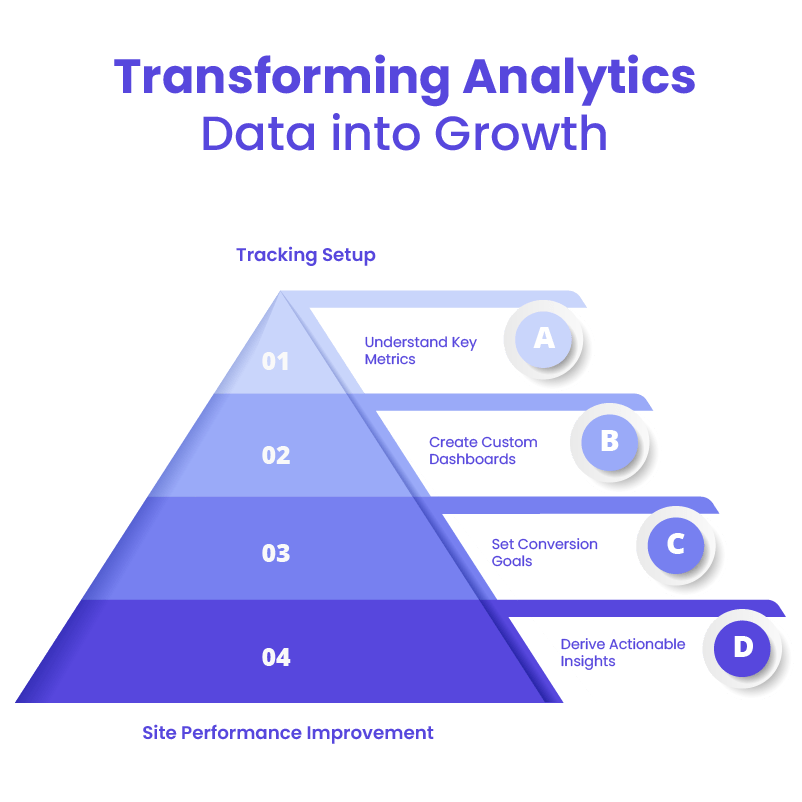
Once your tracking is in place, the next step is making sense of the numbers. The true value of analytics for WordPress comes from understanding what the data means and how to use it to improve your site’s performance.
Understanding Key Metrics
Start with these essential KPIs to get a solid overview of your site:
- Traffic Sources: Know where your visitors are coming from—organic search, social media, direct visits, or referrals.
- User Behavior: Metrics like bounce rate, time on page, and pages per session help you understand how users engage with your content.
- Conversions: Track form submissions, purchases, or any action that aligns with your business goals.
Custom Dashboards & Reporting
Most analytics for WordPress tools let you build custom dashboards. Focus on the data that matters most to your site – whether it’s eCommerce sales, blog engagement, or lead generation – and eliminate distractions by filtering out unnecessary metrics.
Setting Up Conversion Goals
Define specific goals such as email signups, product purchases, or contact form completions. Setting these up in your analytics tool allows you to track success and identify drop-off points in the user journey.
Actionable Insights for Growth
Use the insights you gather to:
- Improve underperforming pages
- Optimize content that drives the most conversions
- Refine your marketing channels based on traffic and goal completion rates
Data is only useful when it leads to better decisions – turn your insights into action.
Advanced Analytics Strategies for WordPress
Once you’ve mastered the basics of tracking and interpreting data, it’s time to go deeper. Advanced analytics strategies help you refine your website, improve user experience, and drive better results through experimentation and integration.
A/B Testing & Experimentation
Testing different elements on your site – like headlines, buttons, images, or layouts – can lead to measurable improvements in performance. A/B testing tools allow you to compare versions of a page to see which one performs better in terms of engagement or conversions. Use data from your analytics platform to identify what to test and to measure the results accurately.
User Behavior Analysis Tools
Heatmaps, session recordings, plugins and scroll maps give you a visual understanding of how users interact with your content. These tools help uncover pain points, such as elements that are ignored or sections where users drop off, so you can make informed design and content updates.
Integrating with Other Marketing Tools
Linking your analytics with SEO tools, email marketing platforms, or CRMs gives you a fuller picture of the customer journey. These integrations help unify your data and ensure consistent messaging and performance across all channels.
Data-Driven Decision Making
The most successful websites continuously improve based on what the data shows. Schedule regular reviews of your metrics, document what’s working, and adjust your content, design, or strategy accordingly. Analytics isn’t a one-time task—it’s an ongoing process that drives growth.
WordPress Outsourcing Services
Enhance your agency’s capabilities with our WordPress outsourcing services. Get expert development, design, and maintenance support tailored to your needs.
Free vs. Premium Analytics Solutions
When choosing an analytics tool, one of the first decisions you’ll face is whether to stick with a free version or invest in a premium plan. Understanding what each option offers can help you make the right call for your site.
Feature Comparison
Free analytics tools often provide core features such as pageview tracking, traffic sources, and basic user behavior reports. These are usually enough for small websites, blogs, or startups just getting started.
Premium plans, on the other hand, typically unlock more advanced functionality – like custom event tracking, funnel analysis, heatmaps, A/B testing, longer data retention, and advanced segmentation. You may also gain access to better support, integrations, and team collaboration features.
When to Upgrade
If you’re starting to ask more complex questions about user behavior or need data to inform business decisions, it might be time to upgrade. Growing traffic, larger teams, or a shift toward eCommerce can also be signals that your current setup isn’t enough.
Cost-Benefit Analysis
Investing in a premium tool can lead to better insights, more efficient marketing, and higher conversions – ultimately outweighing the monthly cost. Weigh the added value and time saved against your goals to determine if it’s worth the investment.
Maximize Your Growth with the Right WordPress Analytics Strategy

Choosing the right analytics tool isn’t just about tracking traffic – it’s about understanding your audience, optimizing your content, and making smarter decisions that support your website’s long-term growth. A well-implemented WordPress analytics solution gives you the data you need to measure what matters and take confident action.
There’s no one-size-fits-all approach. Simpler tools like Jetpack or MonsterInsights work well for blogs and small businesses, while platforms like Matomo, Mixpanel, or Hotjar offer deeper insights for growing sites or product-driven businesses. Your choice should reflect your current goals, technical skill level, and how much data you need to scale effectively.
The real power of analytics lies in what you do with the insights. Regularly review your reports, test improvements, and track the results. The more you lean into a data-driven mindset, the more you’ll be able to refine your website, enhance user experience, and grow sustainably.
If you’re an agency or business looking to implement tracking or want expert help managing analytics and optimization, the White Label Agency can support you with tailored solutions designed for WordPress success. Contact us and let’s turn your data into growth.


