Colors are more than just visual elements—they’re powerful tools that influence user experience, evoke emotions, and strengthen brand identity. Even subtle changes to your website’s color scheme can dramatically transform how visitors perceive and interact with your content. With WordPress’s flexibility in customization, you have the creative freedom to make your site truly unique.
This guide will show you how to change WordPress colors, covering everything from theme color settings to individual elements like backgrounds, text, and links. By the end, you’ll know how to change theme colors in WordPress, as well as how to tweak specific aspects such as fonts, headers, and more to match your vision.
WordPress Webdesign
Enhance your agency’s offerings with our WordPress website design services. Get custom, high-quality designs that fit your client’s needs.
Understanding WordPress Color Customization
WordPress themes control the overall appearance of your website, including its layout, typography, and of course, colors. Depending on the theme you use, you’ll have a variety of options for color customization.
Different elements of your website that can be customized:
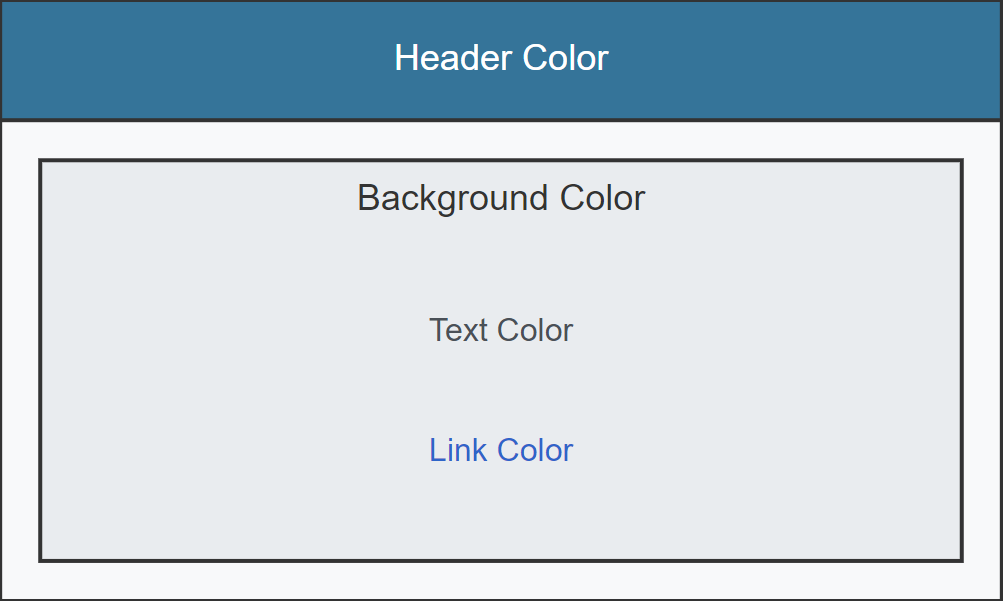
- Background: The overall color behind your content.
- Text: The color of your paragraphs and headings.
- Links: The clickable text that leads users to other pages.
- Header: The section at the top of the page, often containing your logo and navigation bar.
Tip: Some themes offer greater control over colors than others. To unlock more customization options, you might need a theme upgrade or the help of plugins like Elementor. You can also have a look at our overview of the best design WordPress themes.
How to Change Theme Colors in WordPress
Before diving into the process of changing WordPress colors, it’s important to understand the difference between global and element-specific color settings.
- Global color settings control the overall color scheme of your site. These settings apply to the entire website and affect elements like backgrounds, links, text, and headings uniformly. When you change a global WordPress color, you’re changing the look of your entire site at once, ensuring consistency across all pages.
- Element-specific color settings, on the other hand, allow you to customize individual components of your website. For example, you can have a unique background color for your header or footer, or different WordPress colors for your text links and buttons. This level of control gives you the freedom to design distinct areas of your site to fit your branding needs more precisely.
Understanding these differences lays the foundation for making intentional design choices that either unify the appearance of your site or highlight particular sections. In the following sections, we’ll walk through how to access and modify both global theme colors and element-specific colors using the WordPress Customizer.
Accessing the WordPress Customizer
Now that you understand how global and element-specific WordPress colors’ settings work, let’s explore how to access and modify these options through the WordPress Customizer. The Customizer provides a real-time preview of your site, allowing you to experiment with changes and see the results instantly.
Here’s how to get started:

- Login to your WordPress Dashboard
- Navigate to Appearance > Customize
From your dashboard, go to Appearance, then click on Customize. This opens the WordPress Customizer, where you can modify your site’s colors, layout, fonts, and more. - Find the Colors Section
Depending on your theme, you will find the WordPress colors’ settings under Colors or Theme Options. Here, you can choose to modify global color settings or target specific elements like your header or text links.
As we move forward, we’ll explore how to change specific elements like font color, background color, link color, and more, while using these customization tools.
Changing Specific Elements
Customizing specific elements like font color, link color, header color, and background color allows you to tailor your WordPress site to your brand identity. Here’s how to modify these elements efficiently.
Note: The steps below provide general guidelines for customizing WordPress colors. Keep in mind that some options and settings may vary depending on your specific WordPress theme. If you can’t find the exact option mentioned, look for similar settings or consult your theme’s documentation for theme-specific customization instructions. If you’re unsure about which theme you’re using, you can use online theme detector tools such as WPThemeDetector.
How to Change Font Color in WordPress
Adjusting the font WordPress colors enhances readability and aligns your text with your site’s overall design.
- Access the Customizer:
- Log in to your WordPress dashboard.
- Navigate to Appearance > Customize.
- Modify Font Color:
- Look for Typography, Colors, or Theme Options (names may vary depending on your theme).
- Find the Body Text Color or Font Color setting.
- Click the color picker to select your desired color.
- Adjust Specific Text Elements (Optional):
- To change colors for headings (H1, H2, H3, etc.), locate the corresponding settings.
- Customize each heading level as needed.
Note: If your theme lacks typography options, consider using the Easy Google Fonts plugin for more control.
How to Change Link Color in WordPress

Distinct link colors improve navigation by making clickable text stand out.
- Access the Customizer:
- Go to Appearance > Customize.
- Modify Link Colors:
- Find Colors or Theme Options.
- Locate the Link Color settings.
- Adjust WordPress colors for different states:
- Normal State: Default link color.
- Hover State: Color when the cursor hovers over a link.
- Visited State: Color for links already clicked.
How to Change Header Color in WordPress

The header often contains your logo and navigation menu, making its color crucial for branding.
- Access the Customizer:
- Navigate to Appearance > Customize.
- Modify Header Color:
- Look for Header, Header Image, or Colors settings.
- Change the Header Background Color using the color picker.
- Adjust Header Text and Navigation Menu colors if options are available.
WordPress Change Background Color

The background color sets the tone for your entire site.
- Access the Customizer:
- Go to Appearance > Customize.
- Modify Background Color:
- Find Background, Colors, or Background Image settings.
- Use the Background Color option to select a new color.
- Create Custom Background Patterns or Gradients (If Supported):
- Upload a background image or pattern under Background Image.
- If your theme allows, apply a gradient by selecting Gradient Background and choosing your colors.
Tip: Choose link colors that contrast well with your background to enhance visibility. Have a look at our guide on primary, secondary, and tertiary colors, and learn how to pair hues in web design.
Hire a WordPress Designer
Discover the benefits of choosing to hire a WordPress designer. Enjoy focused attention, quick turnaround, cost-effectiveness, and expert design for the projects.
Best Background Color for Your Website
Choosing the best background color for your website is more than an aesthetic decision—it’s a strategic move that can influence how visitors perceive and interact with your content. Understanding color psychology and following general guidelines can help you select a background that enhances the UX and reinforces your brand identity.
Color Psychology in Web Design

Colors evoke emotions and associations that can affect user behavior. Here’s a brief overview of how different WordPress colors can impact your audience:
- Red: Conveys energy, passion, and urgency. It can grab attention but may be overwhelming as a background color.
- Blue: Symbolizes trust, calmness, and professionalism. Commonly used in corporate and professional websites.
- Green: Represents nature, growth, and health. Ideal for environmental organizations and wellness brands.
- Yellow: Evokes happiness and optimism. Best used in moderation to avoid causing visual fatigue.
- Black: Denotes luxury, sophistication, and elegance. Suitable for high-end brands but may require careful text color choices.
- White: Signifies simplicity, cleanliness, and minimalism. Offers a neutral backdrop that highlights content effectively.
Thinking about building a website in blue tones? Check out our agency-tailored guide on how to make blue.
General Guidelines for Choosing Background Colors: 5 Key Factors

Selecting the perfect background color involves more than just personal preference; it’s about finding a balance that complements your content and aligns with your brand. Here are 5 key factors to consider:
1. Ensure Contrast with Text
- High contrast between your background and text colors improves readability and accessibility.
- Opt for dark text on light backgrounds or light text on dark backgrounds.
- Utilize tools like the WebAIM Contrast Checker to ensure your color combinations meet accessibility standards.
2. Maintain Brand Consistency
- Incorporate your brand colors to reinforce brand recognition and cohesion across your site.
- Align your background color with your logo and other marketing materials for a unified appearance.
3. Consider Your Audience and Industry
- Choose WordPress colors that resonate with your target audience and are appropriate for your industry.
- For example, a health and wellness blog might use calming greens, while a tech startup could opt for innovative blues or grays.
4. Prioritize Simplicity
- Simple background colors prevent distractions and keep the focus on your content.
- Avoid overly bright or complex patterns that might overwhelm visitors.
5. Test Across Devices
- Preview your website on various devices and screen sizes to ensure your background color looks consistent and appealing.
- Remember that WordPress colors can appear differently on different screens, so testing helps maintain a positive user experience.
Additional Recommendations
- Test Readability: Always check how your text appears against the background color to ensure it’s easily readable.
- Stay True to Your Brand: Your background color should reflect your brand’s personality and values.
- Gather Feedback: Consider asking for opinions from colleagues or users to gauge the effectiveness of your background color choice.
Looking for a partner to help you navigate the design process? Go through our guide on how to scale up your agency with white label WordPress web design services.
Examples of Effective Color Schemes
Understanding how different color schemes work for various types of websites can guide you in making the best choice:
Professional Websites
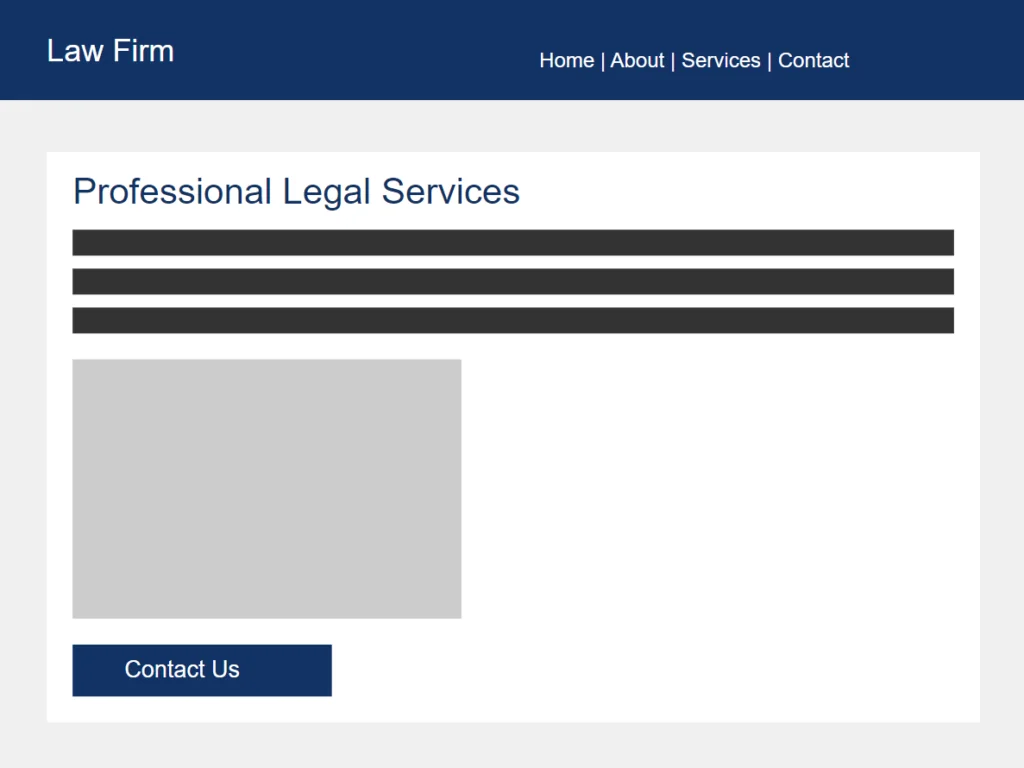
- Background Color: Neutral tones like white, light gray, or muted blues.
- Purpose: Establishes a clean, trustworthy appearance that doesn’t distract from the content.
- Example: A law firm’s website using a white background with navy blue accents to convey professionalism and reliability.
Creative Portfolios

- Background Color: Dark shades such as black or deep charcoal.
- Purpose: Provides a dramatic backdrop that makes artwork and images pop.
- Example: A photographer’s portfolio featuring a black background to highlight vibrant photographs.
E-commerce Stores
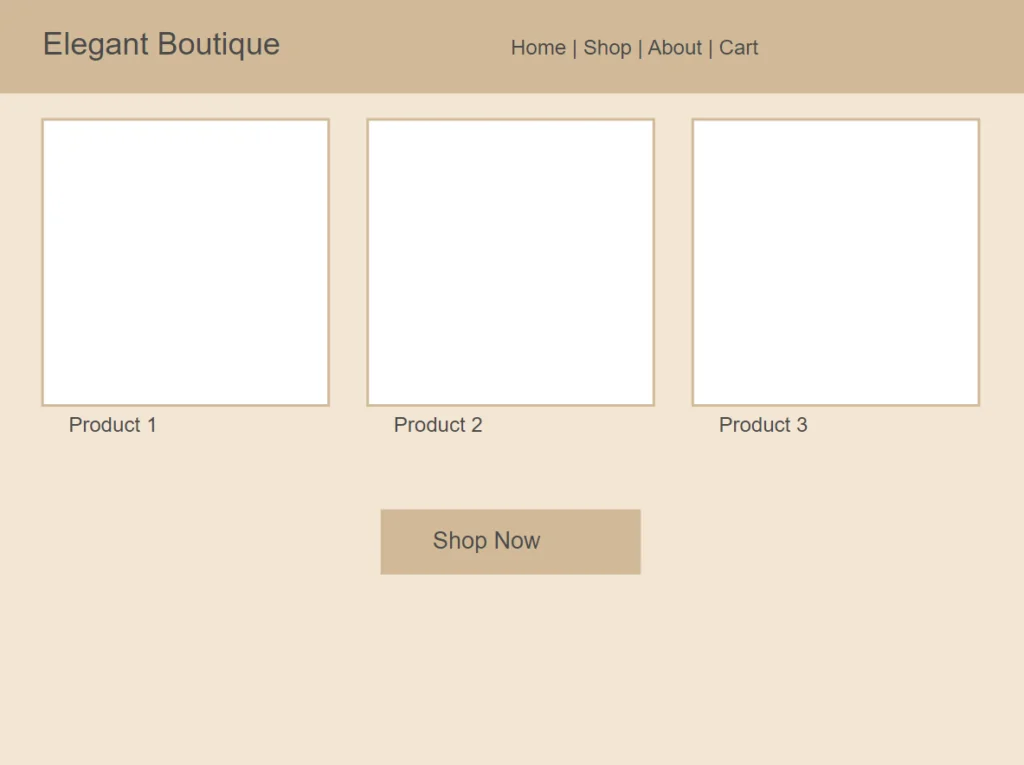
- Background Color: Light, inviting colors like pastels or soft neutrals.
- Purpose: Creates a welcoming atmosphere that encourages browsing and shopping.
- Example: An online boutique using a soft beige background to evoke warmth and elegance.
Advanced Color Customization Tips
For those looking to achieve a more precise and unique look for their website, advanced color customization offers greater control over your WordPress colors. This section will guide you through using color pickers and hex codes for exact color matching, recommend popular plugins for enhanced customization, and provide a basic introduction to using custom CSS for color changes.
Using Color Pickers and Hex Codes for Precise Color Selection
To ensure your WordPress colors align perfectly with your brand identity, you can use hex codes. Hexadecimal color codes are six-digit codes that represent specific colors (e.g., #FF5733). If you have exact brand colors, you can input their hex codes directly into the color settings for consistency, and this will ensure that the colors on your website match your other branding materials precisely.
Tip: Utilize online resources like Adobe Color or Coolors to find and generate hex codes for your desired color palettes.
3 Recommended Plugins for Enhanced Color Customization

If your theme’s default options are limited, plugins can provide additional flexibility to change theme colors in WordPress more extensively.
1. CSS Hero
- Description: A premium plugin that allows you to customize your WordPress site’s appearance without writing any code.
- Features: Point-and-click interface, live preview, compatibility with most themes.
2. YellowPencil
- Description: A visual CSS style editor that enables you to customize any WordPress theme in real time.
- Features: Drag-and-drop functionality, advanced design tools, responsive editing.
- Description: A free, user-friendly CSS editor that offers both visual and code editing capabilities.
- Features: Visual inspector, syntax highlighting, works with any theme.
Note: Always ensure that any plugin you choose is compatible with your WordPress version and regularly updated to maintain security and performance.
Using Custom CSS for Color Changes
For advanced customization beyond what plugins offer, adding custom CSS allows you to modify specific elements like font color, link color, or header color in WordPress.
Basic Example: Changing the Link Color Using Custom CSS
- Access the Additional CSS Section:
- From your WordPress dashboard, navigate to Appearance > Customize.
- Click on Additional CSS at the bottom of the Customizer menu.
- Add Custom CSS Code:

This code sets the default link color and the hover color.
- Preview and Publish:
- The Customizer will show a live preview of your changes.
- If you’re satisfied, click Publish to apply the changes to your site.
Cautionary Note for Beginners:
- Backup Your Site: Before making changes, it’s wise to back up your site or at least note down the original settings.
- Syntax Matters: Incorrect CSS can break your site’s layout. Ensure your code is error-free.
- Start Small: Make one change at a time to easily identify and fix any issues.
Tip: If you’re new to CSS, consider learning the basics through resources like W3Schools CSS Tutorial before making extensive changes.
Conclusion
Customizing your WordPress colors is a powerful way to make your website stand out and reflect your brand’s identity. By understanding how to change theme colors in WordPress and utilizing advanced tools and techniques, you can create a cohesive and visually appealing online presence.
Key Points Covered:
- Understanding Color Customization: Differentiated between global and element-specific color settings.
- Accessing the WordPress Customizer: Learned how to navigate the Customizer to change font color, link color, header color, and background color.
- Best Background Color for Website: Discussed color psychology and guidelines for choosing effective background colors.
- Advanced Customization Tips: Explored using hex codes, plugins, and custom CSS for precise color control.
By mastering how to change text color in WordPress and other elements, you empower yourself to create a website that not only looks professional but also delivers an engaging user experience. Remember, the goal is to enhance your site’s appeal while maintaining readability and usability.
If you find the customization process overwhelming or need expert assistance, White Label Agency is here to help. As a dedicated WordPress development and designer partner, we specialize in custom-coded websites tailored to your specifications.
Ready to boost your services? Contact us today to discover how our WordPress development and design services can transform your clients’ online presence.