- Overview of Wix and WordPress
- 4 Benefits of Migrating to WordPress
- Pre-Migration Preparations
- Setting Up Your WordPress Environment
- Migrating Content from Wix to WordPress
- Rebuilding Website Structure and Design
- Enhancing Functionality with Plugins
- SEO Considerations During Migration
- Testing and Launching Your New WordPress Site
- Post-Migration Best Practices
- Final Thoughts
Wix to WordPress migration can be a transformative step for website owners, bloggers, and small business owners seeking greater control and scalability. While Wix is known for its user-friendly drag-and-drop interface, it comes with limitations that can hinder long-term growth. WordPress, on the other hand, is a powerful and flexible platform that offers extensive customization options, thousands of plugins, and superior SEO capabilities.
This guide will provide detailed, actionable steps for a seamless Wix to WordPress migration, emphasizing pre-migration preparations, content transfer, SEO strategies, and post-launch best practices.
Overview of Wix and WordPress
Understanding the differences between Wix and WordPress can clarify why Wix to WordPress migration is often chosen by those needing more flexibility and growth potential.
Wix is a hosted website builder designed to help users create visually appealing websites without coding knowledge. Its simplicity makes it ideal for beginners but limits scalability and customization as your website grows.
WordPress, an open-source content management system (CMS), powers over 40% of all websites globally. It offers full design flexibility, a vast library of themes and plugins, and the ability to customize with code. This level of control makes WordPress an attractive choice for those looking to enhance their site’s performance, functionality, and SEO.
Wix to WordPress
Migrate from Wix to WordPress effortlessly. Get improved flexibility, SEO, and functionality with our professional migration service. Learn more!
4 Benefits of Migrating to WordPress
Let’s have a quick look at the key benefits of migrating your website from Wix to WordPress:
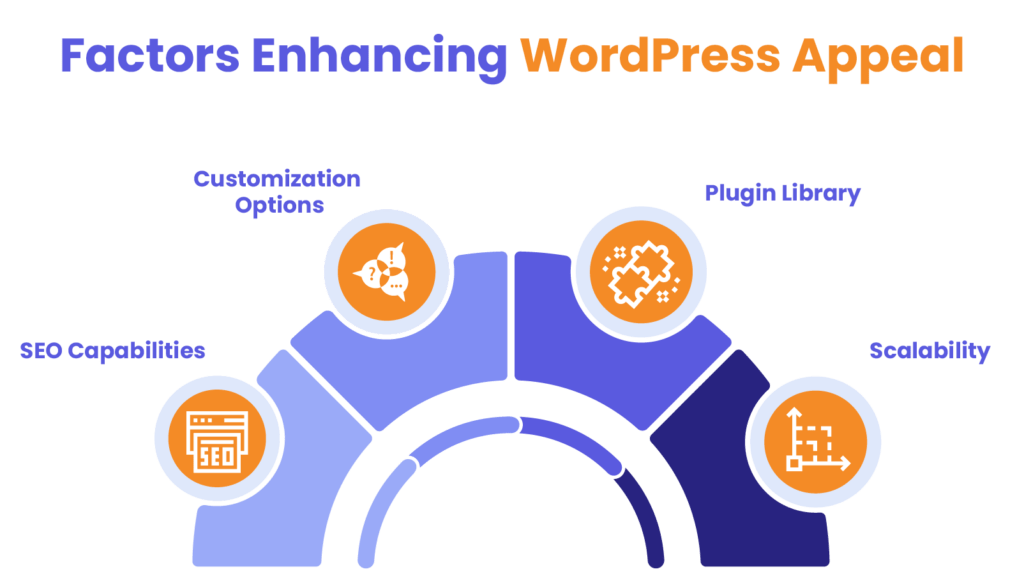
Greater Customization Options
One of the most compelling reasons to undertake a WordPress website migration is the customization potential. WordPress offers thousands of themes—both free and premium—that allow you to create a website tailored to your brand. Beyond themes, WordPress permits custom coding in HTML, CSS, and JavaScript, making it possible to design unique features and layouts that align perfectly with your vision.
Access to a Vast Library of Plugins
WordPress boasts a library of over 60,000 plugins, providing endless opportunities to extend your site’s functionality. From SEO and analytics tools to security enhancements and performance optimization, there’s a plugin for almost any need.
For instance, popular plugins like Yoast SEO and Rank Math help optimize your content and site structure for search engines, while WP Rocket improves page loading speed. This level of extensibility is a significant advantage over Wix, which has a more limited app marketplace.
Improved SEO Capabilities
SEO is a major factor in online visibility and user traffic. While Wix has basic SEO tools, WordPress takes optimization to the next level with plugins and customization options that provide in-depth SEO management. With plugins like Yoast SEO, you can optimize page titles, meta descriptions, and keywords with ease. Additionally, WordPress offers full control over permalinks and supports faster loading times—critical factors for ranking well in search engines.
Enhanced Scalability
Another significant reason for choosing Wix to WordPress migration is scalability. As your website grows, WordPress can handle large volumes of content, traffic spikes, and the addition of complex features like membership portals or e-commerce platforms. Unlike Wix, which can become restrictive as you scale, WordPress’s robust infrastructure ensures your site’s performance remains reliable.
Pre-Migration Preparations
Let’s now get to the basics and discover how to prepare for migration. Here are some of the important factors to consider:
Assessing Your Current Wix Site
When preparing for your Wix-to-WordPress migration, it’s essential to assess your existing site thoroughly to ensure a seamless transition. Create an inventory of all content, including pages, blog posts, images, and media files. Identify essential features that need to be carried over, such as forms, galleries, and third-party integrations. This will ensure that nothing critical is left behind during the migration process.
Choosing a Suitable WordPress Hosting Provider
The success of your WordPress site depends heavily on choosing the right hosting provider. Factors to consider include:
- Performance: Ensure your hosting service provides fast loading times and high uptime.
- Support: Look for a provider with 24/7 customer support.
- Scalability: Choose a hosting plan that can grow with your website as traffic and content increase.
Recommendations
Recommended hosting providers for Wix to WordPress migration include Bluehost, SiteGround, and WP Engine. These providers offer optimized WordPress plans with features like automatic updates, enhanced security, and one-click installation.
Registering a Domain Name
Decide whether you want to transfer your existing domain or register a new one. Transferring your current domain helps maintain brand consistency and existing SEO value. Steps to transfer your domain include:
- Unlock your domain at your current registrar.
- Request the transfer authorization code.
- Initiate the domain transfer with your new host.
To point your domain to the new host, update the DNS settings to match those provided by your hosting provider. This process may take up to 48 hours to propagate.
Setting Up Your WordPress Environment
The next crucial step in the WordPress migration process involves efficiently setting up your WordPress environment.
Installing WordPress
Most hosting providers offer a one-click installation for WordPress, simplifying the setup. Follow your host’s instructions to complete the process quickly. Alternatively, you can install it manually by downloading WordPress from WordPress.org and following the setup guide.

Configuring Basic Settings
After installing WordPress, configure essential settings by navigating to Settings > General. Key configurations include:
- Site title and tagline: Ensure these reflect your brand’s identity.
- Timezone: Set the correct timezone for accurate scheduling.
- Permalink structure: Choose an SEO-friendly structure by going to Settings > Permalinks and selecting the “Post name” option.

Selecting and Installing a Theme
Choose a theme that matches your brand and website’s functionality. Browse free themes in the WordPress Theme Directory or explore premium options on sites like ThemeForest. To install a theme:
- Go to Appearance > Themes.
- Click Add New and search for your preferred theme.
- Click Install and then Activate.

Migrating Content from Wix to WordPress
When undertaking a Wix to WordPress migration, it’s essential to understand that the two platforms have fundamental differences in their structures and functionality. Custom elements and unique design features from Wix might not translate seamlessly into WordPress, so be prepared to rebuild certain features or adapt them for the new platform.
For example, while Wix uses a drag-and-drop builder with limited customization, WordPress provides more flexibility but may require additional tools or custom code to replicate specific elements.
Manual Content Transfer
One of the most straightforward approaches for Wix to WordPress migration is manually transferring content. This involves copying and pasting text content from Wix and uploading images and media files to the WordPress Media Library.
While this method ensures that you retain complete control over formatting and content placement, it can be time-intensive, especially for larger sites. However, this manual transfer process guarantees a high level of accuracy and helps you review your content for updates or improvements as you move it.
Using RSS Feeds for Blog Posts
For blog content migration, utilizing the Wix RSS feed can simplify the process. Follow these steps to transfer blog posts effectively:
- Locate your Wix RSS feed by adding “/feed.xml” to the end of your site URL (e.g., yourwebsite.com/feed.xml).
- Export the RSS feed file from Wix.
- Use the RSS Importer plugin in WordPress to upload and import the feed.
This method automatically brings in blog posts but may require some formatting adjustments post-import to align with your site’s design and SEO needs.
Employing Third-Party Migration Tools
If you prefer a more automated process for Wix to WordPress migration, third-party migration tools like CMS2CMS can be invaluable. These tools are designed to handle the complex task of transferring content, images, metadata, and other essential site elements with minimal manual input. Follow the tool’s specific instructions for setup and execution to ensure the migration is completed smoothly.
Always review your site after the migration for accuracy and make adjustments as needed.

Rebuilding Website Structure and Design
To fully replicate the structure of your original Wix site, start by recreating essential pages like Home, About, Services, and Contact. Use WordPress’s block editor (Gutenberg) or install page builder plugins such as Elementor or Beaver Builder for more advanced design capabilities. This will give you greater control over page layouts and allow you to incorporate dynamic content blocks as needed.
Setting Up Navigation Menus
A logical, user-friendly navigation menu is crucial for enhancing the user experience. Navigate to Appearance > Menus to create and organize your site’s menu structure. Add pages and arrange them in a way that provides intuitive access to key sections of your site, ensuring users can find the content they need without difficulty.
Customizing the Theme
Once your core pages are established, customize your WordPress theme to align with your brand. Adjust colors, fonts, and overall layout through the WordPress Customizer or theme settings. Enhance your site’s functionality by adding widgets and sidebars to showcase features like recent posts, social media follow buttons, or newsletter sign-up forms.
Enhancing Functionality with Plugins
After completing your Wix to WordPress migration, bolster your site’s capabilities with essential plugins. Key recommendations include:
- SEO: Install Yoast SEO or Rank Math for comprehensive on-page SEO optimization.
- Security: Use Wordfence to protect your site against potential threats.
- Performance Optimization: Boost loading speeds with plugins like WP Rocket or W3 Total Cache.
Installing and Configuring Plugins
To add a plugin, go to Plugins > Add New, search for the desired plugin, click Install, and then Activate. Ensure each plugin is properly configured based on your website’s requirements. Best practices for plugin management include updating plugins regularly and avoiding excessive installations to minimize potential conflicts and performance issues.
Installing the right plugins during your WordPress migration ensures that your site operates smoothly and has all the required features.
SEO Considerations During Migration
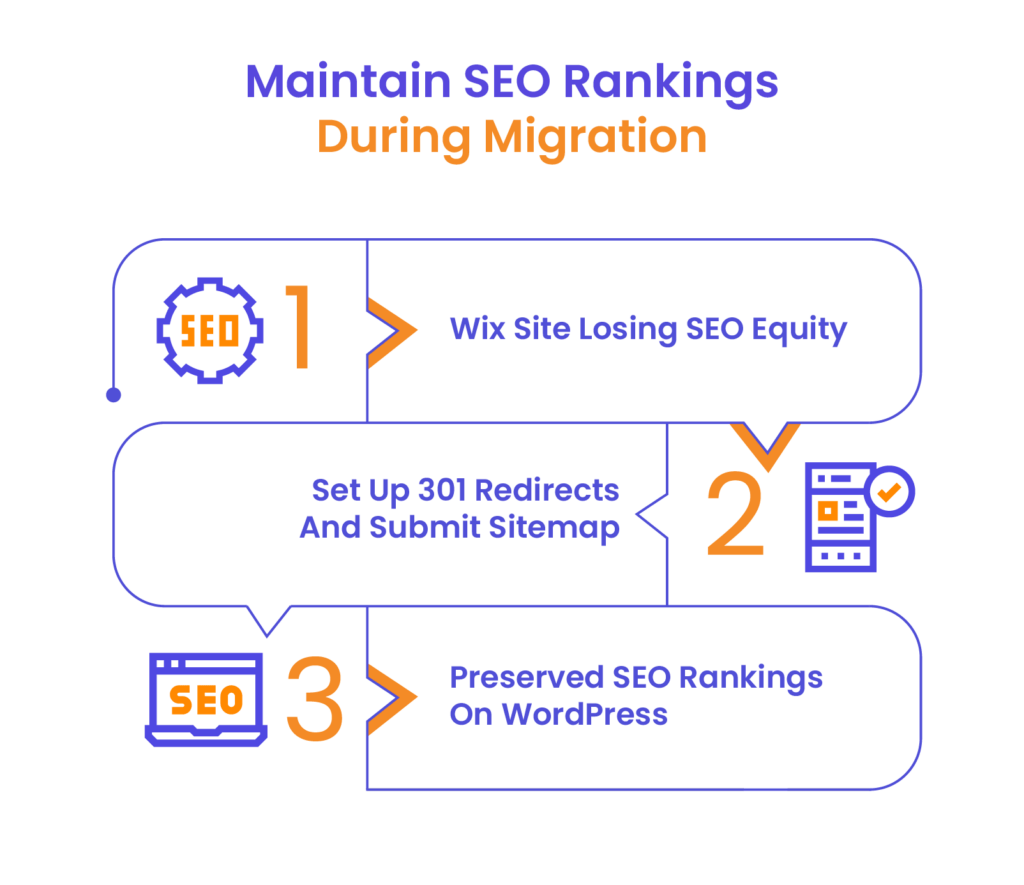
Preserve your existing SEO equity during the Wix to WordPress migration by setting up 301 redirects from old Wix URLs to your new WordPress URLs. This ensures that any traffic to your previous URLs is seamlessly redirected to their updated counterparts, helping maintain your search engine rankings. Use a plugin like Redirection to set up and manage these redirects efficiently.
Submitting Sitemap to Search Engines
Once your site is live, generate a sitemap using an SEO plugin like Yoast SEO. Submit the sitemap to Google Search Console and Bing Webmaster Tools to prompt search engines to index your new WordPress site quickly. This step ensures that your new content structure is recognized and ranked appropriately.
Preserving SEO Rankings
To maintain SEO rankings during the Wix to WordPress migration, replicate key SEO elements from your old site, such as meta titles, descriptions, and image alt text. Regularly monitor your site’s performance using Google Analytics and check for broken links or other issues that could impact SEO.
Testing and Launching Your New WordPress Site
Before launching your WordPress site, conduct a comprehensive review to ensure that all links, forms, and interactive elements function as expected. Test your site on different devices and browsers to confirm mobile responsiveness and cross-browser compatibility. This testing phase is essential for providing a seamless user experience post-launch.
Launching the Site
Once all testing is complete, update your DNS settings if necessary and make your new site live. Inform your audience and stakeholders about the launch through social media announcements, email newsletters, or blog updates. This helps generate excitement and keeps your user base informed.
WordPress migration
Migrate to WordPress with White Label Agency. Safe, fast, and expertly managed migration from all major platforms. Contact us to get your free quote today.
Post-Migration Best Practices
After completing your Wix to WordPress migration, following post-migration best practices is key to maintaining and optimizing your website.
Regular Backups
Protect your site by setting up regular, automated backups using a plugin like UpdraftPlus. This ensures that you can quickly restore your site in the event of any issues, preserving your hard work and content.
Monitoring Site Performance
Utilize Google Analytics and Google Search Console to track site performance, analyze user behavior, and address any errors that may arise. Regular monitoring helps you stay informed and adapt your strategies to improve user experience and SEO.
Ongoing SEO Optimization
Continue to optimize your site by updating content, fixing broken links, and staying current with the latest SEO strategies. This proactive approach ensures that your Wix to WordPress migration results in long-term success and growth.

Final Thoughts
Wix to WordPress migration can significantly enhance your website’s customization, functionality, and SEO potential. By following this comprehensive guide, you can ensure a smooth transition and set your site up for sustainable growth. Remember, the benefits of this migration extend far beyond the initial setup, offering a scalable and versatile platform for continuous improvement and long-term success.
If you need expert assistance or have questions about your migration process, don’t hesitate to contact us. Our team is here to help make your website migration seamless and effective.