


- What is Sketch?
- Why Convert Sketch to WordPress?
- Preliminary Steps Before Conversion
- Sketch to WordPress Conversion Methods
- Key Considerations for Responsive Design
- Optimizing the Sketch to WordPress Workflow
- Integrating Dynamic Content
- Testing the WordPress Theme
- Deploying the WordPress Theme
- Post-Launch Maintenance
- Final Thoughts: Converting Sketch to WordPress
Converting Sketch to WordPress has become an essential skill for web designers and developers in 2024. This comprehensive guide will walk you through the Sketch to WordPress conversion process, helping you transform your designs into powerful, responsive WordPress themes. Whether you’re an experienced developer or just starting out, you’ll find valuable insights to bridge the gap between design and development.
What is Sketch?
Sketch is a powerful vector-based design tool that has revolutionized how web designers create user interfaces. Its intuitive interface and robust features make it the preferred choice for many UI/UX designers worldwide. Sketch’s vector-based approach allows for the creation of scalable designs that can easily translate into responsive WordPress themes.
Key features of Sketch that make it ideal for web design include:
- Artboards for creating multiple screen sizes
- Symbols for reusable design elements
- Powerful export options for web-ready assets
- Plugins that extend functionality and streamline workflows
Importance of WordPress for Web Development
WordPress powers over 43% of all websites on the internet, making it the most popular content management system (CMS) globally. Its flexibility, extensive plugin ecosystem, and user-friendly interface make it an ideal platform for bringing Sketch designs to life. WordPress’s ability to handle various content types and its regular updates ensure that your website remains secure and adaptable to changing web standards.
Benefits of using WordPress for web development include:
- Easy content management for non-technical users
- Vast library of themes and plugins for extended functionality
- SEO-friendly structure out of the box
- Active community support and regular updates

Why Convert Sketch to WordPress?
Converting Sketch designs to WordPress themes offers numerous benefits:
- Seamless transition from design to development
- Ability to create fully customized, unique WordPress themes
- Better control over site functionality and performance
- Cost-effective solution for clients who need a CMS-based website
Compared to other design-to-website workflows, such as those using Photoshop or Adobe XD, the Sketch to WordPress conversion process often results in cleaner code and more efficient development cycles. This is due to Sketch’s web-focused features and export capabilities, which align well with WordPress development needs.
Preliminary Steps Before Conversion
Understanding Design Structure
Before diving into the Sketch to WordPress conversion process, it’s crucial to ensure your Sketch file is well-organized:
- Use logical layer naming conventions (e.g., “header-logo”, “nav-menu”, “footer-copyright”)
- Group related elements into folders (e.g., “Header Elements”, “Main Content”, “Footer”)
- Utilize Sketch’s symbol feature for reusable components like buttons, icons, and form elements
A well-structured Sketch file not only makes the conversion process smoother but also helps maintain consistency throughout WordPress theme development.
Finalizing Sketch Design for Conversion
Before beginning the conversion process, review your design:
- Check typography consistency across all pages and elements
- Ensure proper spacing and alignment using a consistent grid system
- Verify image resolutions are web-optimized (72 DPI for screen display)
- Prepare responsive designs for mobile, tablet, and desktop views
Consider creating a style guide within your Sketch file that outlines colors, typography, and common UI elements. This will serve as a reference during the WordPress theme development process.
Hire a WordPress Designer
Discover the benefits of choosing to hire a WordPress designer. Enjoy focused attention, quick turnaround, cost-effectiveness, and expert design for the projects.
Sketch to WordPress Conversion Methods
Manual Conversion Process
The manual conversion process gives you the most control over your WordPress theme development:
- Export assets from Sketch:
- Use SVG for vector graphics like logos and icons
- Export complex images as PNG with appropriate compression
- Consider using WebP format for better performance, with fallbacks
- Create an HTML/CSS structure based on your Sketch design:
- Start with a mobile-first approach
- Use semantic HTML5 elements (header, nav, main, article, footer)
- Implement CSS using methodologies like BEM or SMACSS for maintainability
- Integrate JavaScript for interactive elements:
- Use vanilla JavaScript or libraries like jQuery for functionality
- Implement smooth scrolling, form validation, and other interactive features
- Import your static HTML into WordPress:
- Create necessary theme files (style.css, index.php, functions.php)
- Break your HTML into template parts (header.php, footer.php, sidebar.php)
- Use WordPress template hierarchy for different page types
Using Page Builders
Page builders can significantly speed up the Sketch to WordPress conversion process:
- Choose a compatible page builder (e.g., Elementor, Divi, Beaver Builder):
- Consider factors like ease of use, performance impact, and customization options
- Import your Sketch design elements:
- Use the page builder’s import features or manually recreate sections
- Take advantage of pre-built modules and customize them to match your design
- Use the page builder’s interface to recreate your design:
- Build layouts using columns and rows
- Adjust spacing, colors, and typography to match your Sketch design
- Customize as needed for WordPress functionality:
- Integrate dynamic content areas
- Set up reusable sections for consistent design across pages
Using Conversion Tools
Several tools can automate parts of the Sketch to WordPress conversion process:
- Sketch2WP: Specifically designed for Sketch to WordPress conversions
- PSD2WordPress: Works with various design formats, including Sketch files
- Oxygen Builder: Offers advanced Sketch import features and code control
While these tools can save time, they may require additional customization to fully match your Sketch design. Consider the following when using conversion tools:
- Review and optimize the generated code for performance
- Adjust layouts and styles to ensure pixel-perfect replication of your design
- Implement custom functionality that may not be covered by the conversion tool
Key Considerations for Responsive Design
Setting Breakpoints in Sketch
Design with responsiveness in mind:
Utilize Sketch’s artboard feature to create designs for different screen sizes (e.g., 320px, 768px, 1024px, 1440px)
Focus on a mobile-first approach, designing for small screens first and progressively enhancing for larger displays
Use Sketch’s layout features to create adaptive designs:
- Implement flexible grids
- Use auto-layout for components that need to adjust across screen sizes
- Take advantage of Sketch’s Smart Layout feature for responsive symbols
Translating Responsive Design into WordPress
Implement your responsive design in WordPress:
- Use CSS media queries to apply different styles at various breakpoints:
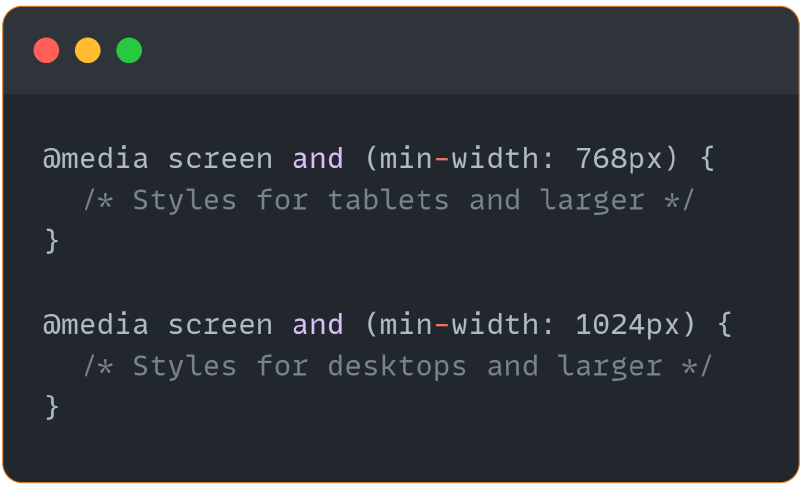
- Consider using a responsive framework like Bootstrap or Foundation for a solid grid system and pre-built responsive components
- Utilize WordPress plugins like Responsive Menu for mobile-friendly navigation
- Implement responsive images using WordPress’s built-in features:

Optimizing the Sketch to WordPress Workflow
Best Practices for Asset Optimization
Optimize your assets for web performance:
- Compress images using tools like TinyPNG or ImageOptim to reduce file sizes without significant quality loss
- Choose appropriate image formats:
- SVG for icons, logos, and simple illustrations
- JPEG for photographs and complex images
- WebP as a modern alternative, with fallbacks for older browsers
- Use web-safe fonts or properly implement custom fonts:
- Utilize Google Fonts or self-host fonts for better performance
- Implement font-display: swap for improved perceived loading speed
Code Quality and Performance
Ensure your WordPress theme is efficient and maintainable:
- Minify CSS and JavaScript files using tools like Webpack or Gulp
- Follow WordPress coding standards to ensure compatibility and readability
- Implement proper heading structure for SEO:

- Use alt tags for images to improve accessibility:
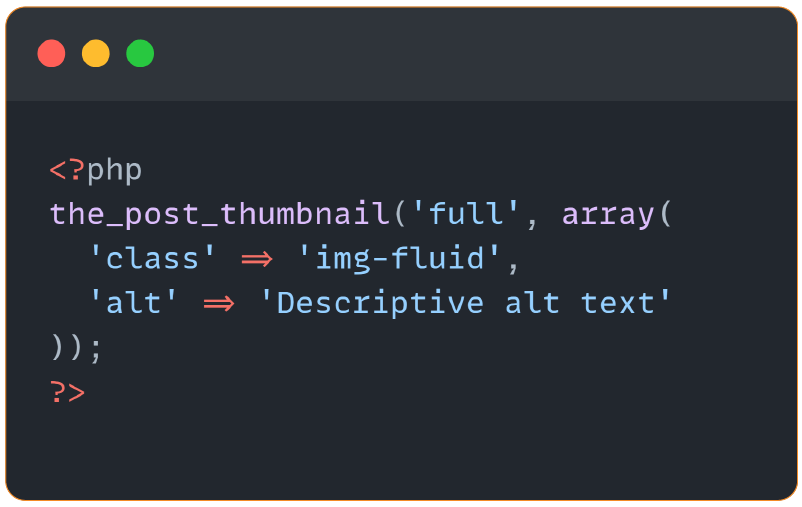
- Implement lazy loading for images and videos to improve initial page load times
Integrating Dynamic Content
Custom Post Types and Fields
Transform static Sketch designs into dynamic WordPress content:
- Create custom post types for specialized content:
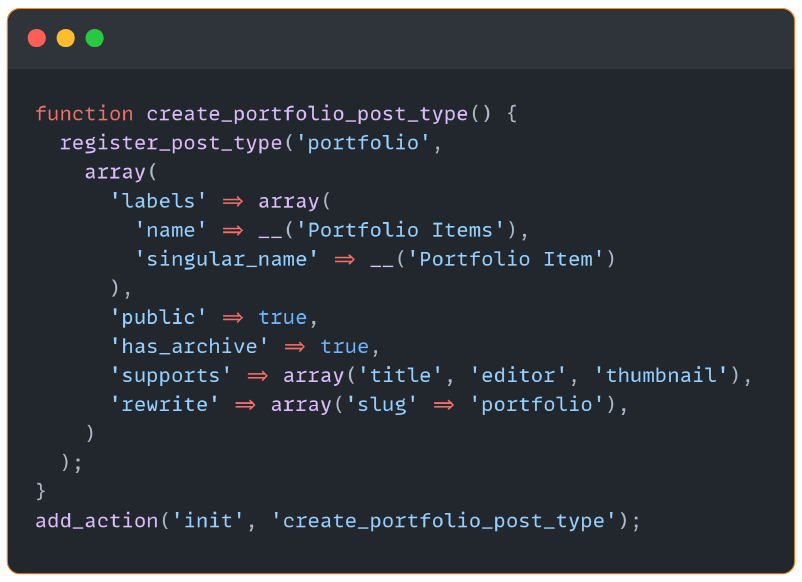
- Use plugins like Advanced Custom Fields (ACF) to add extra fields to your posts and pages:
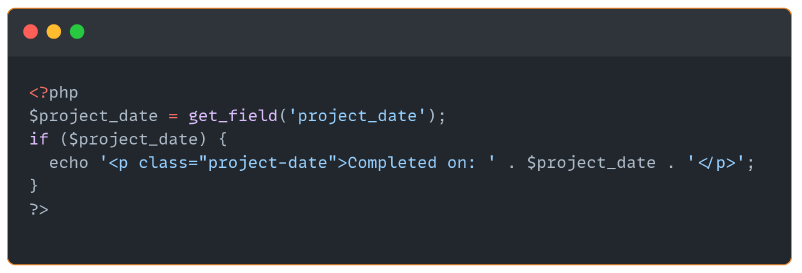
- Create fields for project details, team member information, or product specifications
- Display custom fields in your theme:
Theme Customizer Integration
Make your theme flexible by integrating with the WordPress Customizer:
- Allow users to change colors, fonts, and layout options
- Provide a live preview of changes in the Customizer
- Implement Customizer options:

Testing the WordPress Theme
Cross-Browser Compatibility Testing
Ensure your theme works across different browsers:
- Test on Chrome, Firefox, Safari, and Edge
- Use tools like BrowserStack or Sauce Labs for comprehensive testing across multiple browser versions and operating systems
- Pay special attention to CSS flexbox and grid support in older browsers
Performance Testing
Optimize your theme’s performance:
- Use GTMetrix and Google PageSpeed Insights to identify issues
- Implement caching and code optimization based on test results
- Consider using a Content Delivery Network (CDN) for faster asset delivery
- Optimize database queries and use object caching when possible
Responsiveness Testing
Verify your theme’s responsiveness:
- Test on real devices when possible, including various smartphones and tablets
- Use Chrome’s DevTools device emulator for quick checks during development
- Utilize services like BrowserStack for testing on a wide range of devices
- Check for common responsive design issues:
- Overflow problems on small screens
- Touch target sizes for mobile devices
- Font legibility across different screen sizes
WordPress theme development
Enhance your agency’s offerings with our expert WordPress theme development services. Custom-coded themes designed to meet your clients’ needs.
Deploying the WordPress Theme
Final Steps Before Deployment
Prepare your theme for launch:
- Test thoroughly in a staging environment that mirrors your production setup
- Use debugging tools like Debug Bar or Query Monitor to identify and fix errors
- Perform a final review of all pages and functionality
- Optimize images and assets for production
Launching Your Site
Follow a launch checklist:
- Choose a reliable WordPress hosting provider with good performance and support
- Install an SSL certificate for security and SEO benefits
- Set up caching plugins like WP Rocket or W3 Total Cache for improved performance
- Configure backups and security measures (e.g., limit login attempts, use strong passwords)
Post-Launch Maintenance
WordPress Updates and Theme Maintenance
Keep your site secure and up-to-date:
- Regularly update WordPress core, themes, and plugins
- Test updates in a staging environment before applying to the live site
- Monitor site performance and security regularly
- Implement a version control system like Git for tracking theme changes
Content Management Best Practices
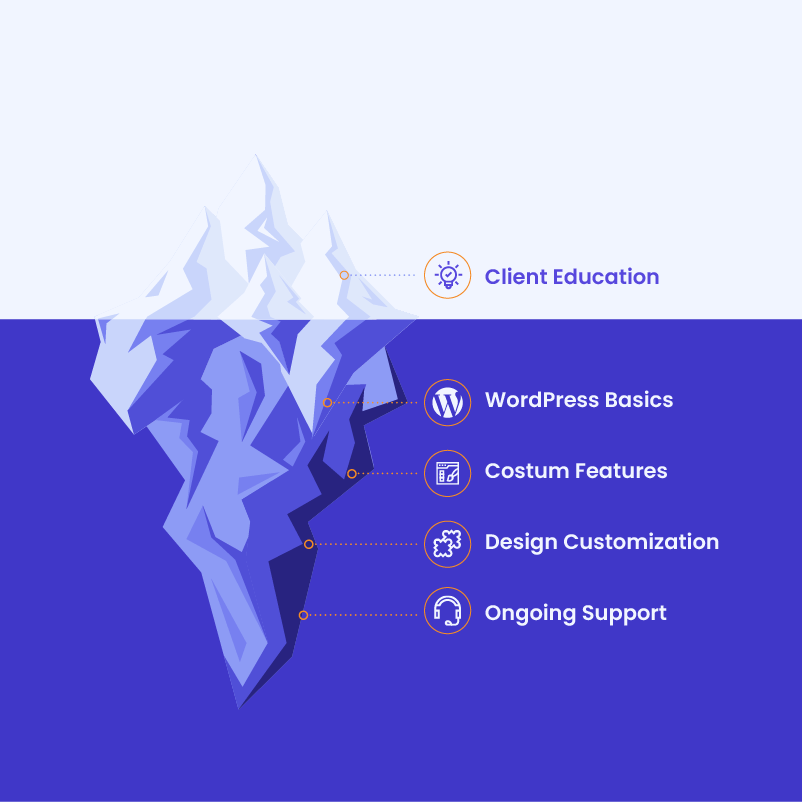
Educate clients on managing their new WordPress site:
- Provide documentation on how to update content, including custom post types and fields
- Offer training sessions on using the WordPress admin panel effectively
- Create video tutorials for common tasks specific to your theme
- Set up a support system for addressing client questions and issues
Final Thoughts: Converting Sketch to WordPress
Converting Sketch to WordPress is a valuable skill that combines creativity with technical expertise. By following this comprehensive Sketch to WordPress tutorial, you can streamline your workflow and create high-quality WordPress themes that remain true to your original Sketch designs. Whether you choose manual conversion, utilize page builders, or opt for conversion tools, the key is to maintain your design’s integrity while leveraging WordPress’s full power.
Need help converting your Sketch designs into responsive, custom WordPress themes? At White Label Agency, our team of WordPress experts is here to support your journey from design to development. We provide scalable, white-label solutions tailored for agencies looking to expand their services without increasing internal workloads. Contact us today.


