


- Understanding WordPress Backup Components
- Methods to Backup a WordPress Site
- Storage Solutions for Backups
- Automating Your Backup Process
- Restoring Your WordPress Site from a Backup
- 3 Best Practices for WordPress Backups
- Additional Tips
- Why Knowing How to Backup WordPress Site Can Save Your Business
Your WordPress site is more than just a digital presence – it’s your brand, your content, and in many cases, your livelihood. That’s why understanding how to backup a WordPress website is one of the most important steps you can take to protect it. Whether it’s due to a faulty plugin update, a cyberattack, or simple human error, websites can break unexpectedly – and without a solid backup plan, recovery can be costly or even impossible.
Performing regular backups ensures you can restore your site quickly and minimize downtime, no matter what happens. Failing to backup your WordPress site could lead to lost content, damaged SEO rankings, and hours of unnecessary troubleshooting. In this guide, we’ll walk you through everything you need to know – from manual and plugin-based backup methods to choosing the right storage solution and restoring your site when needed.
Understanding WordPress Backup Components
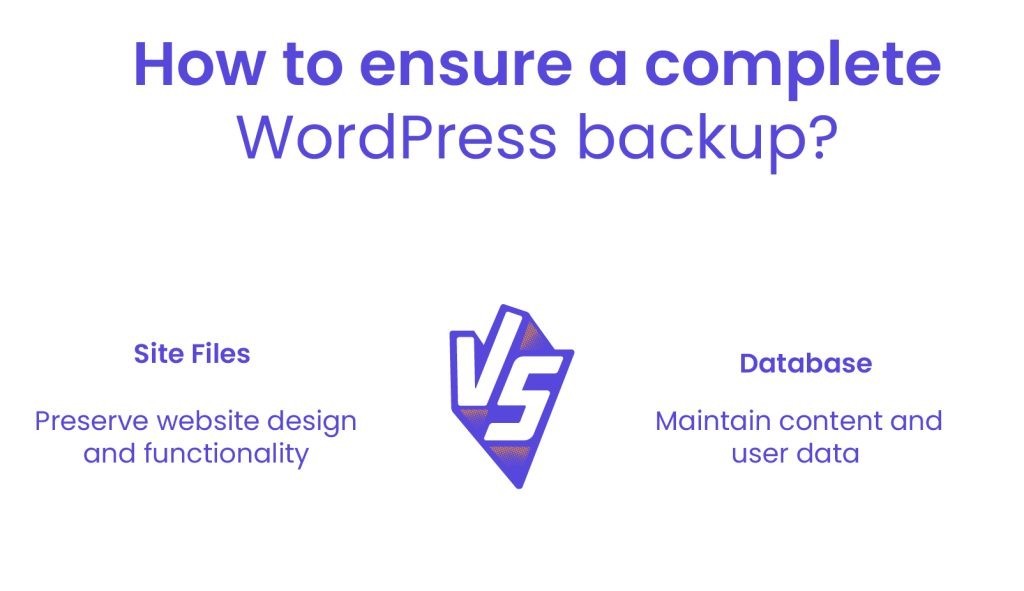
Before diving into how to backup a WordPress site, it’s important to understand what exactly needs to be backed up. A complete WordPress backup includes two main components: your site files and your database. Both are essential to ensure your site can be fully restored without missing content or functionality.
Site Files (Themes, Plugins, Media)
Your WordPress site files include everything from your installed themes and plugins to your media uploads (like images and videos). These files control how your website looks and functions. If you only back up the database and skip the files, your restored site may be missing its design or key functionality.
Database (Posts, Pages, Comments)
The WordPress database contains all of your content, including blog posts, pages, comments, settings, and user data. Without the database, your site might load visually, but it will be empty of any actual content. That’s why every reliable WordPress backup solution must include a full database backup along with the files.
Understanding these two components is key when deciding how to backup your WordPress site – whether you’re using a plugin or doing it manually.
Methods to Backup a WordPress Site
When it comes to backing up a WordPress site, you have two main options: using a backup plugin (the easiest and most recommended method) or performing a manual backup through your hosting environment. Below, we’ll cover both approaches in detail.
Recommended Backup Plugins

Backup plugins automate the process and make it easy to schedule regular backups, choose what to back up, and restore your site with a few clicks.
Overview of Popular Plugins
- UpdraftPlus – One of the most popular and user-friendly plugins, supporting scheduled backups and remote storage options like Google Drive, Dropbox, and Amazon S3.
- Duplicator – Great for both backups and site migrations. It creates a package of your entire WordPress site.
- BlogVault – A premium solution with daily automatic backups, one-click restore, and real-time sync for WooCommerce sites.
Step-by-Step Guide to Installing and Configuring a Backup Plugin
- Go to your WordPress dashboard.
- Navigate to Plugins > Add New.
- Search for a backup plugin (e.g., “UpdraftPlus”).
- Click “Install Now,” then “Activate.”
- Go to the plugin settings (usually under “Settings” or its own menu).
- Set your backup schedule, choose storage destination, and save your settings.
- Run your first backup manually to ensure everything is working properly.
Manual Backup Using Hosting Control Panel (cPanel)
If you prefer more control or want to learn how to backup a WordPress site manually, you can use your hosting account’s cPanel.
Backing Up Site Files via File Manager
- Log in to your hosting control panel (cPanel).
- Navigate to File Manager > public_html (or your WordPress root directory).
- Select all files and folders.
- Click Compress, choose ZIP, and download the archive.
Exporting the Database via phpMyAdmin
- In cPanel, go to phpMyAdmin.
- Select your WordPress database from the left sidebar.
- Click the Export tab.
- Choose Quick export method and SQL format.
- Click Go to download your database file.
Manual Backup Using FTP
You can also manually back up your site using an FTP client like FileZilla.
Connecting to the Server Using an FTP Client
- Open FileZilla (or your preferred FTP client).
- Enter your FTP credentials (host, username, password, port).
- Connect to your site’s root directory (usually
/public_html/).
Downloading Site Files
- Select all WordPress files and folders.
- Drag them to a folder on your computer to download a full copy.
Exporting the Database via phpMyAdmin
As with the cPanel method, go to phpMyAdmin, select your database, and export it in SQL format to complete the backup.
WordPress maintenance plans
WordPress Maintenance Plans ensure site security, performance, and uptime. Choose custom plans with backups, monitoring, and unlimited content edits.
Storage Solutions for Backups
Backing up your site is only half the battle – where you store those backups is just as critical. Choosing the right storage solution ensures that your website can be recovered quickly and safely in case of an emergency.
Local Storage
Storing backups on your computer or an external hard drive is a straightforward option for many users.
Pros:
- Quick and easy access without needing internet.
- No ongoing costs.
Cons:
- Vulnerable to hardware failure or theft.
- Not accessible if you’re working remotely or from another device.
- Easily overlooked or forgotten during routine updates.
Cloud Storage Services
Cloud storage offers a secure and scalable solution for storing website backups offsite. Many backup plugins and tools integrate directly with popular platforms like:
- Dropbox
- Google Drive
- Amazon S3
- OneDrive
- Backblaze B2
Integrating with Services Like Dropbox or Google Drive
Most backup tools allow you to authorize cloud services directly from your WordPress dashboard. Once connected, your backups can be automatically saved to the cloud on a set schedule. This minimizes the risk of data loss if your hosting server or personal device fails.
Benefits of Offsite Storage
- Reduces risk from server-related issues or local disasters.
- Accessible from any device or location.
- Adds an extra layer of protection by diversifying where your data lives.
- Enables faster recovery, especially with automated tools.
Implementing the 3-2-1 Backup Strategy
The 3-2-1 strategy is a widely recommended approach to data backup:
- 3 total copies of your data
- 2 copies stored on different types of storage media
- 1 copy stored offsite (e.g., in the cloud)
Explanation and Benefits
This method ensures that even if one or two backup sources fail, you still have a reliable, recoverable copy. It protects against data loss caused by server crashes, accidental deletions, or natural disasters. Following this strategy gives you peace of mind that your backups are secure, accessible, and diversified.
Automating Your Backup Process
Manually backing up your website every time you make a change can be time-consuming and easy to forget. That’s why automation is a crucial part of any solid backup strategy. Setting up scheduled backups allows you to focus on growing your website while ensuring that copies of your data are regularly saved without your direct involvement. Most backup tools and hosting providers offer features that let you choose how often backups are made – daily, weekly, or even in real time, depending on your site’s activity level.
In addition to scheduling, it’s important to configure notifications so you’re informed about each backup’s status. Email alerts can notify you when a backup completes successfully or if something goes wrong. These alerts give you a chance to address issues before they become bigger problems, ensuring your data protection system is always working in the background.
By automating the process and setting up reliable alerts, you create a dependable safety net that protects your site around the clock with minimal effort on your part.
Restoring Your WordPress Site from a Backup
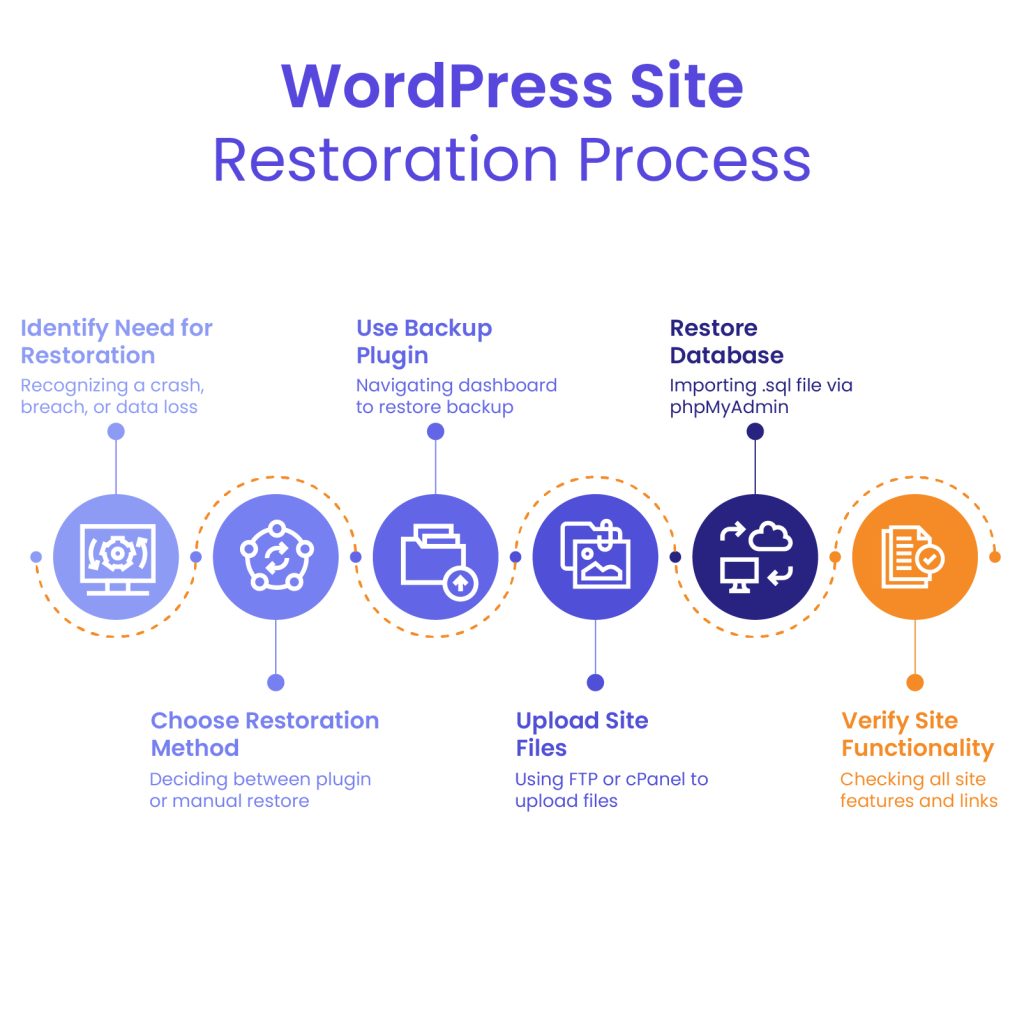
When something goes wrong – whether it’s a crash, a security breach, or accidental data loss – knowing how to restore your website quickly is essential. The restoration process depends on how your backups were created, but both plugin-based and manual methods can get your site back online efficiently.
Using Backup Plugins
If you used a backup plugin, restoring your site is typically straightforward. Most plugins include a restore option directly in the WordPress dashboard. Simply navigate to the backup section, select the backup version you want to use, and click “Restore.” The plugin will handle replacing your site files and database with the backup content. Some tools also allow partial restores, such as restoring only the database or specific folders.
Manual Restoration
For those who prefer or need to restore their site manually, the process involves a few more steps but offers greater control.
To begin, upload your previously saved site files using cPanel’s File Manager or an FTP client like FileZilla. Replace the existing WordPress files in your site’s root directory with the ones from your backup WordPress site archive. Make sure to maintain the correct directory structure to avoid functionality issues.
Next, restore your database using phpMyAdmin. First, delete the existing tables in your WordPress database (after making sure the backup is reliable), then use the Import tab to upload your .sql backup file. This will reinstate your posts, pages, settings, and other content.
Verifying Site Functionality Post-Restoration
Once the files and database are restored, it’s crucial to test the functionality of your site. Visit key pages, check if forms are submitting properly, verify that menus and links are working, and ensure that any custom features or plugins are behaving as expected. If you notice anything unusual, reviewing error logs or reapplying the backup may help resolve the issue.
Restoring your site doesn’t have to be stressful – as long as your backup process is solid, recovery can be smooth and efficient.
3 Best Practices for WordPress Backups
Establishing a strong backup routine is essential for the long-term stability and security of your website. While there are many tools and methods available, following best practices ensures that your backups are not only created but are reliable, secure, and ready to restore when needed.
Determining Backup Frequency
The ideal backup frequency depends on how often your content changes. For high-traffic websites, eCommerce stores, or blogs with frequent updates, daily backups—or even real-time syncing – are recommended. If your site is relatively static, weekly or bi-weekly backups may be sufficient. The key is aligning your backup schedule with your site’s activity to avoid losing important data. Whether you’re using a plugin or learning how to backup WordPress site manually, consistency is critical.
Testing Backup Integrity
Creating backups is only one part of the process – verifying that they work is just as important. Periodically test your backups by restoring them in a staging environment or using your backup plugin’s validation tools. This ensures your data is not corrupted and gives you confidence that your recovery process will go smoothly when needed. A crucial step in backing up a WordPress site is making sure those backups are actually usable.
Secure Storage Practices
When deciding how to backup a WordPress website, don’t overlook security. Store your backups in multiple locations, including offsite cloud storage, and always encrypt them to protect sensitive information. Additionally, restrict access to backup files to prevent unauthorized users from downloading or tampering with them. Secure storage isn’t just about convenience – it’s about safeguarding your site against breaches or data loss.
By following these best practices, you’ll not only create backups – you’ll ensure they’re consistent, secure, and ready to restore when disaster strikes.
Website as a service
Website As a Service [WAAS] provides complete website solutions including design, hosting, and maintenance through a convenient subscription model for Agencies.
Additional Tips
Creating regular backups is essential, but maintaining a healthy and secure site goes beyond just the backup process. Here are some important practices to help reinforce your overall site protection and recovery strategy.
Keeping WordPress Core, Themes, and Plugins Updated
Regular updates to WordPress core, themes, and plugins not only provide access to new features but also patch security vulnerabilities. Outdated components can be a gateway for hackers or cause compatibility issues during a restore. Keeping everything updated ensures that your WordPress backup reflects a stable and secure version of your site.
Monitoring Site Activity
Monitoring your website’s activity helps you detect suspicious behavior early – such as unauthorized logins or unexpected file changes. Using activity log plugins or external monitoring tools adds an extra layer of protection. If something goes wrong, these tools can help you pinpoint when and how it happened, making your recovery process smoother if you need to restore a backup WordPress site.
Understanding Your Hosting Provider’s Backup Policies
Many hosting providers offer automated backups, but it’s important to understand what those backups include, how often they occur, and how long they’re retained. Some hosts may only back up your database and not your media files, or they may keep backups for just a few days. Knowing these limitations is essential when planning how to backup WordPress site effectively and avoid relying solely on your host’s tools.
Being proactive with updates, monitoring, and provider policies will enhance your ability to backup WordPress site properly and keep your recovery process reliable.
Why Knowing How to Backup WordPress Site Can Save Your Business
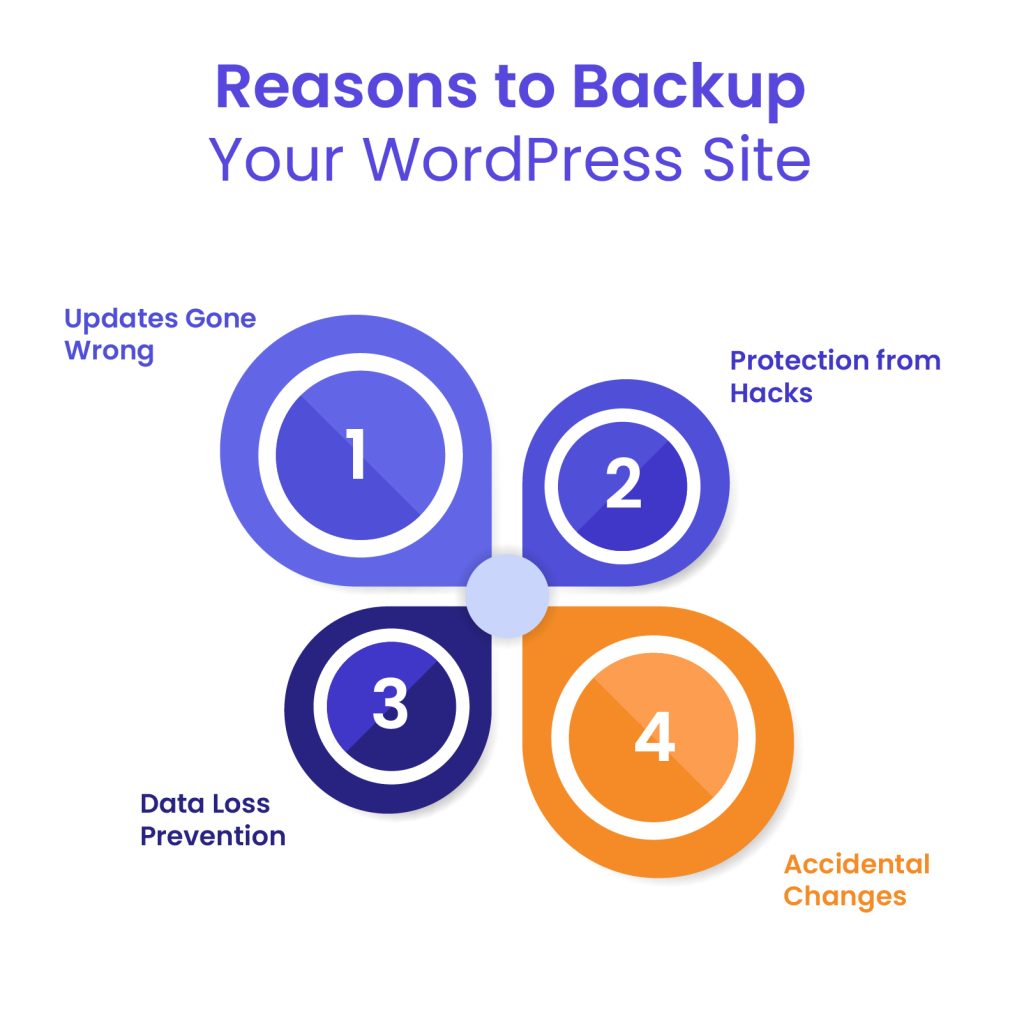
Learning how to backup a WordPress website is one of the smartest investments you can make in protecting your online presence. Whether you’re running a blog, a business site, or an eCommerce store, regular backups ensure you can quickly recover from unexpected issues like hacks, errors, or crashes. From plugins to manual methods, you now have a complete understanding of the tools and techniques available to backup a WordPress site effectively.
Don’t wait for a crisis to realize the value of a solid backup strategy. Implement a reliable system that includes scheduled backups, offsite storage, and regular testing to keep your website safe and secure.
If you’re planning a site move or need expert help protecting your data during a migration, the White Label Agency offers professional WordPress migration services – ensuring a smooth transition with complete peace of mind. Contact us and let us handle the technical side so you can focus on growing your business.


