


- 3 Steps Before You Migrate Weebly to WordPress
- Setting Up WordPress: A Guide to Move Weebly to WordPress
- Migrating Content from Weebly to WordPress
- Setting Up Permalinks and URL Structure After You Migrate Weebly to WordPress
- Designing and Customizing Your New WordPress Site
- SEO Considerations and Optimizations
- Testing and Troubleshooting Post-Migration
- Post-Migration Tasks
- Enhancing Site Performance on WordPress
- Backup and Security Best Practices
- Common Issues and Troubleshooting Tips When Migrating Weebly to WordPress
- Final Checklist for a Successful Migration from Weebly to WordPress
- How to Transfer Weebly to WordPress: Conclusion
Weebly and WordPress are popular website platforms, but if you’re looking for enhanced SEO capabilities, greater customization, and scalability, switching to WordPress is a smart choice. This guide is for Weebly users ready to take their websites to the next level by transitioning to WordPress.
Migrating from Weebly to WordPress might seem complex, but with the right resources – like hosting, a domain, and essential plugins – it’s manageable within a few hours. Whether you’re a business owner or a blogger, follow this step-by-step guide to ensure a smooth and successful migration.
Weebly to WordPress Migration
We handle the migration from Weebly to WordPress for your agency. Work with us and get the very best of WordPress.
3 Steps Before You Migrate Weebly to WordPress
Before you transfer Weebly to WordPress, it’s essential to plan carefully to ensure a seamless transition. Here are the key preparation steps:
Evaluate Your Current Weebly Site Content
Start by auditing your Weebly site. Create a list of all pages, blog posts, images, and media you plan to transfer. Don’t forget to review your SEO data, including meta descriptions, alt tags, and target keywords. This will help you maintain your site’s search engine rankings after the content migration.
Choose a Reliable Hosting Provider for WordPress
Selecting the right hosting provider is crucial for a successful migration. Look for providers that offer fast speeds, strong customer support, and reasonable pricing. Some top-rated options include Bluehost, SiteGround, and WP Engine, all of which are optimized for WordPress.
Domain Considerations
If you already have a custom domain on Weebly, you’ll need to configure it for WordPress to ensure domain continuity and avoid disruptions. For those without a custom domain, now is the perfect time to secure one that aligns with your branding. Be sure to set up proper 301 redirects to preserve your SEO and keep your audience engaged during the transition.
With these preparation steps completed, you’ll be ready to confidently transfer Weebly to WordPress.
Recommendation
Not sure if your migration is worth it? Check out our ultimate guide on WordPress vs Weebly.
Setting Up WordPress: A Guide to Move Weebly to WordPress

Transitioning from Weebly to WordPress starts with setting up your new WordPress site. Here’s a step-by-step guide to get you started:
Installing WordPress
Most hosting providers make installing WordPress simple with one-click installation options. Platforms like Bluehost, SiteGround, and WP Engine guide you through the process, ensuring your WordPress site is up and running in minutes. Check your host’s support resources for detailed instructions tailored to their platform.
Choosing a Theme
Selecting the right theme is crucial when you move Weebly to WordPress. For beginners, choose a responsive, SEO-friendly theme that is easy to customize. Popular options include Astra, GeneratePress, and OceanWP. These themes provide flexibility and scalability as your site grows.
Installing Essential Plugins
To optimize your WordPress site, add plugins that enhance functionality and performance. Start with these essentials:
- SEO Plugin: Yoast SEO or Rank Math to optimize your content for search engines.
- Backup Plugin: UpdraftPlus or BackupBuddy to safeguard your data.
- Migration Support Plugin: All-in-One WP Migration to help with the technical aspects of your move.
WordPress Basics Overview
Familiarize yourself with the WordPress dashboard, including sections for posts, pages, and the media library. Unlike Weebly’s drag-and-drop interface, WordPress offers greater flexibility with structured content types. Posts are ideal for blogs, while pages work best for static content like your About or Contact sections.
With your WordPress site set up, you’re ready to begin migrating your content and customizing your website to match your vision.
Migrating Content from Weebly to WordPress
Moving your content from Weebly to WordPress can feel overwhelming, but with the right approach, you can ensure a smooth transition. Here’s how to migrate your site content effectively:
Exporting Weebly Content
Weebly doesn’t offer a direct export tool, so you’ll need to manually download your content or use third-party tools. Follow these steps:
- Export Text Content: Copy and save your pages, blog posts, and other text elements into organized files.
- Download Media Files: Right-click on images and videos to save them, ensuring their quality and metadata are preserved.
- Export SEO Metadata: Record meta titles, descriptions, and other SEO data to replicate it later in WordPress.
Importing Content to WordPress
Now that you’ve gathered your Weebly content, it’s time to import it into WordPress:
- Use Plugins for Automation: Third-party tools like All-in-One WP Migration or CMS2CMS simplify the migration process. These plugins can transfer pages, posts, and media efficiently.
- Manual Copy-Pasting: For smaller websites, manually copy and paste text and upload images into WordPress’s media library.
- Recreate Page Layouts: Use WordPress’s block editor or a page builder plugin like Elementor to replicate your Weebly layouts while adding new design flexibility.
Importing Images and Media Files
When transferring media, ensure you upload files to WordPress’s media library without sacrificing quality. For bulk uploads, FTP clients or plugins like Media Library Assistant can save time while maintaining metadata.
Alternative Migration Methods
For a more automated solution, tools like CMS2CMS offer complete migration services from Weebly to WordPress.
Pros: Saves time, transfers most content automatically.
Cons: Costs vary based on your site’s size; some manual tweaks may still be necessary.
By carefully exporting, importing, and organizing your content, your transition will be seamless and efficient.
Setting Up Permalinks and URL Structure After You Migrate Weebly to WordPress
An essential step in your Weebly to WordPress migration is configuring your permalinks and ensuring your old URLs redirect properly. This helps maintain SEO rankings and provides a smooth experience for visitors.
Configuring Permalinks in WordPress

WordPress’
Permalinks define how your URLs look and function. To set them up:
- Go to WordPress Dashboard > Settings > Permalinks.
- Choose an SEO-friendly structure, such as “Post Name” (
yourdomain.com/sample-post), which is clean, easy to read, and preferred by search engines. - Save your changes to apply the new URL structure.
Creating Redirects from Weebly URLs
To preserve your SEO value and ensure users can still access your content:
- Map your old Weebly URLs to the new WordPress URLs.
- Use a plugin like Redirection to create 301 redirects. This signals search engines that your content has permanently moved.
- Test the redirects to ensure they’re working properly and that no links are broken.
Managing 301 Redirects with Plugins
Plugins like Redirection make it easy to handle URL changes after moving from Weebly to WordPress. They provide an intuitive interface for adding and managing redirects without needing to edit your website’s code.
By properly configuring your permalinks and redirects, you’ll ensure a seamless transition while protecting your SEO efforts.
Designing and Customizing Your New WordPress Site
After migrating your content, the next step is to design and customize your WordPress site to align with your vision. This stage offers an opportunity to recreate your Weebly design or upgrade it with WordPress’s powerful tools and features.
Recreating the Design
To replicate your previous layout or refresh your design:
- Choose a theme that matches or enhances your old site’s look. Many WordPress themes are fully customizable, allowing you to maintain consistency or explore new aesthetics.
- Use page builders like Elementor or WPBakery, which offer drag-and-drop functionality to easily design your pages without coding knowledge. These tools can help you recreate your Weebly layout while adding modern elements.
Customizing the Site with Widgets and Plugins
WordPress’s flexibility lies in its vast library of widgets and plugins, which can mimic and expand upon Weebly’s features:
- Add widgets for search bars, recent posts, or social media feeds to enhance usability.
- Use plugins to introduce advanced functionality, such as contact forms, image sliders, or eCommerce capabilities. Popular options include Contact Form 7, Slider Revolution, and WooCommerce.
Optimizing Site Design for Mobile
Responsive design is critical in today’s mobile-first world. Ensure your site looks and functions well on all devices:
- Choose a mobile-friendly theme and test it across different screen sizes.
- Use tools like Google’s Mobile-Friendly Test or browser developer tools to identify and fix issues.
- Adjust layouts using your page builder to make content readable and navigation intuitive for mobile users.
By combining WordPress’s design tools with thoughtful customization, you can create a visually appealing and user-friendly website that stands out.
SEO Considerations and Optimizations

Optimizing your WordPress site for search engines is a crucial part of ensuring your site ranks well and maintains visibility after migration. Here’s how to address key SEO tasks during this process:
Setting Up SEO on WordPress
SEO plugins like Yoast SEO and Rank Math simplify the optimization process:
- Install your preferred plugin and go through the setup wizard to configure basic settings.
- Use the plugin’s features to create XML sitemaps, manage meta tags, and optimize page content for keywords.
- Regularly review the plugin’s recommendations to maintain strong on-page SEO.
Checking Meta Data and Titles
Transferring your existing metadata is essential to maintain your site’s search engine performance:
- Review your old meta titles and descriptions.
- Update or rewrite them for WordPress, ensuring they are concise, keyword-rich, and align with search intent.
- Use your SEO plugin to assign meta data to individual posts and pages.
Optimizing Images and Media Files for WordPress
Improperly optimized images can slow down your site and impact user experience. To avoid this:
- Compress images using tools like TinyPNG or plugins like Smush to reduce file size without sacrificing quality.
- Add descriptive alt text for accessibility and better image search rankings.
- Ensure metadata, such as captions and descriptions, is accurately transferred.
Recreating Structured Data
Structured data helps search engines understand your site’s content better. To implement it:
- Use a plugin like Schema Pro or manually add schema markup to important pages.
- Focus on key pages such as your homepage, blog posts, or product pages.
- Test your structured data using tools like Google’s Rich Results Test to ensure accuracy.
By addressing these SEO considerations, you can improve your site’s performance, maintain rankings, and provide a better experience for your audience.
Testing and Troubleshooting Post-Migration
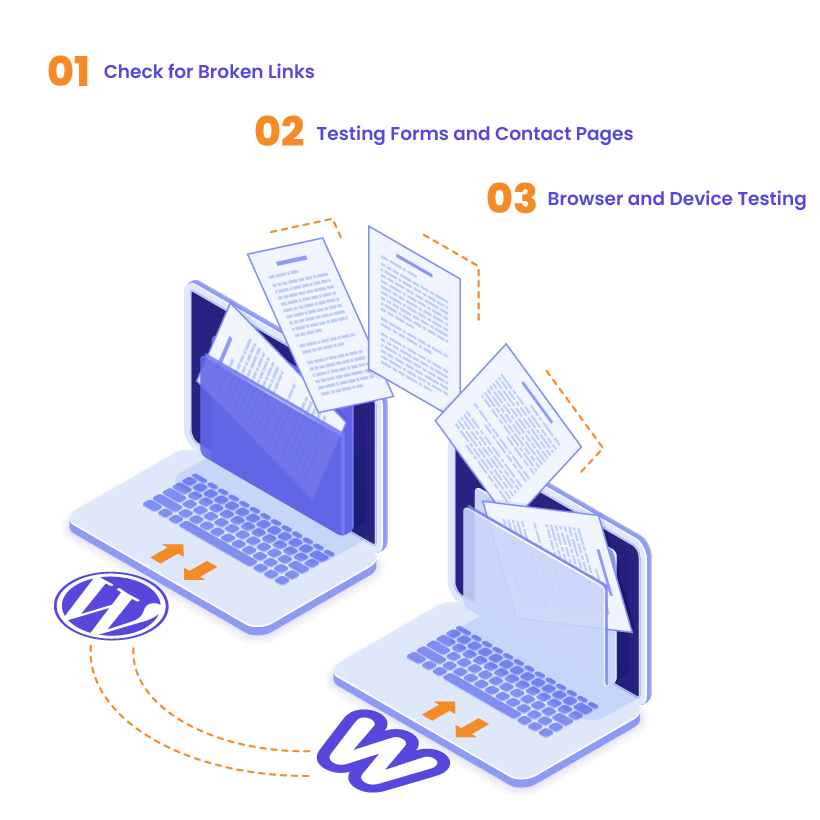
After completing the migration process, thorough testing and troubleshooting are essential to ensure your site is fully functional and provides a seamless user experience. Here’s how to identify and resolve potential issues:
Check for Broken Links
Broken links can frustrate users and harm your site’s credibility. To identify and fix them:
- Use tools like Broken Link Checker or Screaming Frog to scan your site for broken links.
- Update or redirect any broken links to the correct pages.
- Test internal and external links to ensure they work properly.
Testing Forms and Contact Pages
Interactive elements like forms and contact pages must function correctly:
- Test each form by submitting test entries and checking if submissions are received.
- Verify email notifications for form submissions are set up and working.
- Double-check other interactive features, such as newsletter sign-ups or live chat tools, for responsiveness.
Browser and Device Testing
Your site should perform consistently across all devices and browsers:
- Test your site on popular browsers like Chrome, Firefox, Safari, and Edge to ensure compatibility.
- Check its functionality on different devices, including desktops, tablets, and smartphones.
- Use tools like BrowserStack or Google DevTools to simulate various screen sizes and conditions.
Thorough testing ensures your website functions smoothly and delivers a positive user experience across all platforms and devices.
Post-Migration Tasks
Once your site migration is complete, focus on these critical post-migration tasks to ensure everything runs smoothly and your online presence remains strong.
Verify Google Analytics and Search Console
To continue tracking and optimizing your website performance:
- Update your Google Analytics settings to reflect your new WordPress site. If you’re using a new property, ensure the tracking code is correctly implemented.
- In Google Search Console, add your new WordPress site and verify ownership. This allows you to monitor site performance and address potential indexing issues.
- Check for any crawl errors or warnings and resolve them promptly.
Submit an XML Sitemap to Google and Bing
Submitting an updated XML sitemap ensures search engines can effectively crawl and index your site:
- Generate a new sitemap using an SEO plugin or an online sitemap generator.
- Submit the sitemap through Google Search Console and Bing Webmaster Tools.
- Verify that the sitemap is processed correctly and monitor the status for any errors.
Monitor SEO Performance Post-Migration
Tracking your site’s ranking and traffic is essential to assess the success of your migration:
- Use tools like Google Analytics, Ahrefs, or SEMrush to monitor changes in traffic, rankings, and keyword performance.
- Keep an eye on key metrics, such as bounce rate and page load times, to ensure they meet expectations.
- Make adjustments based on the data, such as refining meta descriptions, optimizing underperforming pages, or resolving indexing issues.
By completing these post-migration tasks, you can ensure your website continues to perform well and remains optimized for both users and search engines.
Enhancing Site Performance on WordPress
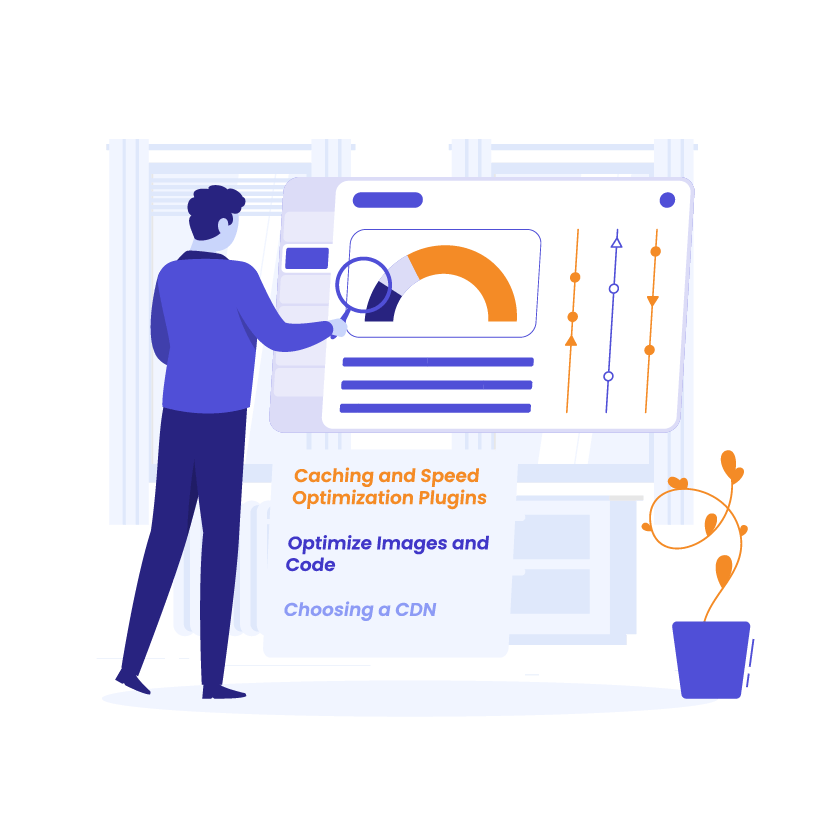
Optimizing your site’s performance is essential to provide a seamless user experience and ensure fast loading times. Here are the key steps to enhance your WordPress site’s speed and efficiency:
Setting Up Caching and Speed Optimization Plugins
Caching plugins improve your website’s loading speed by storing frequently accessed data:
- Install and configure plugins like WP Rocket or W3 Total Cache to enable page caching, browser caching, and database optimization.
- Test different settings to find the optimal configuration for your site.
- Regularly clear the cache after making updates to ensure visitors see the latest version of your site.
Optimize Images and Code for Faster Loading
Large images and unoptimized code can slow down your site. Address these issues by:
- Compressing images with tools like TinyPNG or plugins such as Smush to reduce file sizes without compromising quality.
- Enabling lazy loading so images load only when they come into the user’s view.
- Minifying CSS, JavaScript, and HTML files to remove unnecessary code and improve loading times.
Choosing a Content Delivery Network (CDN)
A CDN distributes your site’s content across multiple servers globally, reducing latency and improving load times for users:
- Evaluate top CDN options like Cloudflare, StackPath, or KeyCDN to find one that suits your needs.
- Integrate the chosen CDN with your WordPress site using a plugin or the provider’s setup instructions.
- Monitor your site’s performance to ensure the CDN is working effectively.
By implementing these strategies, you can significantly enhance your site’s performance, improve user experience, and maintain optimal speed across all devices.
Backup and Security Best Practices
Safeguarding your WordPress site is crucial to protect your data and maintain site functionality. Implementing robust backup and security measures ensures your site stays safe from threats and recoverable in case of issues.
Implementing Regular Backups
Regular backups are your safety net against data loss or site failure:
- Set up automated backup systems using plugins like UpdraftPlus or BackupBuddy. Schedule backups daily or weekly, depending on how often your site changes.
- Store backups securely on external platforms, such as Google Drive, Dropbox, or a dedicated cloud server.
- Periodically test your backups by restoring them to ensure they are complete and functional.
Ensuring Site Security
Protecting your site from cyber threats requires a combination of tools and practices:
- Install Security Plugins: Use plugins like Wordfence or Sucuri Security to set up firewalls, monitor login attempts, and block brute-force attacks.
- Regularly Update Everything: Keep your WordPress core, themes, and plugins updated to patch vulnerabilities.
- Limit login attempts and disable file editing in the WordPress dashboard to reduce security risks.
Enabling Two-Factor Authentication
Two-factor authentication (2FA) adds an extra layer of protection to your login process:
- Use plugins like Google Authenticator or Two-Factor Authentication to enable 2FA on your site.
- Require all users with admin access to activate 2FA for enhanced security.
- Provide backup options, such as recovery codes, in case users lose access to their 2FA method.
By implementing these backup and security best practices, you’ll safeguard your website against potential threats and ensure it remains secure and operational at all times.
Common Issues and Troubleshooting Tips When Migrating Weebly to WordPress

Moving your website from Weebly to WordPress can sometimes lead to unexpected challenges. Here are common issues you might encounter and practical solutions to address them:
Issues with Theme Compatibility
When switching from Weebly to WordPress, you may find that certain design elements don’t translate seamlessly:
- Problem: The chosen WordPress theme doesn’t support your desired layout or functionality.
- Solution: Opt for highly customizable themes like Astra or GeneratePress, and use page builders such as Elementor to replicate or improve upon your Weebly design.
Media Import Failures
Transferring images and media files can sometimes lead to broken links or missing metadata:
- Problem: Media files fail to upload or lose quality during migration.
- Solution: Compress images before uploading using tools like TinyPNG and ensure metadata, such as alt text, is manually restored if lost. Plugins like Media Library Assistant can help with bulk media organization.
Redirect Problems
Maintaining SEO rankings during a migration from Weebly to WordPress depends on proper URL redirection:
- Problem: Visitors encounter 404 errors because old Weebly URLs aren’t redirecting to the new WordPress URLs.
- Solution: Use the Redirection plugin to create 301 redirects for all outdated URLs and test them thoroughly to ensure proper functionality.
Solutions for Common Plugin Conflicts
WordPress’s extensive plugin library is powerful, but conflicts can arise:
- Problem: Plugins conflict with each other or your theme, causing functionality issues.
- Solution: Deactivate plugins one by one to identify the source of the conflict. Keep plugins updated and ensure compatibility before installation.
FAQ: WordPress Migration Troubleshooting
Q: What do I do if my site’s design looks different after migration?
A: Choose a customizable theme and use a page builder to recreate or enhance your original design.
Q: How can I fix broken links after migration?
A: Use tools like Screaming Frog or the Broken Link Checker plugin to identify broken links and set up 301 redirects.
Q: My site is loading slowly – what can I do?
A: Optimize site performance with caching plugins like WP Rocket, compress images, and consider using a CDN.
By addressing these common issues proactively, you can ensure a smooth transition and avoid disruptions to your site’s functionality and user experience.
Final Checklist for a Successful Migration from Weebly to WordPress
To ensure your migration from Weebly to WordPress is seamless and successful, use this comprehensive checklist covering pre-migration, during migration, and post-migration tasks.
Pre-Migration Checklist
Before you begin to convert Weebly to WordPress, ensure everything is planned and organized:
- Content Audit: Review all pages, posts, media files, and SEO data from your Weebly site.
- URL Mapping: Document your existing URLs and map them to their new WordPress equivalents to maintain SEO value.
- SEO Planning: Collect meta titles, descriptions, and keywords to transfer later.
- Design Planning: Choose a WordPress theme and prepare to replicate or improve your current design.
During Migration Checklist
Focus on accurate installation and data transfer during the migration process:
- WordPress Installation: Set up WordPress on your chosen hosting platform and configure basic settings.
- Content Import: Transfer your pages, posts, images, and other media using plugins or manual methods.
- Testing: Check your site’s functionality, including forms, navigation, and layout consistency.
Post-Migration Checklist
Once your content is on WordPress, finalize the migration with these crucial steps:
- Redirects: Use a plugin like Redirection to set up 301 redirects for old Weebly URLs.
- Broken Links: Scan your site for broken links using tools like Broken Link Checker and fix any issues.
- Performance Testing: Optimize your site speed with caching plugins, image compression, and a CDN.
- SEO Updates: Submit your updated XML sitemap to Google and Bing, and monitor your site’s performance using Google Analytics and Search Console.
By following this step-by-step checklist, you’ll ensure a smooth transition from Weebly to WordPress while preserving your site’s functionality, SEO rankings, and user experience.
WordPress migration
Migrate to WordPress with White Label Agency. Safe, fast, and expertly managed migration from all major platforms. Contact us to get your free quote today.
How to Transfer Weebly to WordPress: Conclusion
Migrating from Weebly to WordPress is a powerful step toward enhancing your website’s functionality, scalability, and SEO performance. With WordPress, you gain the flexibility to customize your site, optimize for search engines, and grow your online presence without limitations.
To make the most of your new WordPress site, focus on ongoing management:
- Regularly update themes, plugins, and core files for security and performance.
- Monitor your site’s analytics to identify opportunities for improvement.
- Explore WordPress’s vast ecosystem of plugins and tools to support your growth.
If the migration process feels overwhelming or you want to ensure every detail is handled professionally, the White Label Agency is here to help. We specialize in seamless migrations, ensuring your website retains its functionality, SEO value, and user experience while taking full advantage of WordPress’s capabilities.
Contact us today to learn how we can assist you in achieving a smooth migration and provide ongoing WordPress management services tailored to your needs. Let’s make your website work harder for you!


