- How to Manage a Website with WordPress: Step-by-Step Guide
- Core WordPress Website Management Tasks
- Advanced WordPress Website Management Tips
- Website as a service
- WordPress Maintenance Checklist
- How to Maintain a WordPress Website for Long-term Success
- Common WordPress Website Management Issues and How to Fix Them
- WordPress Website Management Tools: A Comprehensive Guide
- WordPress Outsourcing Services
- Streamline WordPress Website Management for Optimal Performance
A well-managed WordPress website is more than just a digital storefront; it’s a strategic asset. Regular and effective WordPress website management is necessary for optimal website performance, security, and user experience.
But who exactly needs to manage their WordPress site? The truth is, that everyone who owns or operates a website built on WordPress should prioritize regular upkeep. From small business owners to large digital agencies, knowing how to manage a website with WordPress can help avoid downtime, protect against cyber threats, and enhance your site’s overall functionality.
In this guide, we’ll explore the importance of WordPress website management, detailing the tasks necessary for keeping your site in top condition. By following proven strategies, you can ensure long-term success and stability for your online presence.
How to Manage a Website with WordPress: Step-by-Step Guide
Maintaining your WordPress website can be manageable, especially when you follow a structured approach. In this step-by-step guide, we’ll walk you through essential tasks, offering a clear WordPress checklist to help streamline your WordPress website management efforts.
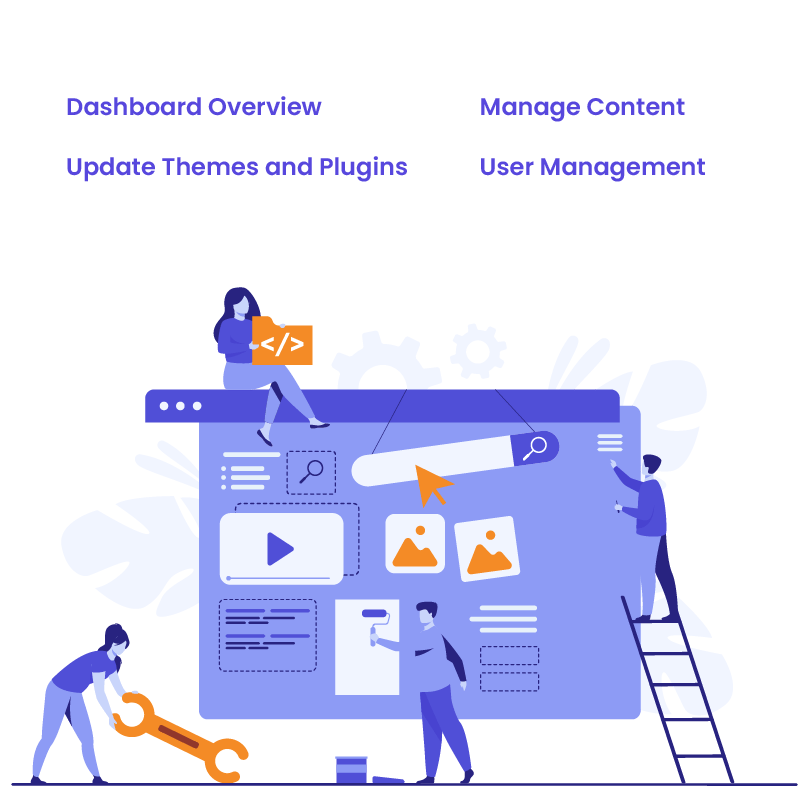
Dashboard Overview
For beginners, the WordPress dashboard is your central hub for managing your site. From here, you can access everything from themes to plugins, pages to posts. Familiarizing yourself with the dashboard is the first step in understanding how to maintain a WordPress website effectively. Take time to explore each section, as it will become the foundation of your WordPress website management routine.
Updating Themes and Plugins
Keeping your themes and plugins up to date is one of the most critical tasks for maintaining website security and performance. Outdated themes or plugins can leave your site vulnerable to cyberattacks or cause functionality issues. To update them safely, follow this simple process:
- Backup your site before making any changes.
- Check for compatibility with your current WordPress version.
- Use the “Update” buttons found in the dashboard under Plugins or Appearance > Themes.
Managing Content
Regular content updates keep your website fresh and engaging for users. WordPress makes it easy to create, edit, and optimize blog posts, pages, and media. To maintain content effectively, consider these best practices:
- Create SEO-friendly blog posts using appropriate headers, keywords, and meta descriptions.
- Organize your media library to keep images and files easy to find.
- Regularly review and update existing content to ensure it stays relevant.
User Management
Managing users and assigning roles is essential for maintaining a secure WordPress website, especially if you have multiple contributors. WordPress allows you to add users and assign different roles, such as Administrator, Editor, Author, and Subscriber. Each role comes with specific permissions, which help limit access to sensitive areas of the site.
Additionally, securing user access is vital. Encourage users to create strong passwords and consider enabling two-factor authentication for added security.
Core WordPress Website Management Tasks
To ensure your WordPress website runs smoothly and remains secure, certain core WordPress website management tasks should be regularly performed. These tasks are critical for the long-term stability of your site and play a key role in effective WordPress website management. Let’s break down the most important areas you should focus on.
Backups
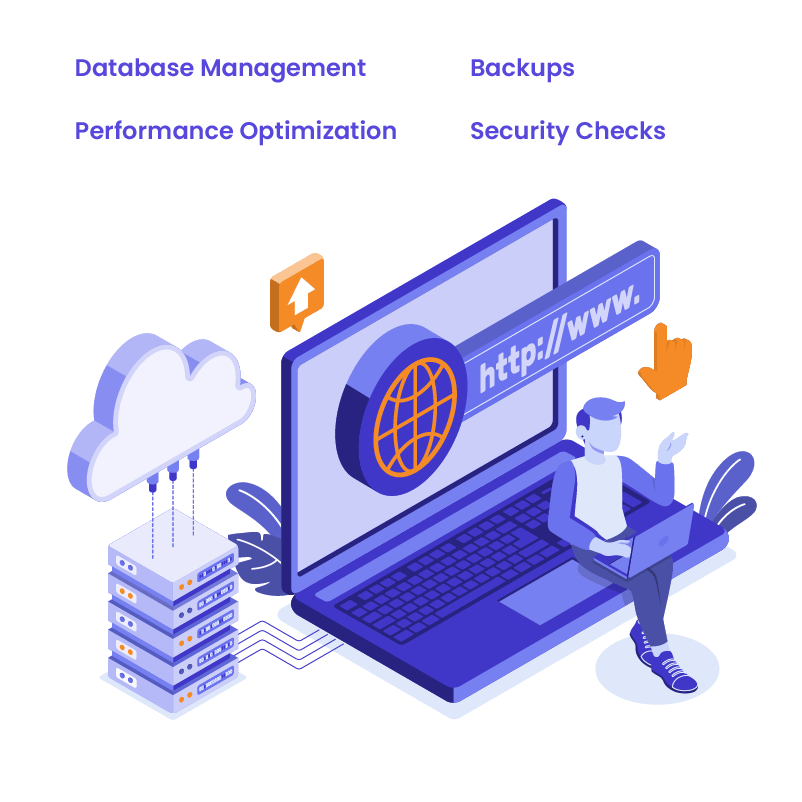
One of the most crucial aspects of WordPress website management is ensuring you have regular backups. Backups act as your safety net in case of data loss, site errors, or cyberattacks. Setting up automatic backups is simple, with options like:
- Plugins: Popular backup plugins such as UpdraftPlus and BackWPup allow you to schedule regular backups that store copies of your website either locally or in the cloud.
- Hosting Options: Many hosting providers offer built-in backup features, automatically saving copies of your site on a daily or weekly basis.
By setting up automatic backups, you protect your site from potential data loss and can easily restore it if something goes wrong.
Security Checks
Maintaining strong security is fundamental to keeping your WordPress website safe from threats. Here’s how you can enhance your site’s security:
- Essential Plugins: Security plugins like Wordfence or Sucuri can help monitor your site for vulnerabilities and block malicious attempts.
- Securing Login Credentials: Use strong, unique passwords for all accounts and enable two-factor authentication (2FA) to add an extra layer of protection.
- Enabling SSL: An SSL certificate encrypts data exchanged between your users and the site. It’s vital for securing sensitive information and is easily enabled through your hosting provider.
Regular security checks should be part of your ongoing WordPress website management routine to minimize the risk of hacking or breaches.
Performance Optimization
A fast-loading website is critical for a good user experience and SEO. Optimizing your site’s performance includes:
- Speed Tests: Use tools like Google PageSpeed Insights or GTMetrix to measure your site’s load time and identify areas for improvement.
- Caching: Implement caching solutions, such as WP Rocket or W3 Total Cache, to store static versions of your site and reduce server load.
- Image Optimization: Compress and resize images using plugins like Smush or ShortPixel to reduce file sizes without sacrificing quality.
These performance optimization practices will keep your site fast and efficient, enhancing both user experience and search engine rankings.
Database Management
Over time, your WordPress database can accumulate unnecessary data, leading to bloat and slower site performance. Regularly cleaning up your database helps maintain efficiency and speed. You can use plugins like WP-Optimize to:
- Remove old revisions of posts and pages.
- Delete spam or trashed comments.
- Clear out transient options and other temporary data.
Advanced WordPress Website Management Tips
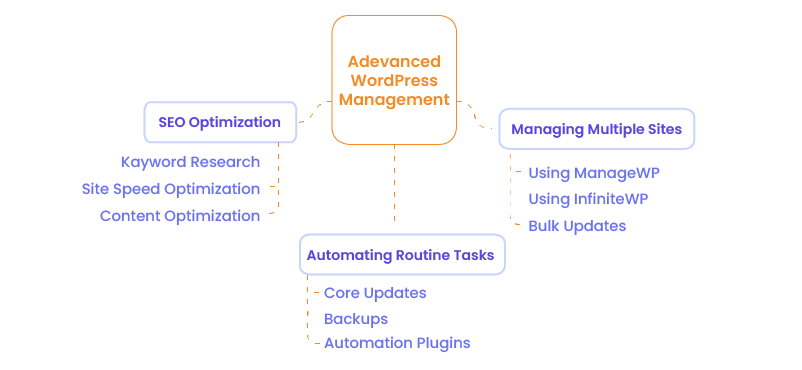
Once you’ve mastered the basics of WordPress website management, it’s time to explore more advanced techniques that can further enhance your site’s performance and efficiency. In this section, we’ll cover SEO optimization, managing multiple sites, and automating routine tasks to streamline your workflow.
SEO Optimization
Optimizing your WordPress site for search engines is essential for driving traffic and improving visibility. Fortunately, WordPress offers several powerful plugins and strategies to make SEO management easier:
- Essential Plugins: Tools like Yoast SEO and All in One SEO Pack guide you through optimizing individual pages and posts, suggesting improvements for keyword use, meta descriptions, and readability. They also allow you to manage technical aspects like sitemaps and schema markup easily.
- Strategies: Focus on creating high-quality, relevant content that targets the right keywords. Use internal linking to boost SEO value, and ensure that your site is mobile-friendly and fast-loading – both key ranking factors.
Multisite WordPress Website Management
For developers, digital agencies, or website owners managing multiple WordPress sites, handling each site individually can be time-consuming. Fortunately, there are tools designed to simplify WordPress website management across multiple sites from a single dashboard. Some popular options include:
- ManageWP: This tool allows you to manage updates, backups, and security scans across all your sites from one central dashboard. It also offers performance monitoring and SEO analysis features.
- InfiniteWP: Similar to ManageWP, InfiniteWP helps you handle updates, backups, and security for multiple sites with just a few clicks, making multisite management much more efficient.
Automation
One of the most powerful ways to enhance WordPress website management is through automation. Automation tools help you save time by handling routine tasks such as updates, backups, and performance monitoring without manual intervention. Here are a few automation solutions:
- Automated Updates: WordPress offers an auto-update feature for core updates, themes, and plugins. Additionally, plugins like Easy Updates Manager let you configure how and when updates occur, ensuring your site is always up to date.
- Automated Backups: As mentioned earlier, using plugins like UpdraftPlus allows you to set automatic backups to cloud services, ensuring your site data is regularly saved without manual input.
- Performance Monitoring: Tools like Jetpack and WP Umbrella can automatically monitor your site’s uptime and performance, sending alerts if any issues arise. This way, you can respond quickly to problems and maintain a smooth user experience.
Website as a service
Website As a Service [WAAS] provides complete website solutions including design, hosting, and maintenance through a convenient subscription model for Agencies.
WordPress Maintenance Checklist
Effective WordPress website management requires consistent attention to various tasks that help ensure your site stays secure, fast, and up-to-date. Below is a comprehensive WordPress checklist that breaks down daily, weekly, monthly, and annual tasks to keep your site running smoothly.
Daily Tasks
- Content Review: Ensure that your website’s content remains fresh and relevant. Review blog posts, product listings, or service descriptions to update any outdated information.
- Security Check: Perform a quick security scan using a plugin like Wordfence or Sucuri to detect any vulnerabilities or malicious activity. Confirm that all login credentials are secure and no unauthorized access attempts have occurred.
- Backups: Verify that automatic backups are working correctly. While manual backups aren’t needed daily, confirming the system functions properly is key for reliable WordPress website management.
Weekly Tasks
- Plugin and Theme Updates: Regularly updating plugins and themes ensures your site remains compatible with the latest WordPress version and prevents security risks. Use your dashboard or an update manager plugin for this crucial part of your WordPress checklist.
- User Management: Review user roles and permissions to ensure there are no unnecessary or unauthorized users. Adjust roles as needed and remove any inactive accounts to keep your site secure.
- Speed Tests: Run a speed test using tools like Google PageSpeed Insights or GTMetrix to monitor your site’s performance. If there’s a significant slowdown, it may be time to optimize your site’s assets or consider caching solutions.
Monthly Tasks
- Full Site Backup: Perform a full backup, ensuring both files and the database are securely stored. Use this time to confirm your automatic backup system functions as part of your ongoing WordPress website management.
- SEO Audit: Conduct an SEO audit of your site to ensure it’s ranking well in search engines. Use plugins like Yoast SEO or external tools such as SEMrush to evaluate keywords, optimize meta descriptions, and fix broken links.
- Database Cleanup: Clean up your WordPress database, removing unnecessary data like post revisions, spam comments, and expired transients. This helps prevent database bloat and is an important step in your WordPress checklist.
Annual Tasks
- Comprehensive Performance Audit: Once a year, it’s a good idea to perform a full audit of your site’s performance. This includes assessing site speed, server performance, and overall user experience. Make adjustments as needed to improve load times and functionality. This ensures long-term success in WordPress website management.
- Theme Refresh: Consider refreshing your theme annually to keep your design current and user-friendly. Even minor tweaks can make your site feel updated and modern.
- Security Overhaul: Review your entire security setup, including plugins, SSL certificates, and login procedures. Update your passwords, enable two-factor authentication, and assess any potential vulnerabilities that may have emerged over the year.
Following this WordPress checklist ensures your site remains secure, fast, and optimized for success. Regular WordPress website management is key to maintaining site performance and user satisfaction.
How to Maintain a WordPress Website for Long-term Success
Ensuring long-term success for your WordPress site goes beyond basic maintenance – it requires a well-structured routine for consistent WordPress website management. Below, we’ll outline how to create a strategy that helps you understand how to maintain a WordPress website effectively and keep it performing at its best.

Setting Up a Maintenance Schedule
One of the first steps in how to manage a website with WordPress is establishing a clear maintenance schedule. By dividing tasks into daily, weekly, monthly, and annual categories (like those found in a WordPress checklist), you can ensure that no crucial task is neglected. This approach helps prevent minor issues from escalating into larger problems, keeping your site secure and running efficiently.
It’s important to set up a routine that matches your specific site’s needs, based on factors like traffic volume, site complexity, and how frequently you update content.
Resource: Here is a free website maintenance checklist.
Regular Testing and Updates
Keeping your WordPress core, themes, and plugins updated is a fundamental aspect of how to maintain a WordPress website. Schedule time weekly or monthly for the following:
- Perform tests after updates to ensure everything functions properly.
- Use a staging site for major updates to avoid any compatibility issues affecting your live site.
- Ensure your WordPress version is current to take advantage of the latest features and security patches.
These steps are vital for seamless WordPress website management.
Monitoring Uptime and Downtime
Tracking uptime and downtime is a key part of how to manage a website with WordPress. Tools like UptimeRobot monitor your site’s performance, alerting you to any issues that might cause downtime. This helps you:
- Respond quickly to server or hosting problems.
- Identify long-term uptime patterns, which can help pinpoint technical issues before they become critical.
Incorporating uptime monitoring into your WordPress checklist ensures a smoother user experience.
Regular Audits and Performance Reviews
For ongoing success, conduct regular audits as part of your WordPress website management strategy. These audits should include:
- Security: Check for vulnerabilities, ensure SSL certificates are functioning, and review user permissions.
- SEO: Evaluate your site’s SEO performance and identify opportunities for improvement through keyword updates and fixing any SEO-related errors.
- Speed: Conduct speed tests to ensure your site loads quickly and efficiently, optimizing wherever necessary.
Performing these audits quarterly or annually ensures that you’re not only fixing problems as they arise but also improving your website’s overall performance and security for the future.
Common WordPress Website Management Issues and How to Fix Them
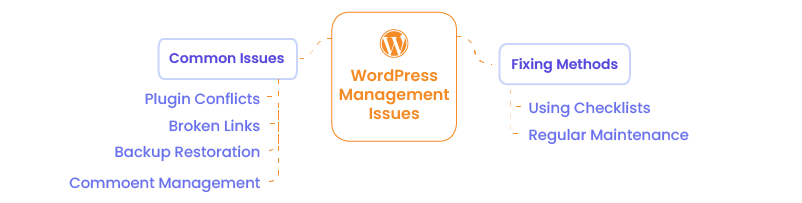
Even with regular WordPress website management, common issues can still arise. Here’s how to fix some of the most frequent problems using a WordPress checklist to ensure nothing is missed.
Troubleshooting Plugin Conflicts
Plugin conflicts can cause errors or slow your site. To resolve this:
- Deactivate all plugins.
- Reactivate them one by one, checking for the issue after each activation.
- Update or replace the problematic plugin as part of your WordPress website management routine.
Fixing Broken Links and 404 Errors
Broken links harm user experience and SEO. Use the Broken Link Checker plugin to scan for errors. Redirect 404 errors using a plugin like Redirection. Regularly review broken links using your WordPress checklist to prevent future problems.
Restoring Backups
When your site crashes, restoring a backup is essential. Use your backup plugin (e.g., UpdraftPlus) to locate and restore the latest backup. Always test your site after restoration as part of your WordPress website management routine to ensure everything functions properly.
Managing Large Volumes of Comments
Managing comments can be overwhelming, especially with spam. Use a plugin like Akismet to filter spam automatically. Enable comment moderation to approve or reject comments manually, or use a bulk delete tool to manage them efficiently. Including comment management in your WordPress checklist ensures that your site remains clean and user-friendly.
By addressing these issues regularly, your WordPress website management strategy will keep your site secure, functional, and optimized.
WordPress Website Management Tools: A Comprehensive Guide
Effective WordPress website management requires the right tools to streamline tasks and maintain performance, security, and backups. Here’s a guide to the best plugins for managing your WordPress site.
Best Plugins for WordPress Website Management
- Jetpack: A versatile plugin offering features like performance monitoring, security, backups, and more.
- ManageWP: Ideal for managing multiple WordPress sites from one dashboard, offering automated backups, security checks, and performance monitoring.
- UpdraftPlus: One of the most reliable backup plugins, allowing easy site backups and restores to cloud services like Dropbox or Google Drive.
Tools for Performance and Security Monitoring
- Wordfence: Provides real-time security monitoring, malware scans, and a firewall to protect your site from attacks.
- WP Rocket: A premium caching plugin that significantly improves site performance by optimizing load times.
- UptimeRobot: Monitors your site’s uptime and downtime, sending immediate alerts when your site goes offline.
Recommended Plugins for Backups, Security, and SEO
- Backups: UpdraftPlus or VaultPress for automated backups and easy restoration.
- Security: Wordfence or Sucuri for comprehensive protection against threats.
- SEO: Yoast SEO or All in One SEO Pack to optimize your content and improve search engine rankings.
WordPress Outsourcing Services
Enhance your agency’s capabilities with our WordPress outsourcing services. Get expert development, design, and maintenance support tailored to your needs.
Streamline WordPress Website Management for Optimal Performance
Effective WordPress website management is crucial for maintaining a secure, high-performing website. Regular updates, backups, security checks, and performance optimization are key to ensuring long-term success. By following a structured maintenance schedule and using the right tools, you can prevent common issues and keep your site running smoothly.
For business owners, managing a WordPress site can be time-consuming and complex. This is where professional WordPress website management services can make all the difference. By outsourcing management tasks, you can focus on growing your business while ensuring your website remains in expert hands.
At White Label Agency, we specialize in WordPress website management services with over a decade of experience. From security monitoring and backups to performance optimization, we’ve got you covered, ensuring your site stays secure, fast, and up-to-date. Contact us to learn how our White Label Agency can handle every aspect of your WordPress website management.