- Assessing Your Business Needs
- Preparing Your WordPress Environment
- Selecting the Right Tools and Plugins
- Woocommerce Developer
- Designing the Client Portal Interface
- Hire a WordPress Designer
- Enhancing User Experience
- Testing and Launching the Client Portal
- Maintaining and Updating the Portal
- WordPress maintenance plans
- Conclusion
Creating a WordPress client portal can significantly enhance how businesses interact with their clients by providing a secure, centralized space for communication, file sharing, and project management. This guide will walk you through the entire process, from identifying business needs to implementing essential functionalities using the best WordPress client portal plugins.
So, if you’ve been wondering how to create a client portal in WordPress, this step-by-step manual will provide all the details. Let’s get started.
Assessing Your Business Needs
Before setting up a WordPress client portal, it’s essential to define your business objectives and the functionalities you require. Many businesses struggle with how to create a client portal in WordPress that balances security, usability, and efficiency. A client portal can serve multiple purposes, such as:
- Document Sharing: Securely exchange files between you and your clients.
- Project Management: Enable clients to track progress, deadlines, and updates.
- Billing & Invoicing: Provide a seamless payment experience with automated invoicing.
- Communication & Support: Offer direct messaging, help desk tickets, or live chat options.
Understanding Client Expectations
A successful customer portal should not only meet your business needs but also align with client expectations. Clients value convenience, accessibility, and security, so your portal must be:
- Easy to navigate: A clear and structured dashboard ensures effortless interaction.
- Mobile-friendly: Many clients access portals on mobile devices, so responsive design is crucial.
- Secure: Role-based access control prevents unauthorized data access.
By considering both business and client requirements, you can design a WordPress client portal that improves efficiency and strengthens customer relationships.
Preparing Your WordPress Environment

Setting up a WordPress customer portal requires a secure and well-optimized website. Before installing any WordPress client portal plugin, ensure your website is hosted on a reliable and secure platform.
Choosing the Right Hosting and Domain
The performance and security of your WordPress client portal depend on your hosting provider. Opt for:
- Managed WordPress hosting (e.g., Pressable, WP Engine, or Kinsta) for optimal performance.
- An SSL certificate to encrypt client data and ensure secure connections.
- A dedicated subdomain (e.g., portal.yourcompany.com) to create a professional experience.
Installing WordPress
If WordPress is not already installed, follow these steps:
- Select a hosting provider and register your domain.
- Use one-click installation (offered by most hosts) to set up WordPress.
- Configure basic settings, including site title, permalink structure, and timezone.
Implementing Security Measures
Since a WordPress customer portal handles sensitive information, security should be a top priority. Take the following steps to protect client data:
- Install a security plugin in order to block malicious activity.
- Enable two-factor authentication (2FA) to add an extra layer of login security.
- Set up automated backups to prevent data loss in case of a security breach.
- Limit user roles and permissions to restrict access to confidential information.
With a secure WordPress environment in place, the next step is selecting the right plugins and tools to build a fully functional WordPress client portal.
Selecting the Right Tools and Plugins

Once your WordPress environment is set up, the next step is to choose the right WordPress client portal plugin and supporting tools. The effectiveness of your WordPress customer portal depends on the features and functionalities you integrate. Fortunately, WordPress offers a variety of plugins that cater to different client portal needs.
Membership and Access Control Plugins
A WordPress client portal must have a secure authentication system to ensure that only authorized users can access their designated content. Membership and access control plugins help manage client logins, permissions, and user roles. Some of the best options include:
- MemberPress – Ideal for subscription-based portals, allowing restricted content access.
- Simple Membership – A lightweight and easy-to-use option for managing client memberships.
- Restrict Content Pro – Provides advanced user role management with premium access levels.
These plugins enable businesses to create personalized client areas with role-based access, ensuring clients only see the content relevant to them.
Recommendation
Discover more membership plugins and learn about their capabilities in our guide.
3 Best Client Management Plugins
Managing client interactions effectively is essential for a smooth user experience. Some top WordPress client portal plugin options for client management include:
- WP Customer Area – Allows private file sharing and custom client dashboards.
- Client Dash – Provides an easy way to personalize the WordPress dashboard for clients.
- Jetpack CRM – A powerful tool for handling client relationships and tracking interactions.
These plugins help streamline communication, ensuring clients have easy access to their data and projects.
Billing and Invoicing
A WordPress client portal should simplify payments by offering seamless invoicing and transaction tracking. Businesses can integrate:
- WP Simple Pay – A lightweight solution for one-time or recurring payments.
- Sprout Invoices – A full-featured invoicing plugin that allows clients to view, pay, and track invoices.
- WooCommerce Subscriptions – For businesses that require automated billing cycles for recurring payments.
Adding secure payment gateways like PayPal, Stripe, or Authorize.net ensures that transactions remain smooth and reliable. Clients should also receive email notifications for new invoices, upcoming due dates, and successful payments.
Woocommerce Developer
Streamline your Woocommerce projects by hiring a Woocommerce developer from our team. We’ve got you covered for your ecommerce projects.
Communication and Support Plugins: Top 3 Options
For businesses that require direct engagement with clients, adding communication and support functionalities is key. Some popular plugins include:
- WP Live Chat Support – Offers real-time chat functionality within the portal.
- Awesome Support – A ticket-based help desk system for handling client queries.
- Fluent Support – Provides an advanced customer support solution with automation features.
A well-integrated communication system ensures that clients receive prompt assistance, reducing frustration and improving user experience.
By selecting the right combination of tools, you can create a feature-rich WordPress client portal that meets both your business and client needs. Once the plugins are in place, the next step is to focus on designing a user-friendly and professional portal interface.
Designing the Client Portal Interface
A well-designed WordPress client portal should not only be functional but also visually appealing and easy to navigate. A well-structured interface enhances user experience, ensuring clients can access information effortlessly.
User-Friendly Navigation
Navigation plays a crucial role in usability. Clients should be able to log in and access their information with minimal effort. To achieve this:
- Use a clear dashboard layout that displays key information at a glance.
- Organize content into categories (e.g., documents, projects, invoices) for easy access.
- Implement a search function to help users find what they need quickly.
A well-structured navigation system ensures that clients can interact with your WordPress customer portal efficiently.
Customization and Branding
Your WordPress client portal should reflect your brand identity. A professional and personalized portal creates a more trustworthy and engaging experience. Consider these elements:
- Custom colors and logos – Ensure consistency with your brand’s visual identity.
- Branded email notifications – Maintain consistency across all client communications.
Plugins like White Label CMS allow for deeper customization, enabling businesses to design a branded portal experience.
Hire a WordPress Designer
Discover the benefits of choosing to hire a WordPress designer. Enjoy focused attention, quick turnaround, cost-effectiveness, and expert design for the projects.
Enhancing User Experience

A well-functioning WordPress client portal is only successful if clients find it intuitive and efficient. To maximize engagement and usability, businesses must go beyond just features—they must optimize the overall experience.
Personalized Dashboards
A generic client portal may feel impersonal and overwhelming. By customizing dashboards based on user roles, businesses can create a more tailored experience. A well-designed WordPress customer portal should:
- Show relevant information such as recent updates, pending invoices, and shared files.
- Allow clients to customize their dashboard by selecting widgets or adjusting layouts.
- Use visual elements like charts, progress bars, and notifications for a more engaging experience.
Plugins like WP User Frontend allow businesses to create user-friendly, customizable dashboards that improve engagement.
Automated Notifications and Reminders
Clients should receive timely updates without constantly logging into the portal. Automated notifications improve communication while reducing administrative workload. Implement:
- Email alerts for new messages, shared files, or upcoming deadlines.
- Push notifications for time-sensitive updates using plugins like OneSignal Push Notifications.
- SMS notifications for urgent reminders with Twilio SMS Notifications for WordPress.
Automated reminders help ensure that clients remain informed and proactive without requiring constant follow-ups.
Mobile Optimization for Accessibility
Many clients access portals through mobile devices, making mobile responsiveness a necessity. A mobile-friendly WordPress client portal should:
- Feature a responsive design that adjusts seamlessly to different screen sizes.
- Offer a dedicated mobile app experience using tools like AppPresser to convert WordPress portals into mobile apps.
- Ensure fast loading times by optimizing images, caching, and using a CDN.
By focusing on accessibility, businesses ensure that clients can efficiently use the portal from anywhere, improving overall satisfaction.
Testing and Launching the Client Portal
Before making your portal available to clients, it is crucial to go through a comprehensive testing phase. Ensuring that all functionalities work correctly will prevent potential issues that could affect usability and security. This chapter will guide you through the testing and launch process, providing you with a structured approach on how to create a client portal in WordPress that is fully optimized and reliable.
Beta Testing with Select Clients
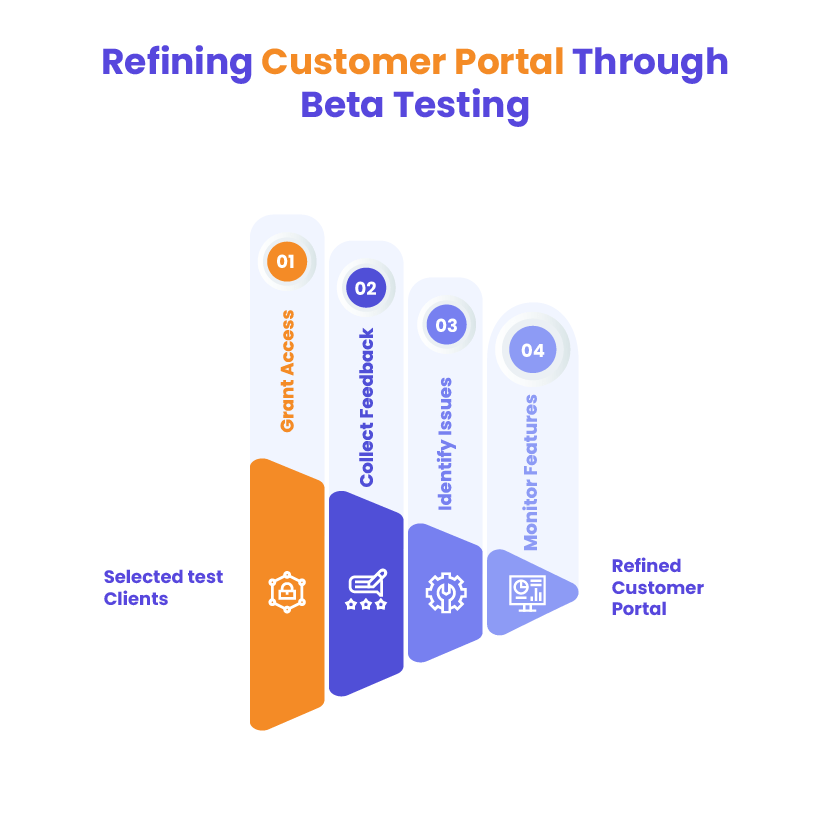
A successful customer portal requires real-world testing before its official launch. Instead of opening the portal to all clients immediately, it’s best to conduct a beta test with a small group of trusted users.
- Select a group of test clients and grant them access to the portal.
- Request feedback on usability, navigation, and performance.
- Identify any bugs or technical issues that may arise during client interactions.
- Monitor login processes, file uploads, and communication features to ensure everything functions smoothly.
During this phase, it’s essential to record client feedback and make necessary adjustments. A beta testing phase allows businesses to refine their WordPress client portal before a full rollout, ensuring an optimal user experience.
Training and Onboarding
Even with a well-designed WordPress customer portal, clients may require guidance to use it effectively. A structured onboarding process can make adoption easier and improve client satisfaction.
- Create a user guide that outlines how to navigate the portal, upload files, and access features.
- Offer video tutorials to demonstrate key functionalities.
- Provide live onboarding sessions via webinars or one-on-one calls.
- Set up an FAQ section to answer common client questions.
By offering proper training, businesses can ensure that clients feel comfortable and confident using the portal, reducing the need for frequent support requests.
Official Launch and Client Communication
Once testing is complete and the portal is ready, it’s time for the official launch. Announcing the launch effectively is crucial to encouraging adoption and ensuring clients are aware of the new system.
- Send email notifications to all clients, introducing the portal and its benefits.
- Provide step-by-step login instructions and direct links to user guides.
- Offer incentives for early adoption, such as discounts or exclusive content for those who sign up first.
- Monitor client activity after launch and be available to address any issues.
A well-planned launch ensures that clients engage with the WordPress client portal from day one, allowing them to experience its benefits immediately.
Maintaining and Updating the Portal
Building a customer portal is not a one-time task—it requires continuous monitoring, updates, and improvements to remain secure and effective. This chapter covers best practices for maintaining and enhancing your client portal, ensuring long-term success.
Regular Security Audits
Since a WordPress client portal often handles sensitive client data, security should be a top priority. Conducting regular security audits helps protect against threats and vulnerabilities.
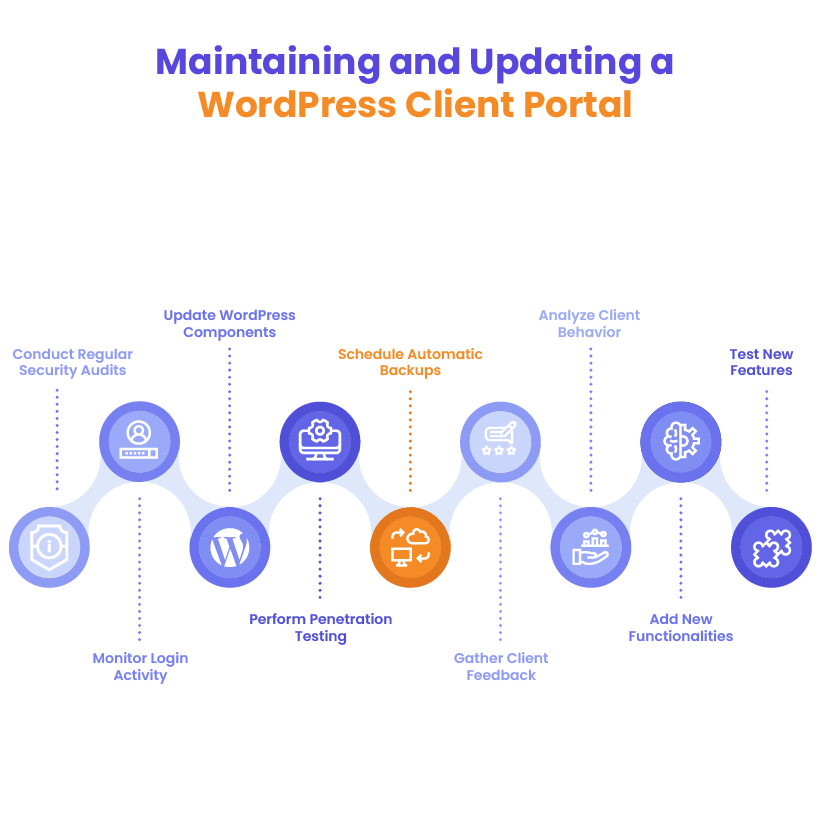
- Monitor login activity to detect any suspicious attempts.
- Update WordPress, themes, and plugins regularly to patch security flaws.
- Perform penetration testing to identify weaknesses in authentication and data storage.
- Schedule automatic backups using plugins. Check out our comprehensive guide on WordPress backup.
WordPress maintenance plans
WordPress Maintenance Plans ensure site security, performance, and uptime. Choose custom plans with backups, monitoring, and unlimited content edits.
Feature Enhancements Based on Client Feedback
A great WordPress client portal evolves with time. Gathering feedback and implementing new features based on client needs ensures the portal remains useful and relevant.
- Encourage clients to provide feedback through surveys or a feedback form.
- Analyze client behavior to identify underused or missing features.
- Add new functionalities such as additional integrations, automation, or improved navigation based on user demand.
- Test new features before rolling them out to all clients to prevent compatibility issues.
Continuous improvements ensure that the portal remains an essential tool for both businesses and clients.
Performance Monitoring and Optimization
A slow or inefficient portal can lead to client frustration and reduced engagement. Regular performance monitoring ensures that the WordPress customer portal operates smoothly.
- Use performance tracking tools like Google PageSpeed Insights to measure loading speeds.
- Optimize database performance by cleaning up unused files and entries with optimization tools.
- Minimize unnecessary plugins to prevent slowdowns and compatibility issues.
- Leverage caching solutions such as WP Rocket to enhance loading speeds.
Conclusion
Understanding how to create a client portal in WordPress empowers businesses to streamline client interactions, enhance security, and improve workflow efficiency. By selecting the right plugins, optimizing user experience, and ensuring regular maintenance, your WordPress client portal can become a powerful tool for both you and your clients.
For agencies looking to build a customized WordPress customer portal, White Label Agency offers expert development services. With a team of skilled WordPress developers and a proven track record, we provide reliable, scalable solutions tailored to your needs. Partner with us and start delivering professional websites without the technical hassle.