- Why Choose WordPress Multisite?
- How to Set Up a WordPress Multisite Network
- Managing WordPress Multisite
- Multisite Security and Maintenance
- Optimizing Performance for a Multisite Network
- Troubleshooting Common WordPress Multisite Issues
- Case Studies and Real-World Examples
- Optimize Your WordPress Multisite Network
When managing multiple websites, the thought of juggling separate installations, themes, and plugins can quickly become overwhelming. This is where WordPress multisite proves valuable, offering a streamlined solution for businesses, developers, and website administrators looking to manage several sites under one roof. But what exactly is a WordPress multisite?
WordPress multisite is a powerful feature within the WordPress platform that allows users to create a network of multiple websites all under a single WordPress installation. This means that with multisite website development, businesses and organizations can manage all their sites from one dashboard, making it ideal for scenarios like educational institutions, franchises, and multi-language websites.
For example, a university might use a WordPress multisite network to manage different departments or student groups, while a multinational company can manage region-specific sites with ease. In these and many other cases, multisite management simplifies the administrative burden by centralizing control over updates, themes, plugins, and user roles across all sites.
In this guide, we’ll explore the key benefits of a WordPress multisite, how to set it up, and tips for efficient management, empowering you to harness its full potential.
Why Choose WordPress Multisite?
When deciding between separate WordPress installations and a WordPress multisite network, it’s essential to weigh the pros and cons to ensure you’re making the best choice for your project.
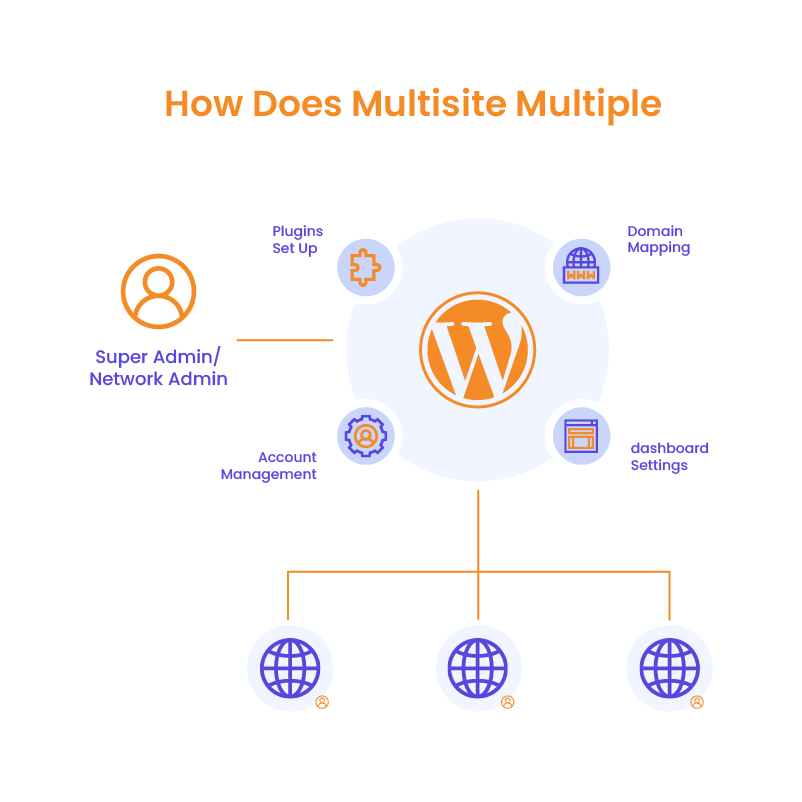
Ideal Scenarios for WordPress Multisite
Multisite is particularly beneficial for businesses or organizations managing multiple websites with similar structures or themes.
Ideal use cases include:
- Educational institutions managing departmental websites
- Franchises maintaining brand consistency across locations
- Companies running multi-language websites
In each case, multisite streamlines website development, offering significant cost savings and scalability.
How to Set Up a WordPress Multisite Network
Setting up a WordPress multisite network involves several steps, but once configured, it provides a powerful way to manage multiple sites with ease. Below is a step-by-step guide to help you get started, along with tips to avoid common pitfalls.
Prerequisites for Multisite
Before you dive into multisite website development, ensure that your hosting environment is up to the task. Multisite networks require a robust server setup, as all sites within the network will share server resources. Here are the key prerequisites:
- Hosting Recommendations: Choose a hosting provider that supports multisite, such as dedicated servers, VPS hosting, or optimized WordPress hosting plans. Shared hosting may not provide enough resources for a growing multisite network.
- Server Requirements: For WordPress multisite to run smoothly, PHP version 7.4 or higher, MySQL version 5.7 or MariaDB version 10.3 or higher, and the Apache mod_rewrite module enabled are essential.
Step-by-Step Guide to Enabling Multisite in WordPress
- Backup Your Website: Before making any changes, it’s crucial to back up your existing WordPress installation.
- Access Your wp-config.php File: Using FTP or your hosting control panel, locate the
wp-config.phpfile in the root directory of your WordPress installation. - Enable Multisite: Open the
wp-config.phpfile and add the following line of code above the line that says “/* That’s all, stop editing! Happy publishing. */”:

Save the file and refresh your WordPress dashboard.
4. Install the Network: In your WordPress dashboard, navigate to Tools > Network Setup. Here, you’ll need to choose between a subdomain or subdirectory configuration:
- Subdomain: Each new site will be a subdomain (e.g., site1.example.com).
- Subdirectory: Each new site will be a subdirectory (e.g., example.com/site1).
Once you’ve selected the appropriate configuration, click Install.
5. Update Configuration Files: WordPress will provide additional code snippets for your wp-config.php and .htaccess files. Follow the instructions to update these files as directed.
6. Log Back In Once you’ve updated the necessary files, log back into your WordPress dashboard, and your multisite network is now enabled!
Domain Mapping vs. Subdomain and Subdirectory Configurations
When configuring your multisite network, you have the option to use subdomains, subdirectories, or map custom domains for individual sites.
- Subdomain Setup: Ideal for businesses that want unique subdomains for each site, such as blog1.example.com.
- Subdirectory Setup: This setup is better for simpler site structures where all subsites live under the same domain, like example.com/blog1.
- Domain Mapping: For businesses that want each subsite to have its own custom domain (e.g., site1.com), you can configure domain mapping using a plugin like WordPress MU Domain Mapping.
Common Setup Pitfalls and How to Avoid Them
- Server Compatibility Issues: Ensure your hosting provider fully supports WordPress multisite. If you’re using shared hosting, consider upgrading to VPS or dedicated hosting.
- Incorrect File Permissions: During setup, ensure your file permissions are correctly configured, as improper permissions can cause issues with enabling the network.
- Plugin Conflicts: Not all plugins work well with WordPress multisite. Before installing any plugin, verify that it’s compatible with a multisite network to avoid conflicts.
- Domain Mapping Complexity: If you choose domain mapping, be prepared for DNS configuration and SSL certificate management, which can add extra complexity.

Managing WordPress Multisite
Once your multisite network is up and running, proper management becomes critical to ensuring smooth operations across all your sites. WordPress multisite management involves several key tasks, from overseeing users and roles to managing themes, plugins, and network settings. Here’s a guide to effectively managing your multisite network.
Key Tasks in WordPress Multisite Management
Managing a multisite network differs from handling individual WordPress installations. As the network administrator, you’ll oversee global settings, ensure security, and manage resources efficiently. Some of the key tasks include:
- User Management: Control user access and permissions across all sites within the network.
- Theme and Plugin Management: Install and manage themes and plugins that can be activated across the entire network or for individual sites.
- Performance Monitoring: Monitor the network’s performance and ensure optimal resource usage across all sites.
- Security and Backups: Ensure security measures are in place and regular backups are performed to protect your network from potential data loss.
Managing Users, Roles, and Permissions
One of the essential aspects of WordPress multisite management is overseeing users and their roles across the network. The main roles you’ll encounter include:
- Super Admin: The Super Admin oversees the entire network. They can install plugins, and themes, and manage network settings.
- Administrator: Individual site administrators can manage their respective sites but lack the network-wide control that Super Admins have.
- Editor, Author, Contributor, Subscriber: These are standard WordPress roles that can be assigned to users depending on the level of access needed.
Managing Themes and Plugins Across the Network
With multisite, you can install themes and plugins once and make them available across the entire network. Here’s how it works:
- Network Activation of Themes: Super Admins can install and enable themes for the entire network or choose to allow individual site admins to activate themes as needed.
- Network Activation of Plugins: Similar to themes, plugins can be installed by the Super Admin and activated either network-wide or on specific sites.
This centralized approach simplifies WordPress multisite management, ensuring consistency across all sites while reducing the need for duplicate installations. However, it’s important to note that not all plugins are compatible with multisite, so always verify plugin compatibility before activation.
Network Admin Dashboard Overview
The Network Admin Dashboard is the command center for WordPress multisite. From this dashboard, the Super Admin can manage the entire network, including users, sites, themes, and plugins. Key sections of the dashboard include:
- Sites: Manage all sites in the network, add new sites, or delete existing ones.
- Users: Oversee all users within the network, assign roles, and manage permissions.
- Themes and Plugins: Install and manage network-wide themes and plugins.
- Settings: Control global settings such as registration options, domain mapping, and email notifications.
Multisite Security and Maintenance
Managing a multisite network requires diligent attention to security and maintenance, as the impact of any vulnerabilities can be network-wide. Regular updates, robust backup strategies, and security measures are essential to ensure the stability and protection of your multisite environment. Below are some key practices for keeping your multisite website development secure and well-maintained.
Importance of Regular Updates
Regular updates to the WordPress core, themes, and plugins are important for the following reasons:
- Security Patches: Each new release of WordPress, as well as updated plugins and themes, often includes fixes for known vulnerabilities. Failing to update could leave your network exposed to hackers and malware.
- Compatibility: Updates ensure that your themes and plugins remain compatible with the latest WordPress core version, preventing conflicts that could disrupt your multisite website development efforts.
- Performance Enhancements: Updates also come with performance optimizations, helping your network run more efficiently and smoothly across all sites.
As the network administrator, you can choose to update the entire network at once from the WordPress dashboard, which streamlines the process and keeps everything consistent.
Backup Strategies for WordPress Multisite Networks
Backing up your multisite network regularly is essential to avoid data loss and ensure that you can quickly restore your sites in case of an issue. However, multisite backups require a slightly different approach compared to single-site WordPress installations. Here are a few backup strategies:
- Full Network Backups: Ensure that your backups cover the entire network, including all subsites, the WordPress core, themes, plugins, and the database. Automated backup tools like UpdraftPlus and BlogVault are compatible with WordPress multisite and can help streamline this process.
- Incremental Backups: For large networks, incremental backups (backing up only the data that has changed) can save time and reduce server load.
- Offsite Storage: Store your backups on external platforms like Google Drive, Amazon S3, or Dropbox to ensure that your data is safe even if your server encounters issues.
Securing Your WordPress Multisite Network
Given the nature of a WordPress multisite, ensuring robust security is even more critical. Here are several measures you should implement to protect your network:
- SSL (Secure Sockets Layer): Enabling SSL certificates for all your network sites ensures that the data transmitted between your users and the server is encrypted. This is particularly important if you’re handling sensitive information like user data or payments.
- Firewalls: Implement a web application firewall (WAF) to block malicious traffic before it reaches your server. Services like Cloudflare or Sucuri offer effective firewall solutions for multisite networks.
- Security Plugins: Several WordPress security plugins, such as Wordfence and Sucuri, offer multisite support and can help protect your network from brute force attacks, malware, and other threats. These plugins can monitor traffic, scan for vulnerabilities, and notify you of potential security issues.
- User Role Restrictions: Since WordPress multisite networks often involve multiple administrators and users, it’s essential to properly manage roles and permissions. Limiting the capabilities of individual site admins while keeping ultimate control with the Super Admin helps prevent accidental or malicious changes to the network.
Website as a service
Website As a Service [WAAS] provides complete website solutions including design, hosting, and maintenance through a convenient subscription model for Agencies.
Optimizing Performance for a Multisite Network
In this section, we’ll explore the best hosting options, caching solutions, and performance tools to help you maintain a fast and efficient multisite website development environment.
Hosting Recommendations for WordPress Multisite
Since all sites in the network share the same resources, selecting a robust hosting solution is key to avoiding slow load times or downtime.
Cloud hosting services like Amazon Web Services (AWS), Google Cloud, or Microsoft Azure offer scalable resources that can grow as your WordPress multisite network expands. This flexibility makes cloud hosting a great choice for businesses expecting fluctuating traffic or growth over time.
Virtual Private Servers (VPS) provide a dedicated portion of a server’s resources for your multisite website development. VPS hosting gives you more control and customization options compared to shared hosting, making it ideal for medium to large networks with multiple sites.
For large multisite networks handling significant traffic, dedicated servers offer the most performance and reliability. With dedicated hosting, you have full control over the server’s resources, ensuring consistent performance across all sites.
Caching Solutions, CDNs, and Other Performance Tools
To improve the speed and performance of your WordPress multisite network, it’s important to use caching and CDNs. Caching plugins like W3 Total Cache or WP Rocket save static versions of your pages, which reduces the need for frequent database queries and makes your sites load faster. These plugins can be applied across all subsites to boost performance for the entire network.
A Content Delivery Network (CDN), like Cloudflare or KeyCDN, helps by distributing your site’s content across global servers. This ensures that users load data from the server closest to them, speeding up access – especially useful for networks with international visitors.
To keep everything running smoothly, tools like New Relic or Pingdom can track load times and spot any performance issues.
For large WordPress multisite networks, use plugins like Smush or ShortPixel to optimize images and media for faster load times. Load-balancing solutions help by distributing high traffic across multiple servers. Regular database optimization with tools like WP-Optimize prevents slowdowns and keeps your network running efficiently.

Troubleshooting Common WordPress Multisite Issues
Managing a WordPress multisite network comes with its own set of challenges. Below are some common issues and practical solutions.
Common Multisite Errors
- Broken Links: Broken links often occur after changes in site structure or domain mapping. To fix this, double-check your permalinks and ensure proper domain mapping.
- Plugin Conflicts: Not all plugins are compatible with multisite website development. Disable plugins one by one to identify the conflict and ensure you’re using multisite-friendly plugins.
- Domain Mapping Issues: Custom domains may not properly link to subsites. Ensure that DNS settings and SSL certificates are correctly configured to avoid issues.
Debugging Tools
Use tools like WP_DEBUG in your wp-config.php file to identify issues. You can also use debugging plugins like Query Monitor to check for conflicts and errors in real time.
Resolving SEO Challenges
SEO in a WordPress multisite network can be tricky, especially with subdomains or subdirectories. Ensure that each site has its own unique SEO settings. Use SEO plugins like Yoast or All-in-One SEO that are multisite-compatible. Also, remember to create separate sitemaps for each site and submit them individually to search engines.
Case Studies and Real-World Examples
Educational Institution in the U.S.
A large educational institution in the U.S. needed a more efficient way to manage websites for its various departments and student groups. By using WordPress multisite, they consolidated over 50 websites into a single network. This solution allowed for centralized management while still giving each department control over its unique content. The outcome? Easier maintenance, significant cost savings, and consistent branding across all sites.
Franchise Chain in the UK
A fast-growing franchise chain in the UK faced the challenge of managing websites for each of its locations. By implementing WordPress multisite, they set up individual websites for each franchise, giving owners control over their content while maintaining corporate branding. This streamlined approach boosted efficiency and allowed the company to scale quickly as new franchises were added.
Lessons Learned and Best Practices
- Centralized control is key for simplifying updates and management, especially in larger networks like educational institutions or franchises.
- Custom domain mapping is essential for businesses like franchises to maintain local identities while remaining part of a larger network.
- Scalability makes WordPress multisite ideal for growing organizations that need to add new sites efficiently.
WordPress Outsourcing Services
Enhance your agency’s capabilities with our WordPress outsourcing services. Get expert development, design, and maintenance support tailored to your needs.
Optimize Your WordPress Multisite Network
WordPress multisite is an excellent solution for businesses, educational institutions, franchises, and other organizations that need to manage multiple websites under one centralized platform. It offers the scalability, cost savings, and streamlined management needed to handle growing networks efficiently. However, it’s essential to assess whether your needs align with the benefits of multisite website development, as it may not be suitable for every scenario.
At White Label Agency, we specialize in WordPress multisite services, helping you set up, manage, and optimize multisite networks to ensure they operate smoothly and efficiently. Whether you’re starting fresh or need support in maintaining an existing network, our team has the expertise to guide you every step of the way.
Contact us today to learn how WLA can help with your WordPress multisite needs.