Common WordPress problems like slow loading times, database errors, or even the dreaded white screen of death are more frequent than many realize. These WordPress errors often come from a variety of causes — outdated plugins, unoptimized code, or server issues. However, with the right knowledge and approach, you can fix WordPress problems quickly and effectively.
A WordPress website must be maintained to function properly. Regular maintenance helps prevent common WordPress issues from escalating into major disruptions that could affect your site’s functionality and your brand’s reputation. Troubleshooting WordPress issues immediately keeps your site running and improves the user experience, leading to better engagement and higher search engine rankings.
In this guide, we’ll dive into the most common WordPress issues and provide actionable solutions to fix WordPress problems to make sure websites remain in top condition.
WordPress maintenance plans
WordPress Maintenance Plans ensure site security, performance, and uptime. Choose custom plans with backups, monitoring, and unlimited content edits.
Common WordPress Issues
WordPress is a powerful CMS, but it’s not without its challenges. Several WordPress issues can affect your site’s performance and user experience. Understanding these common WordPress errors and how to address them is essential for maintaining a smooth-running website.
- Site Speed Issues
One of the most frequent WordPress issues is slow site speed, which can negatively impact user experience and search engine rankings. Common WordPress problems contributing to this include large images, an excess of plugins, and unoptimized code. These factors can cause your site to load slowly, frustrating visitors and leading to higher bounce rates.
To improve site speed, you can start by optimizing images, reducing the number of active plugins, and ensuring your code is efficient. Additionally, using caching plugins and selecting a reliable hosting provider can enhance performance.
- Database Connection Errors
Database connection errors are critical WordPress issues that prevent your site from connecting to its database, rendering it inaccessible. Incorrect database credentials or a corrupted database often causes these WordPress errors. To address these common WordPress problems, you’ll need to check the wp-config.php file for correct database information, repair the database if necessary, and possibly contact your hosting provider for further assistance.
- White Screen of Death
The “White Screen of Death” is one of the more alarming WordPress issues, where your site displays nothing but a blank white screen, leaving you without any error message or clear direction. This issue typically arises from PHP errors, plugin conflicts, or theme-related problems. To start resolving this WordPress error, you can enable debugging in WordPress, deactivate your plugins or themes, and increase the memory limit.
- Internal Server Errors
Internal server errors are common yet disruptive WordPress issues that can prevent your site from loading properly. These WordPress errors are often triggered by a corrupted .htaccess file or hitting the PHP memory limit. To address these common WordPress problems, you might need to edit the .htaccess file, increase the PHP memory limit, and check the server logs for any underlying issues.
- 404 Errors
404 errors are typical WordPress issues that occur when a user tries to access a page that doesn’t exist on your site. These WordPress errors are usually caused by broken links or incorrect permalink settings. To resolve these common WordPress problems, you can fix the permalinks or use redirection plugins to guide users to the correct pages.
- Update Errors
Update errors are frequent WordPress issues that can arise when updates to the WordPress core, plugins, or themes are incomplete or conflict with existing site elements. These WordPress errors can disrupt your site’s functionality, leading to unexpected problems. To address these common WordPress problems, you might need to perform manual updates, restore your site from backups, or deactivate conflicting plugins.

How to Fix WordPress Issues: Step-by-Step Guide
Before diving into specific solutions for WordPress issues, it’s crucial to take some preliminary steps to ensure a smooth troubleshooting process. Proper preparation will help you fix WordPress problems more effectively and prevent further complications.
Backing Up Your WordPress Site
Before making any changes to address WordPress errors, always back up your site. This ensures that you can restore your site to its previous state if anything goes wrong during the troubleshooting WordPress process. Use a reliable backup plugin or your hosting provider’s backup service to create a full backup of your files and database.
Enabling WordPress Debugging
Enabling debugging is essential for identifying the root causes of common WordPress problems. To do this, add define(‘WP_DEBUG’, true); to your wp-config.php file. This will display errors and warnings on your site, providing valuable information that will help you fix WordPress issues more efficiently.
Detailed Fixes
Site Speed Issues
Improving site speed is essential for addressing WordPress issues related to performance. Below are step-by-step instructions on how to fix WordPress speed errors.
- Optimize Images
- Compress and resize images before uploading them to your site. Tools like TinyPNG or plugins like Smush can help automate this process.
- Use the <img srcset> attribute to serve different image sizes based on the user’s screen resolution, improving load times.
- Minify CSS and JavaScript
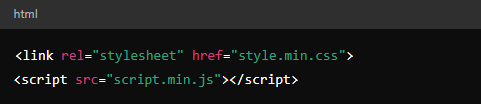
- Minifying your CSS and JavaScript files reduces their size, leading to faster page load times. You can use a plugin like Autoptimize to automate this process.
- Example code snippet for manual minification:
- Leverage Caching
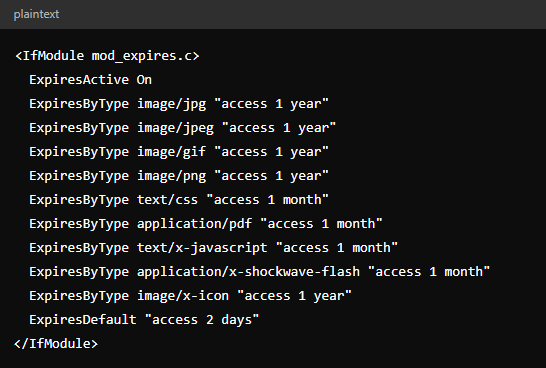
- Install a caching plugin like WP Rocket or W3 Total Cache to store static versions of your site, reducing the load on your server.
- Enable browser caching by adding the following code to your .htaccess file:
- Choose a Reliable Host
- Your hosting provider plays a significant role in site speed. Consider upgrading to a managed WordPress hosting service that offers optimized server environments.
- Compare your current hosting provider’s performance using tools like GTmetrix or Pingdom, and switch if necessary.
By following these steps, you can effectively troubleshoot WordPress speed issues and enhance your site’s overall performance.
Database Connection Errors
Database connection errors are critical WordPress issues that can bring your site to a standstill. Follow these step-by-step instructions to fix WordPress database connection errors.
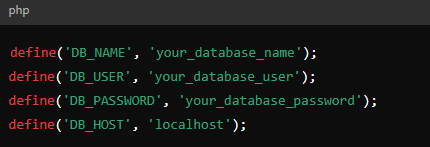
- Check wp-config.php File
- Access your site’s files via FTP or your hosting control panel.
- Locate the wp-config.php file in the root directory of your WordPress installation.
- Open the file and check the database credentials:
- Repair the Database
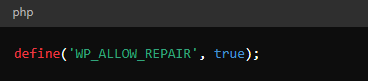
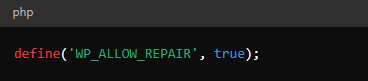
- Add the following line to your wp-config.php file to enable the database repair feature:
- Save the file and navigate to http://yoursite.com/wp-admin/maint/repair.php in your browser.
- Choose either the “Repair Database” or “Repair and Optimize Database” option.
- Once the repair is complete, remove the define(‘WP_ALLOW_REPAIR’, true); line from your wp-config.php file to disable the repair mode.
- Contact Hosting Support
- If the above steps do not resolve the issue, the problem might be with your server. Contact your hosting provider’s support team for assistance. They can check server logs, review your database setup, and address any underlying WordPress errors that might be causing the connection problem.
White Screen of Death
The “White Screen of Death” is a frustrating WordPress issue where your site displays a blank white screen without any error message. Follow these step-by-step instructions to fix WordPress when this problem occurs.
- Enable WordPress Debugging
- Access your site’s files via FTP or your hosting control panel.
- Open the wp-config.php file located in the root directory of your WordPress installation.
- Add the following line to enable debugging:
- Reload your site in the browser. The debug mode should display any PHP errors causing the white screen, giving you a starting point for troubleshooting WordPress.
- Deactivate Plugins
- Connect to your site via FTP or through your hosting file manager.
- Navigate to wp-content/plugins and rename the plugins folder to something like plugins_old. This will deactivate all plugins on your site.
- Check if the white screen issue is resolved. If it is, the problem lies with one of the plugins.
- Rename the folder back to plugins and reactivate each plugin one by one from the WordPress dashboard to identify the conflicting plugin.
- Switch to a Default Theme
- If deactivating plugins doesn’t resolve the issue, the problem may be with your theme.
- Access the wp-content/themes directory via FTP.
- Rename your active theme’s folder to something like theme_old. WordPress will automatically switch to a default theme like Twenty Twenty-One.
- Check if your site is now visible. If it is, the issue is with your theme.
- Increase PHP Memory Limit
- If the problem persists, try increasing the PHP memory limit by adding the following line to your wp-config.php file:

- This increases the memory available to your site, which can resolve common WordPress problems related to resource exhaustion.
Internal Server Errors
Internal server errors are disruptive WordPress issues that can prevent your site from loading properly. Here’s how to fix WordPress internal server errors step by step.
- Edit the .htaccess File
- Connect to your site via FTP or your hosting control panel.
- Locate the .htaccess file in the root directory of your WordPress installation.
- Rename the file to .htaccess_old to temporarily disable it.
- Try reloading your site in the browser. If the site loads, the issue was likely with the .htaccess file.
- Generate a new .htaccess file by going to your WordPress dashboard, navigating to Settings > Permalinks, and clicking “Save Changes” without altering any settings. This will create a fresh .htaccess file.
- Increase PHP Memory Limit
- Access the wp-config.php file in the root directory of your WordPress installation.
- Add the following line to increase the PHP memory limit:

- Save the file and refresh your site. This can resolve common WordPress problems where your site runs out of memory, causing internal server errors.
- Check Server Logs
- If the above steps don’t resolve the error, check your server logs for more detailed error messages. You can access these logs through your hosting control panel, often under a section labeled “Error Logs” or “Server Logs.”
- Review the logs for any specific issues that might be causing the internal server error and address them accordingly.
- Contact Hosting Support
- If you’re unable to resolve the issue after checking the logs, contact your hosting provider’s support team. They can assist with further troubleshooting WordPress and may need to adjust server settings or address underlying server-related WordPress errors.
404 Errors
404 errors are common WordPress problems that occur when users try to access a page that doesn’t exist. Here’s how to fix WordPress 404 errors with straightforward steps.
- Fix Permalink Settings
- Go to your WordPress dashboard and navigate to Settings > Permalinks.
- Without changing any settings, click “Save Changes.” This action refreshes your permalink structure and can often resolve 404 errors.
- Check your site to see if the issue is resolved.
- Use a Redirection Plugin
- If you have broken links that are causing 404 errors, install a redirection plugin like Redirection.
- After installing and activating the plugin, navigate to Tools > Redirection in your WordPress dashboard.
- Add the old URL (the one causing the 404 error) in the “Source URL” field and the correct URL in the “Target URL” field.
- Save the redirection, and the plugin will automatically redirect users from the broken link to the correct page.
- Check and Update .htaccess File
- If permalink settings and redirections don’t resolve the issue, your .htaccess file might be the problem. Access it via FTP or your hosting control panel.
- Ensure your .htaccess file contains the correct default WordPress rules:
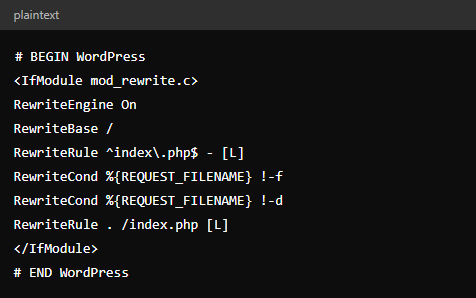
- Save the file and test your site again to see if the 404 errors are resolved.
Update Errors
Update errors are common WordPress problems that can occur when updating the WordPress core, plugins, or themes. These WordPress issues can cause your site to malfunction or become inaccessible. Follow these steps to fix WordPress update errors effectively.
- Perform Manual Updates
- If an automatic update fails, you can update WordPress manually.
- Download the latest version of WordPress from wordpress.org.
- Extract the files and upload them to your WordPress installation via FTP, replacing all files except the wp-content folder and wp-config.php file.
- After the upload is complete, visit http://yoursite.com/wp-admin/upgrade.php to run the upgrade script.
- Restore from Backup
- If an update causes issues, restore your site to its previous state using a backup.
- Use a backup plugin like UpdraftPlus or your hosting provider’s backup solution.
- Navigate to the backup section in your WordPress dashboard, select the most recent backup, and click “Restore.”
- Once restored, you can troubleshoot the update process before attempting it again.
- Deactivate Conflicting Plugins/Themes
- Update errors often result from conflicts between plugins or themes.
- Deactivate all plugins by renaming the plugins folder via FTP.
- Attempt the update again with all plugins deactivated. If successful, reactivate each plugin one by one to identify the conflicting one.
- If the issue lies with the theme, switch to a default theme like Twenty Twenty-One and attempt the update again.
- Enable WP_DEBUG
- If update errors persist, enable debugging by adding the following line to your wp-config.php file:
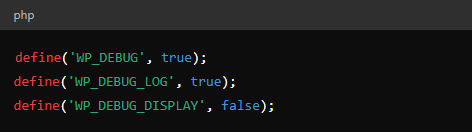
- This will create a debug.log file in the wp-content directory, where you can review errors related to the update.
Tools and Plugins for Fixing WordPress Issues
When it comes to troubleshooting WordPress, the right tools and plugins can make resolving WordPress issues much easier. Below is an overview of essential plugins and how to use them effectively to fix WordPress errors.
- WP Rocket (Caching and Performance Optimization)
- Purpose: WP Rocket is a powerful caching plugin that helps speed up your site by creating cached copies of your pages, optimizing file delivery, and minimizing the load on your server.
- How to Use: After installing WP Rocket, navigate to the settings in your WordPress dashboard. Enable caching, file optimization (CSS/JS minification), and lazy loading for images. The plugin automatically applies the best settings for optimal performance, but you can customize it based on your site’s needs.
- UpdraftPlus (Backup and Restoration)
- Purpose: UpdraftPlus is a reliable backup plugin that allows you to schedule regular backups of your site and restore them if something goes wrong during updates or troubleshooting.
- How to Use: Install UpdraftPlus and go to the settings in your dashboard. Set up automated backups to run daily or weekly, depending on how often your site is updated. Choose where to store backups (e.g., Google Drive, Dropbox) and run a manual backup before making significant changes. If you need to restore, simply select the desired backup and click “Restore.”
- Redirection (404 Error Management)
- Purpose: Redirection is a handy plugin for managing 301 redirects and tracking 404 errors, helping you maintain proper site structure and avoid broken links.
- How to Use: After installing Redirection, access the plugin through the Tools menu in your dashboard. Set up redirects by entering the old URL and the target URL. The plugin also logs 404 errors, allowing you to easily identify and fix broken links that could impact your site’s SEO and user experience.
- WP-DBManager (Database Management)
- Purpose: WP-DBManager is a comprehensive tool for optimizing, repairing, and backing up your WordPress database, crucial for resolving database-related WordPress errors.
- How to Use: Once installed, go to Database > DB Options in your dashboard. You can schedule automatic database backups and optimization. Use the “Repair DB” function to fix any issues detected during troubleshooting, ensuring your database remains healthy.
- Wordfence (Security and Malware Scanning)
- Purpose: Wordfence is a robust security plugin that provides firewall protection, malware scanning, and login security to protect your site from vulnerabilities.
- How to Use: Install Wordfence and access the plugin through the Wordfence menu in your dashboard. Run a full scan to detect and remove malware or suspicious files. Configure the firewall settings to block malicious traffic and set up alerts for any potential security threats.
Using these tools and plugins effectively can streamline the process of fixing WordPress issues and maintaining your site’s performance, security, and stability.
Preventive Measures
Taking preventive measures is key to avoiding WordPress issues before they disrupt your site. By focusing on regular maintenance, security, and performance optimization, you can minimize the risk of encountering common WordPress problems and ensure your site runs smoothly.
Regular Maintenance
Regular updates are essential to keep your WordPress site secure and functioning correctly. This includes updating the WordPress core, themes, and plugins to the latest versions. Outdated software can lead to WordPress errors and vulnerabilities that hackers can exploit. Set up automatic updates where possible, or make it a habit to check for updates weekly. Regular maintenance helps you fix WordPress issues proactively, preventing them from escalating into bigger problems.
Security Measures
Implementing strong security practices is crucial for protecting your site from attacks. Start by installing a reputable security plugin like Wordfence or Sucuri to monitor your site for malware and suspicious activity. Regular malware scans should be part of your routine to catch potential threats early. Additionally, securing your wp-config.php file by moving it to a non-public directory and setting the correct file permissions can prevent unauthorized access to sensitive information. These steps are vital for troubleshooting WordPress security vulnerabilities before they cause significant damage.
Optimizing Site Performance
Maintaining optimal site performance is another critical preventive measure. Regularly conducting performance audits helps identify areas where your site can be improved, such as image optimization, reducing server load, or minimizing HTTP requests. Database optimization is also essential; regularly clean up your database by deleting unnecessary data like spam comments or post revisions. Using a Content Delivery Network (CDN) can further enhance site speed by distributing content across multiple servers worldwide, reducing latency and load times.
Troubleshooting Tips and Best Practices
While many WordPress issues can be resolved with basic troubleshooting, there are times when it’s best to seek professional help. Knowing when an issue is beyond DIY fixes can save you time and prevent further complications.
When to Contact Support
Some WordPress errors may require more advanced knowledge or access to server configurations that go beyond standard troubleshooting. If you’ve tried basic solutions like deactivating plugins, fixing permalinks, or increasing memory limits, and the issue persists, it’s time to contact support. Persistent common WordPress problems such as repeated internal server errors, ongoing security breaches, or critical database failures are indicators that professional intervention is needed.
Hiring a Professional
Hiring a professional WordPress support service can be a game-changer in maintaining your site’s health. Professionals not only fix WordPress issues more efficiently but also offer proactive monitoring to prevent future problems. They bring expertise that can quickly identify the root cause of WordPress errors and apply the best practices to resolve them.
The White Label Agency offers comprehensive WordPress maintenance services tailored to keep your site running smoothly. Our team of experts handles everything from regular updates, security scans, and performance optimizations to complex troubleshooting. By partnering with The White Label Agency, you gain access to ongoing support, ensuring that any WordPress issues are addressed promptly and effectively, allowing you to focus on your core business without worrying about website maintenance.
WordPress maintenance plans
WordPress Maintenance Plans ensure site security, performance, and uptime. Choose custom plans with backups, monitoring, and unlimited content edits.
The Cost of Ignoring WordPress Issues
Neglecting WordPress issues can have significant consequences for your business, impacting everything from revenue to reputation.
Financial Losses Due to Downtime
Website downtime can be costly, especially for e-commerce businesses. Each minute your site is down, potential sales and conversions are lost. Slow load times can also deter customers, leading to abandoned carts and reduced sales. Studies show that a one-second delay in page load time can decrease conversions by up to 7%. To avoid these losses, it’s crucial to fix WordPress errors promptly and ensure your site is always accessible.
Damage to Brand Reputation
A poorly maintained website can quickly damage your brand’s reputation. Frequent WordPress errors or outdated content can frustrate visitors, leading to negative reviews and loss of customer trust. Consistent maintenance and troubleshooting of WordPress problems help maintain a professional online presence, keeping your customers satisfied and loyal.
SEO and Ranking Penalties
Unresolved common WordPress problems can result in search engine penalties, lowering your site’s visibility and traffic. Issues like broken links, slow page speed, and outdated plugins can all negatively impact your SEO rankings. Regular maintenance and timely fixes are essential to keep your site optimized and search-engine friendly.
Security Risks and Legal Consequences
Ignoring security vulnerabilities is particularly dangerous. WordPress issues related to security, such as unpatched plugins or weak passwords, can lead to data breaches. This not only risks financial losses but can also result in legal consequences if sensitive customer data is compromised. Proactively addressing security issues through regular updates and security scans is critical to protect your business and its customers.
WordPress Issues Prevention Checklist
Preventing WordPress issues is more effective and less stressful than fixing them after they arise. Follow this checklist to keep your site running smoothly and avoid common WordPress problems.
Regular Updates
- Core WordPress Updates: Always keep your WordPress core updated to the latest version to ensure security and compatibility.
- Plugin and Theme Updates: Regularly update all plugins and themes to prevent WordPress errors caused by outdated software.
Security Measures
- Install a Security Plugin: Use a reliable security plugin to protect your site from malware and unauthorized access.
- Backup Regularly: Ensure that your site is backed up frequently, so you can quickly restore it if an issue occurs.
- Use Strong Passwords: Protect your admin account and other sensitive areas by using strong, unique passwords.
Performance Optimization
- Optimize Images: Compress and resize images to improve site speed and reduce load times.
- Enable Caching: Use a caching plugin to store static versions of your pages, speeding up load times for visitors.
- Minify CSS, JavaScript, and HTML: Minify these files to reduce their size and enhance site performance.
Regular Audits and Monitoring
- Check for Broken Links: Regularly scan your site for broken links and fix them to maintain SEO and user experience.
- Monitor Uptime: Use uptime monitoring tools to ensure your site is accessible and identify downtime quickly.
- Conduct Performance Tests: Periodically test your site’s performance to identify areas for improvement.
Security Hardening
- Limit Login Attempts: Protect against brute force attacks by limiting the number of login attempts.
- Disable File Editing: Prevent unauthorized users from editing theme and plugin files by disabling file editing in the dashboard.
- Use Two-Factor Authentication: Add an extra layer of security by enabling two-factor authentication for admin accounts.
Content and SEO Management
- Optimize Content for SEO: Regularly review and optimize your content to ensure it’s SEO-friendly and ranks well in search engines.
- Check Meta Tags and Descriptions: Ensure that all pages and posts have accurate and relevant meta tags and descriptions to improve search visibility.
Following this checklist will help you proactively prevent WordPress issues and keep your site secure, fast, and user-friendly. Regular maintenance is key to avoiding the need for urgent troubleshooting WordPress problems.
Website as a service
Website As a Service [WAAS] provides complete website solutions including design, hosting, and maintenance through a convenient subscription model for Agencies.
Conclusion
In this guide, we’ve covered the most common WordPress problems and provided actionable steps to fix WordPress issues effectively. From addressing site speed and database errors to preventing the dreaded White Screen of Death, proactive maintenance is essential to keep your website running smoothly and securely.
Staying ahead of WordPress issues through regular updates, security measures, and performance optimization not only prevents disruptions but also protects your brand’s reputation and ensures a positive user experience.
To ensure your site remains in top condition, consider partnering with The White Label Agency. Our expert team will handle all aspects of troubleshooting WordPress, keeping your site secure, fast, and reliable. Contact us today to schedule a consultation and give your WordPress site the professional care it deserves.