


Duplicating a page in WordPress can save you a lot of time and effort, especially if you manage a content-heavy website. Whether you’re testing new layouts, creating landing pages, or setting up similar content across multiple sections, knowing how to duplicate a page in WordPress efficiently can streamline your workflow.
In this comprehensive guide, we will discuss the various methods of duplicating a page in WordPress, from using plugins to manual duplication. We will also cover best practices, common pitfalls to avoid, and advanced techniques for those looking to improve their page duplication.
Understanding WordPress Pages and Posts

Before diving into the different methods of how to duplicate a page in WordPress, it’s essential to understand the distinction between WordPress pages and posts:
- Pages are generally static content used for information that doesn’t change frequently, such as the About Us, Contact Us, or Service pages.
- Posts are dynamic content, typically used for blog articles, news updates, and other time-sensitive content.
Understanding this difference is crucial when deciding which content type to duplicate and which method best suits your needs.
When to Duplicate a Page Versus a Post
Pages are typically designed to be more static and may require duplication when you need multiple versions of a similar layout or content. On the other hand, posts are more dynamic, and their duplication may be necessary if you want to replicate recurring content or create similar blog posts quickly. Choose the right method based on the type of content you’re working with.
WordPress Development Agency
Experience WordPress development with our custom-coded websites. Perfect for agencies, our reliable service ensures timely delivery and client satisfaction.
4 Methods to Create a WordPress Duplicate Page
There are several ways to duplicate a page in WordPress, ranging from simple to advanced methods. Each approach comes with its own set of benefits, and the right one for you depends on your specific needs and technical expertise.
1. Using Plugins
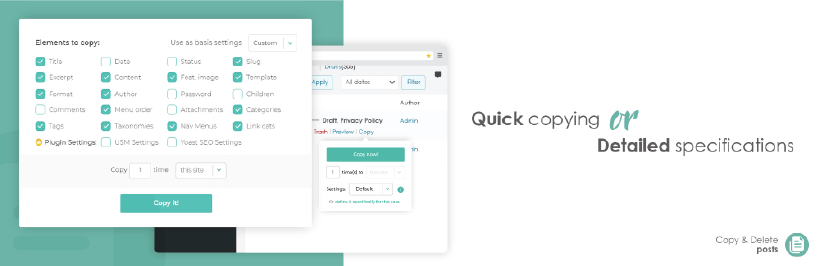
One of the easiest and most reliable ways to duplicate a page in WordPress is by using a plugin. Plugins can automate the process and make it easier for users, especially those who are new to WordPress or prefer not to deal with manual duplication.
Popular Plugins for Duplicating Pages
The Duplicate Post plugin is one of the most popular choices for duplicating pages. It’s a simple tool that allows you to duplicate content with just a few clicks.
Steps for Using the Duplicate Post Plugin:
- Install and activate the plugin from the WordPress Plugin Directory.
- Navigate to the page you want to duplicate.
- Hover over the page title and select “Clone” from the available options.
- A new draft of the page will be created with the same content. You can now edit this draft as needed.
Advantages of Using Plugins:
- Ease of use: Plugins like Duplicate Post require minimal effort to set up and use, making them ideal for beginners.
- Preserves all content: The plugin duplicates everything, including text, images, and SEO settings.
Disadvantages of Using Plugins:
- Limited control over custom fields: Advanced users may find plugins lacking when it comes to duplicating custom fields and advanced metadata, such as SEO settings.
2. Manual Duplication
Insert Image “Duplicate page in WordPress manually”

Manual duplication is another straightforward option if you want to duplicate page in WordPress, but prefer not to use plugins. This method requires copying and pasting the content from one page to another, along with manually copying attributes like featured images and SEO metadata.
Steps for Manual Duplication:
- Click on Posts or Pages in your WP-Admin dashboard.
- Hover your mouse over the title of the page you want to make a copy of.
- Click the “Duplicate” link that appears below the page name
- Manually recreate the page settings such as featured images, SEO metadata, and permalinks.
Advantages of Manual Duplication:
- No plugins required: Ideal for users who want to avoid installing additional plugins.
- Full control: You have complete control over the content, including SEO metadata, page settings, and layout.
Disadvantages of Manual Duplication:
- Time-consuming: This method is slower, especially when you have many settings to duplicate.
- Risk of errors: There’s a higher chance of missing critical settings, like SEO configurations or custom fields.
3. Using the Block Editor (Gutenberg)
Since we have already explored how to duplicate a page in WordPress using plugin and manual methods, let’s also have a look at using Block Editor for the same purpose. The WordPress Block Editor (also called Gutenberg) offers a more structured way to create and manage content. It allows users to work with “blocks” of content that can be reused across pages. This method is particularly useful when you want to duplicate sections of a page instead of the entire page.
Steps for Using Reusable Blocks:
- In the WordPress Block Editor, select the block you want to reuse.
- Click on the three dots in the block toolbar and select “Add to Reusable Blocks.”
- On a new page, insert the reusable block by selecting it from the block options.
Advantages of Using Reusable Blocks:
- Efficiency: Great for reusing specific sections across multiple pages (e.g., testimonials, pricing tables).
- Consistency: Ensures that repeated content across pages maintains the same design and structure.
Disadvantages of Using Reusable Blocks:
- Limited duplication: This method is suited for sections of a page but not for duplicating an entire page.
- Requires familiarity with the Block Editor: If you’re still using the Classic Editor, this method may not be available to you.
4. Duplicating Pages in Classic Editor
For users still using the Classic Editor, duplicating a page requires a more manual process. Though it lacks the block-based functionality of the Block Editor, it’s still an effective way to replicate content if you’re comfortable with the interface.
Steps for Duplicating Pages in Classic Editor:
- Copy all the content from the original page.
- Create a new page and paste the content into the editor.
- Update the page title, URL, and SEO settings manually.
Advantages of Classic Editor Duplication:
- Familiar interface: Classic Editor users can rely on the interface they know.
- Control over content: You can fully customize the duplicated page.
Disadvantages of Classic Editor Duplication:
- Manual process: It doesn’t have the built-in reusable blocks or plugin-based tools, making it slower than other methods.
- Limited to basic duplication: More complex page elements, like SEO settings or custom fields, may be harder to duplicate.
Advanced Duplication Techniques
For more advanced users, there are additional techniques to duplicate page in WordPress that go beyond the basics.
1. Duplicating Pages with Custom Fields and Meta Data
If your page includes custom fields, SEO metadata, or other specialized settings, you’ll need to ensure these elements are duplicated as well.
How to Duplicate with Custom Fields and Meta Data:
- Use plugins like Yoast SEO or Advanced Custom Fields to manage custom fields.
- Ensure that these plugins are configured to copy the metadata to the new page.
- Check the new page to ensure all custom settings are properly transferred.

2. Duplicating Pages in WordPress Multisite
You manage multiple sites from a WordPress installation in a Multisite setup. Duplicating pages across different sites in a Multisite network requires additional tools and plugins to simplify the process.
Tools for Multisite Page Duplication:
Use plugins like Multisite Clone Duplicator to duplicate pages across multiple sites within a network.
3. Duplicating Pages with Page Builders
Page builders like Elementor offer powerful, visual tools that allow you to duplicate custom pages easily while preserving design, layout, and content. If you’re using Elementor or other page builders, this method can save you time by quickly replicating the layout and structure of existing pages.
Steps for Duplicating Pages with Elementor Using the WordPress Dashboard:
- Go to the Pages Tab:
In your WordPress dashboard, navigate to the Pages section on the left-hand menu. - Hover Over the Page:
Find the page you want to duplicate in the list of pages. Hover over the page title. - Click More Options:
Click the More Options button (usually represented by three dots or a gear icon) next to the page title.

- Select Duplicate Page:
From the drop-down menu, select Duplicate Page. This will create an exact copy of the page.

- Click Done:
After the duplication process is complete, click Done to finalize the process. - New Page Appears in Your List:
The duplicated page will now appear in your list of pages. You can go ahead and edit this new page to suit your needs.

Advantages of Using Page Builders:
- Preserved Design and Layout: Page builders like Elementor keep the design and layout intact, ensuring that complex elements, such as widgets, columns, and custom sections, are copied perfectly when you duplicate WordPress page.
- High Customization: You can adjust content (e.g., text, images) after duplication without affecting the overall layout or requiring coding, offering flexibility for advanced customization.
- Streamlined Workflow: Elementor’s drag-and-drop interface speeds up the process of page duplication and modification, making it easier to create multiple pages that share the same structure and design.
Disadvantages of Using Page Builders:
- Proprietary Systems: Since Elementor and other page builders have their own layout systems, switching to a different page builder can result in layout issues that require rebuilding certain sections.
- Plugin Dependency: Your page’s layout is tied to the page builder plugin. If the plugin is deactivated or uninstalled, it could break the page’s layout, leading to design loss or inconsistencies.
Website as a service
Website As a Service [WAAS] provides complete website solutions including design, hosting, and maintenance through a convenient subscription model for Agencies.
Best Practices for Duplicating Pages
1. Avoid Duplicate Content Issues for SEO
One of the most important things when you duplicate page in WordPress is to ensure that duplicate content doesn’t hurt your SEO rankings. Search engines like Google may penalize websites for having identical content across multiple pages.
- Modify Content: Always make sure to adjust the content on the duplicated page to make it unique.
- Use Canonical Tags: If you must have duplicate pages, use canonical tags to inform search engines which version of the page to prioritize.
2. Update Internal Links and Navigation
Once you duplicate WordPress page, don’t forget to update internal links and navigation menus. A common issue with duplicated pages is that links may still point to the original page, leading to broken links or poor user experience.
3. Test Duplicated Pages for Functionality and Consistency
After duplicating a page, always test it to ensure that everything works correctly. Check the page’s layout, links, forms, and functionality to make sure everything is intact.
Troubleshooting Common Issues
- Plugin Conflicts: Sometimes plugins can interfere with the duplication process. If you’re encountering issues, check for conflicts between your plugins and ensure they’re up to date.
- Permission Errors: If you’re having trouble duplicating pages, ensure that you have the necessary user permissions.
- Formatting Discrepancies: After duplication, some formatting may not appear as intended. Test the page across different devices and browsers to ensure consistency.
Final Thoughts on Efficient Page Duplication in WordPress
Duplicating pages in WordPress is a powerful tool for improving workflow and efficiency. By understanding the different methods of how to duplicate a page in WordPress (from plugins to manual duplication), and knowing when to use them, you can make the process efficient. Advanced techniques, like handling custom fields and duplicating pages in multisite networks, can help you optimize even further.
Choosing the right method depends on your workflow and technical skills, but by following best practices and troubleshooting common issues, you can ensure your duplicated pages are functional and SEO-friendly.
Looking for a trusted WordPress partner to streamline your workflow? WLA is here to help! As your dedicated white label team, we provide custom WordPress development, handling everything from design to deployment. With over 100 expert developers and a commitment to quality, we ensure your projects are delivered on time and to your exact specifications. Partner with WLA today and let us take care of your WordPress needs while you focus on what you do best.


